
Manage test payments
Create test payments
Card payments
-
Log in to the Merchant portal.
-
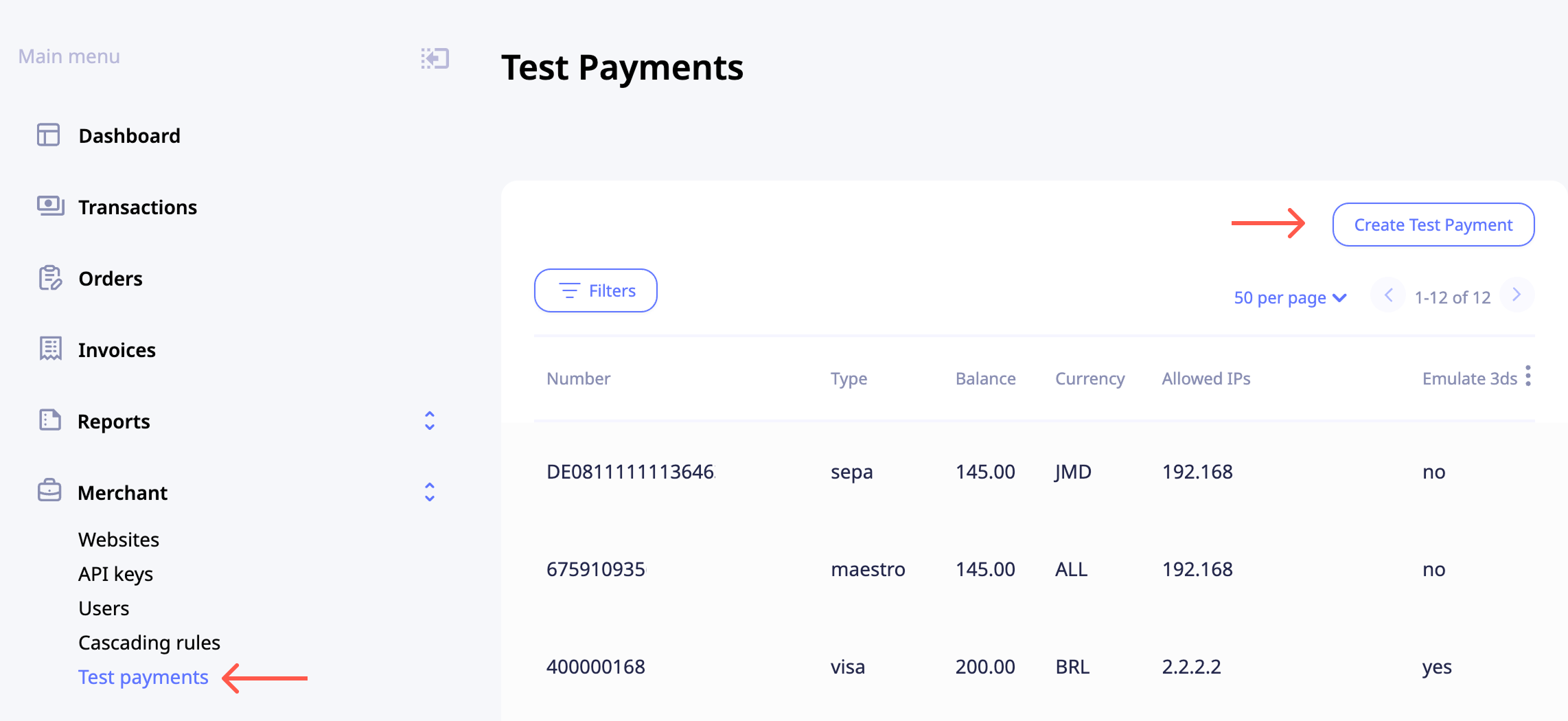
Under Merchant in the main menu, click Test payments. The test payments page opens.
-
Click Create test payment
-
Fill in the required information:
- Merchant
NoteTest payments can be created only for the Parent merchant but will also be visible in all daughter accounts.
- Set card type
- Provide account balance
- Select currency
- Provide your IP address
- You can enable additional options for testing: Emulate 3DS – simulates the 3D-Secure flow for test transactions. Blocked – blocks the test card details for testing purposes
- Add any relevant comments if necessary
- Click Create to finish setting up your new card number
- You will be redirected to the test payments page with card numbers, ready for testing. From this page, you can also edit or delete any of the previously created cards. Use CTRL+F to search for your IP address in the list to find the card number that you have just generated
- Using API, generate a new payment URL
- Start testing
Sepa payments
- Log in to the Merchant portal.
- Under Merchant in the main menu, click Test payments. The test payments page opens.
- Click Create test payment
- Fill in the required information:
- Merchant
NoteTest payments can be created only for the Parent merchant but will also be visible in all daughter accounts.
- Select Sepa
- Provide account balance
- Select currency
- Provide your IP address
- You can enable additional options for testing: Emulate 3DS – simulates the 3D-Secure flow for test transactions. Blocked – blocks the test card details for testing purposes
- Add any relevant comments if necessary
- Click Create to finish setting up your new card number
- You will be redirected to the test payments page with card numbers, ready for testing. From this page, you can also edit or delete any of the previously created cards. Use CTRL+F to search for your IP address in the list to find the card number that you have just generated
- Using API, generate a new payment URL
- Start testing
Token payments
- Generate a card number, as shown in the Card payments guide
Tokenizethe newly generated card number- Receive the token in the callback
- Using API, make a
Paymentrequest setting thepaymentSource.typetotokenand thevalue- to thetokenyou have just received
Manage test payments page
Edit/delete test payment
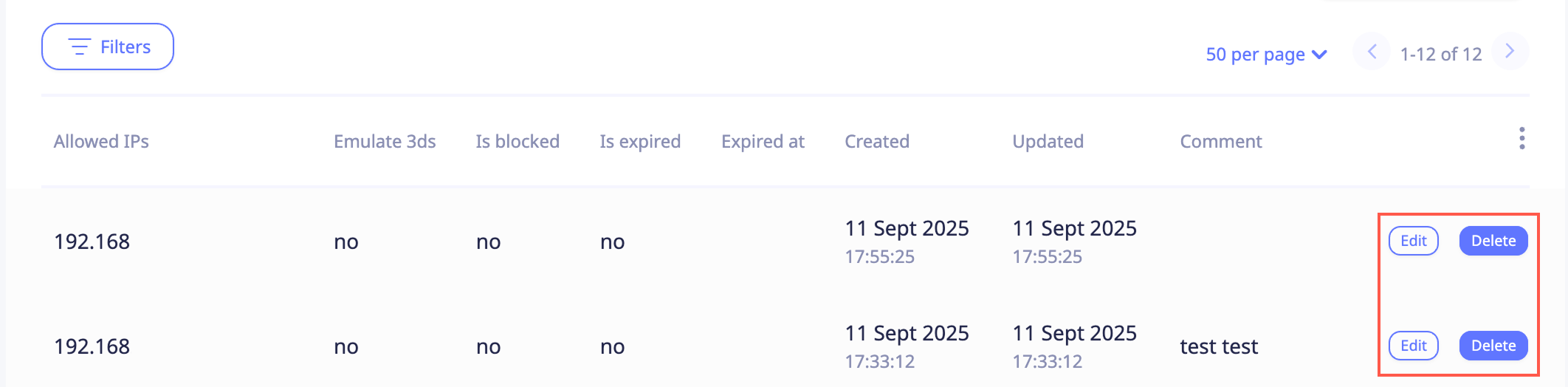
To edit or delete a test payment, click Edit or Delete next to the corresponding entry.
Customize view
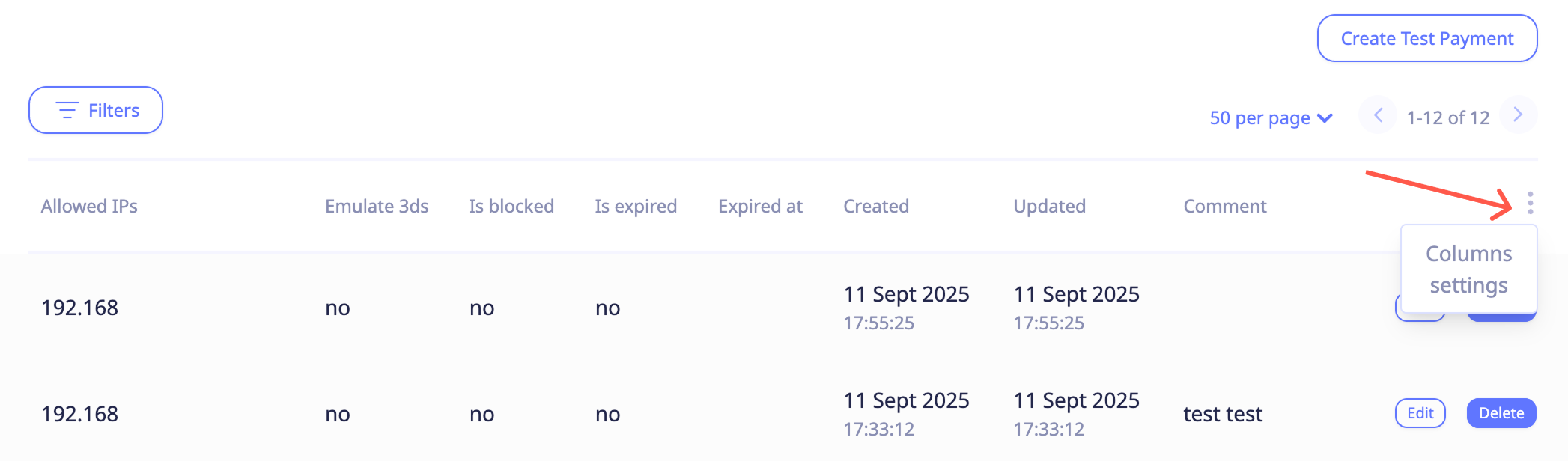
To customize which columns are displayed in the Test payments table, click Column settings.
Updated about 1 year ago
Did this page help you?