
Manage users
Create a new user
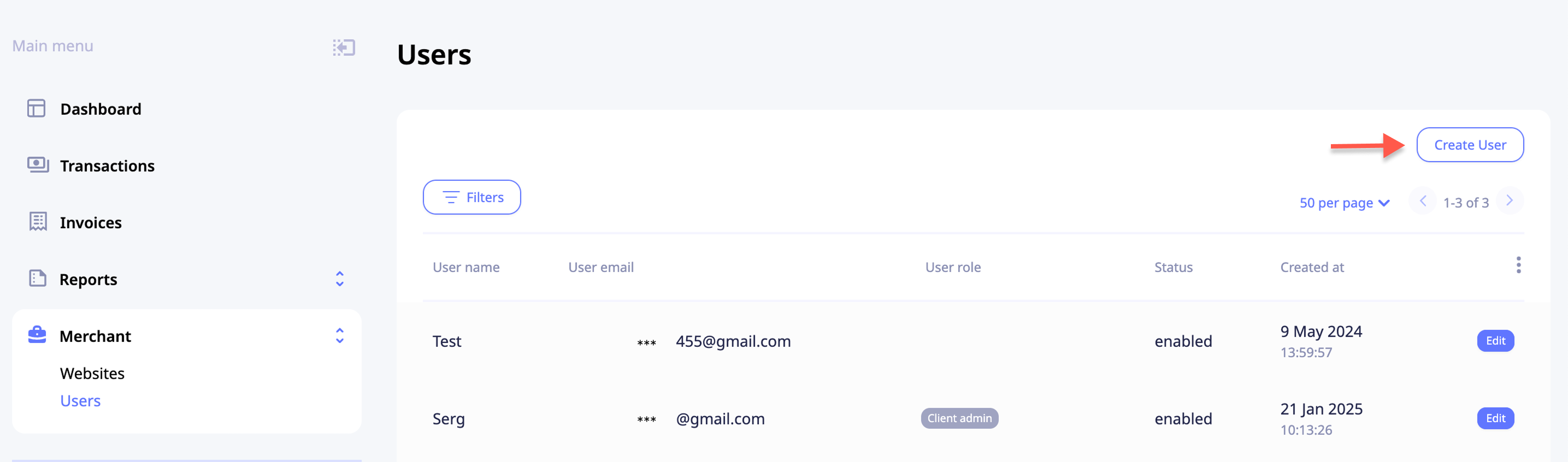
To create a new user, click on the Merchant dropdown, click Users, and then click Create User in the upper right corner.
The user details form will open, allowing you to enter the new user's information. Provide the name, email, and password, set the status to enabled or disabled, and assign roles to define access levels. Lastly, assign merchants to which the user will have access. Once done, click Save.
User roles overwiev
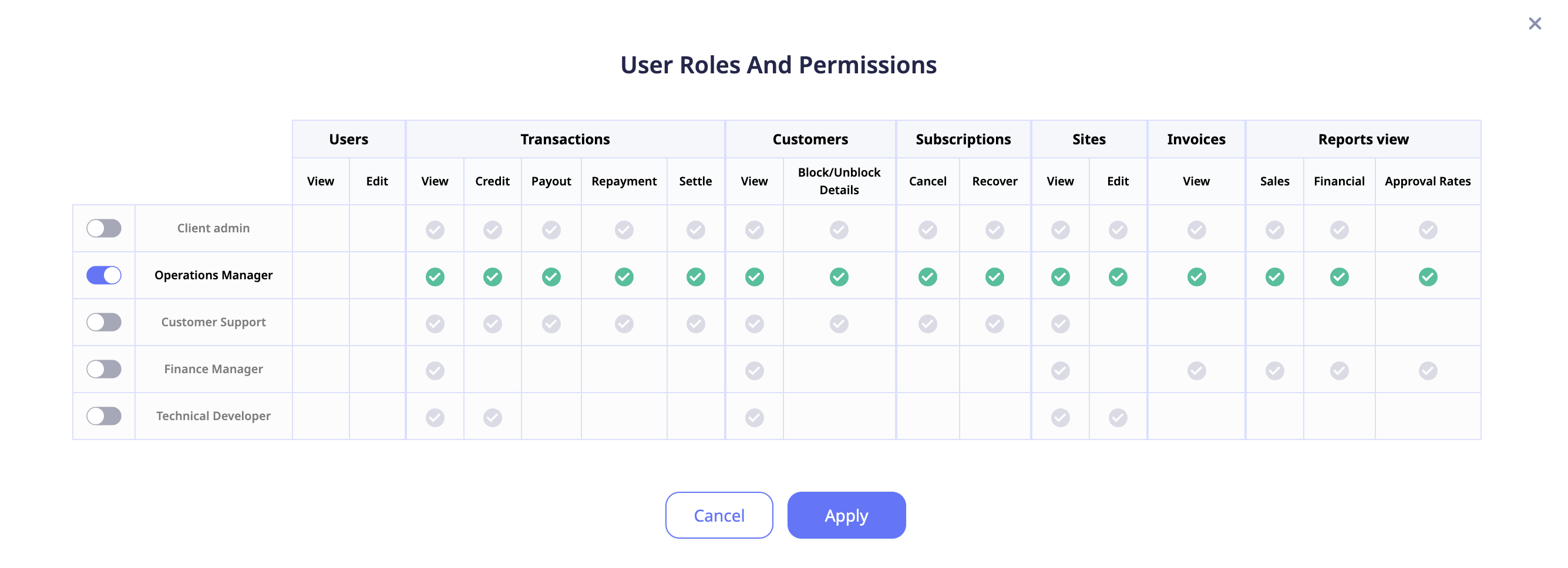
You can assign the following roles to your users:
- Client admin: has full access to all portal features, including managing users, sites, transactions, subscriptions, and financial reports.
- Operations manager: focuses on overseeing daily operations, such as managing transactions, websites, and financial data, cannot create users.
- Customer support: can view customer information, manage subscriptions, and process refunds. Doesn't have access to editing websites, viewing invoices, or reports.
- Technical developer: has access to view and credit transactions, manage sites, and view sales reports.
- Finance manager can view transactions, sales, and financial reports, as well as manage sites.
Edit users
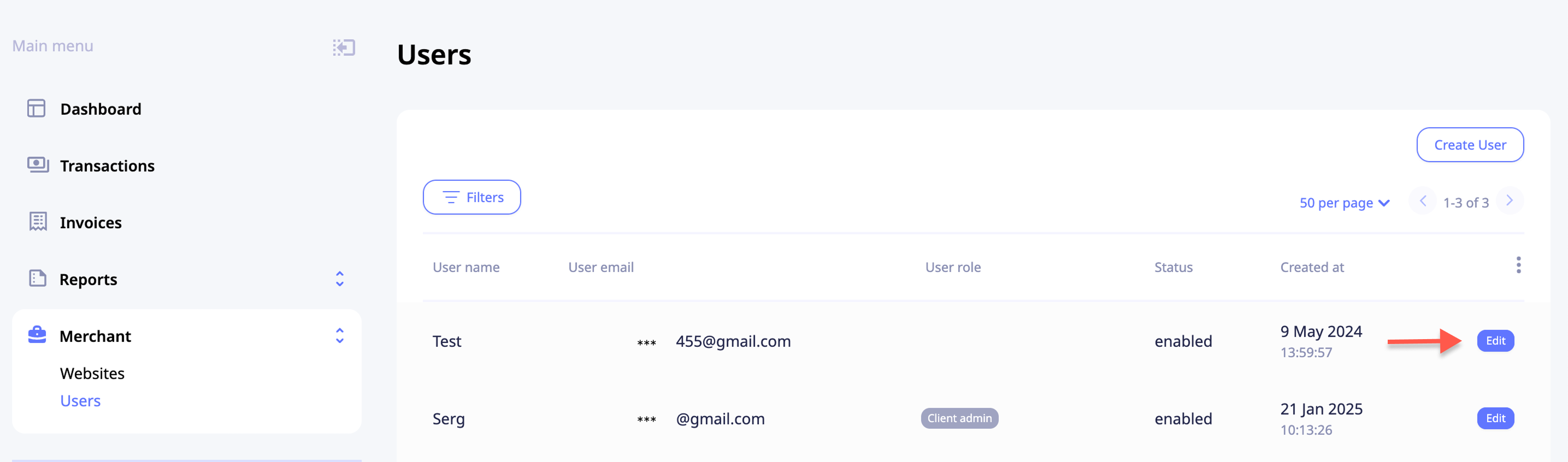
To edit a user, open the users list by clicking Merchant dropdown and then Users. Then click Edit next to the user in question.
Search (filter) users
To quickly search for users, click the Filters button, choose the needed filter(s), and then click Apply.
The available filters are:
- Name or/and Email
- Role
- Status (enabled/disabled)
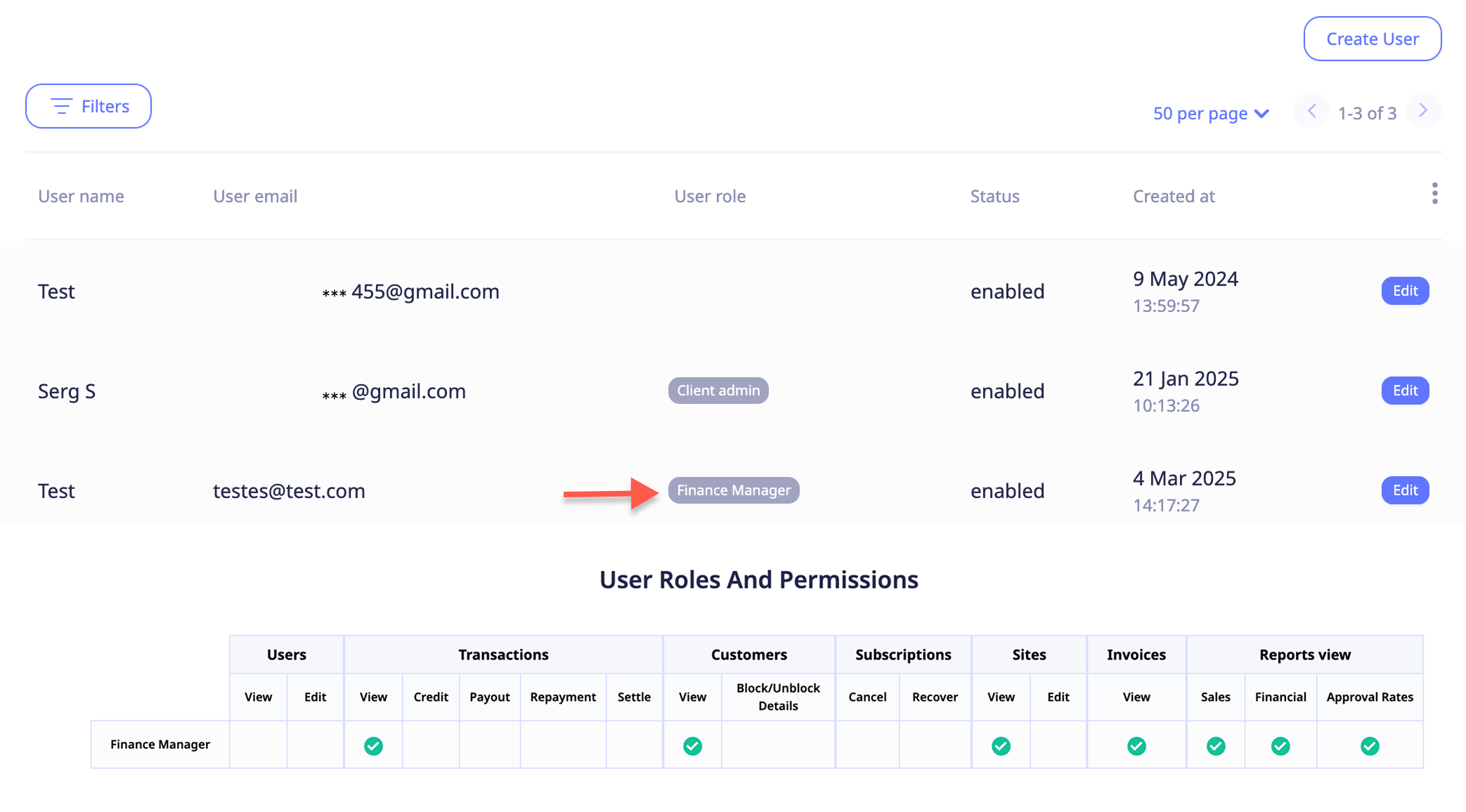
For a quick view of the permissions the user has, click on the user role.
Updated about 1 year ago