
NATS
This article provides information on how to set up NATS.
NoteIf you notice some payment methods missing while setting up your NATS with Centrobill, please contact NATS support to have the latest NATS update installed. Kindly mention the “NATS-2319” ticket so that a TMM representative can enable the missing payment methods for your NATS account.
NoteCentrobill's integration has been updated in NATS version 4.1.7.1.
Please submit an upgrade ticket prior to using Centrobill if your NATS version is below 4.1.7.1.
Centrobill settings
First, you need to set up a website in Centrobill following these ten steps:
- Register at the Merchant portal.
- Receive an Authorization key from Centrobill once you have set up your account on the Merchant portal.
- Navigate to the Sites&Products tab and click Add new site.
- Configure the following URLs:
- Successful URL
- Decline URL
- IPN URL
- Set the site type to Generic website.
- Whitelist the below IP addresses in NATS to get incoming notifications from us (you may need to create a ticket with TMM to have these updated):
52.58.234.180, 18.185.38.173, 18.185.208.231, 18.185.208.83. You can also follow this link: https://api.centrobill.com/ips. - Share the list of your NATS IP addresses with our Merchant Support team, so that we can send callbacks about your transactions to your NATS server. If you have a master/slave setup, please share IPs for both.
- Customize your payment form.
- Disable or enable the Rebill retry policy and Member expiration date padding. Enter the date padding if you have the last option enabled.
- Click Save.
NoteYou can set up rebills in a custom manner. However, we suggested using the optimal option defined by Centrobill internally, based on 15 years of experience.
NoteCentrobill supports the "quick sale" API method for upsellplus, packageplus, and tokenplus. However, you should not set up the IPN for the "quick sale" method on our side, as in this case you can run into race condition issues where a sale can be recorded with incorrect information.
NATS settings
Next, you need to set up NATS.
- Log in to your NATS account.
- Navigate to the Billers Admin tab.
- Scroll down to the Setup New Biller drop-down menu, select Centrobill, and click Add.
NoteFor now, options Enable Payment URL and Enable Customer Information should always be disabled (inactive).
- Add your Centrobill authorization key and click Save.
- Set Centrobill transaction fees (https://tmmwiki.com/index.php/NATS4_Biller_Fees).
- Set up cascades. For NATS cascades setup instructions, please check the TMM NATS Wiki website (https://tmmwiki.com/index.php/NATS4_Cascade / https://tmmwiki.com/index.php/NATS5_Cascades)
- In the Sites Admin tab, add your site(s), tours, and join options.
- Ask our Merchant Support team to share an Excel file with you to speed up the "matching" process of Centrobill productIDs with the join options in your NATS. Once received, fill out this Excel sheet with your join option codes and share the file with the Merchant Support team.
- In the Biller Codes section, enter the SKU name for each join option you have set up with us. We will provide you with all respective SKU names based on the Excel shared.
- Enable price points by configuring display rules.
TIPIf you want to create join options for processing cryptocurrency, set the price and the currency to USD. We will fetch the price in USD and substitute it with coins.
TokenPlus
If you would like to use tokens, notify our Merchant Support team. We will enable quick-sales for your Centrobill account.
Follow the screenshots below for more detailed information.
Centrobill settings image tutorial
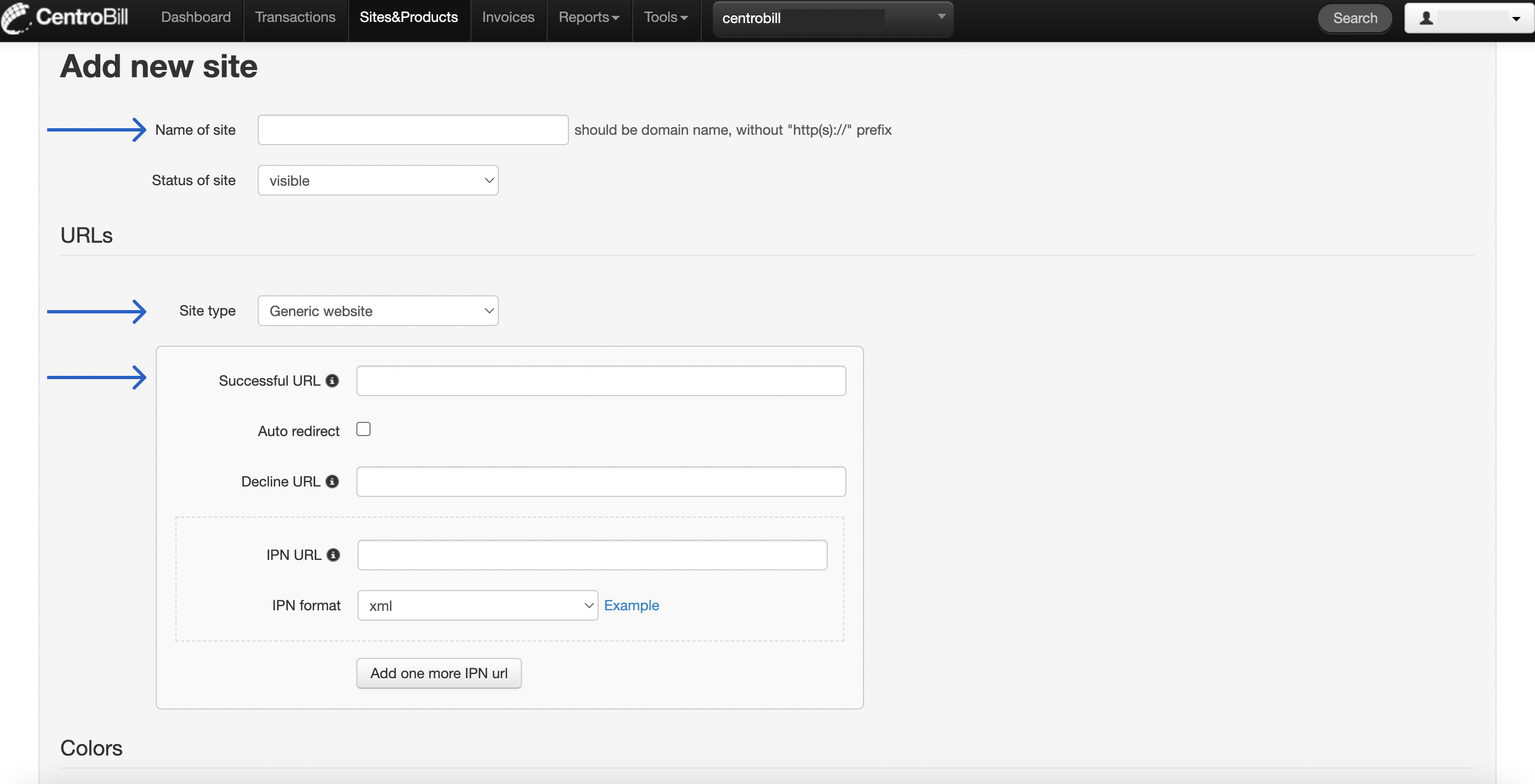
Steps 4: configure URLs
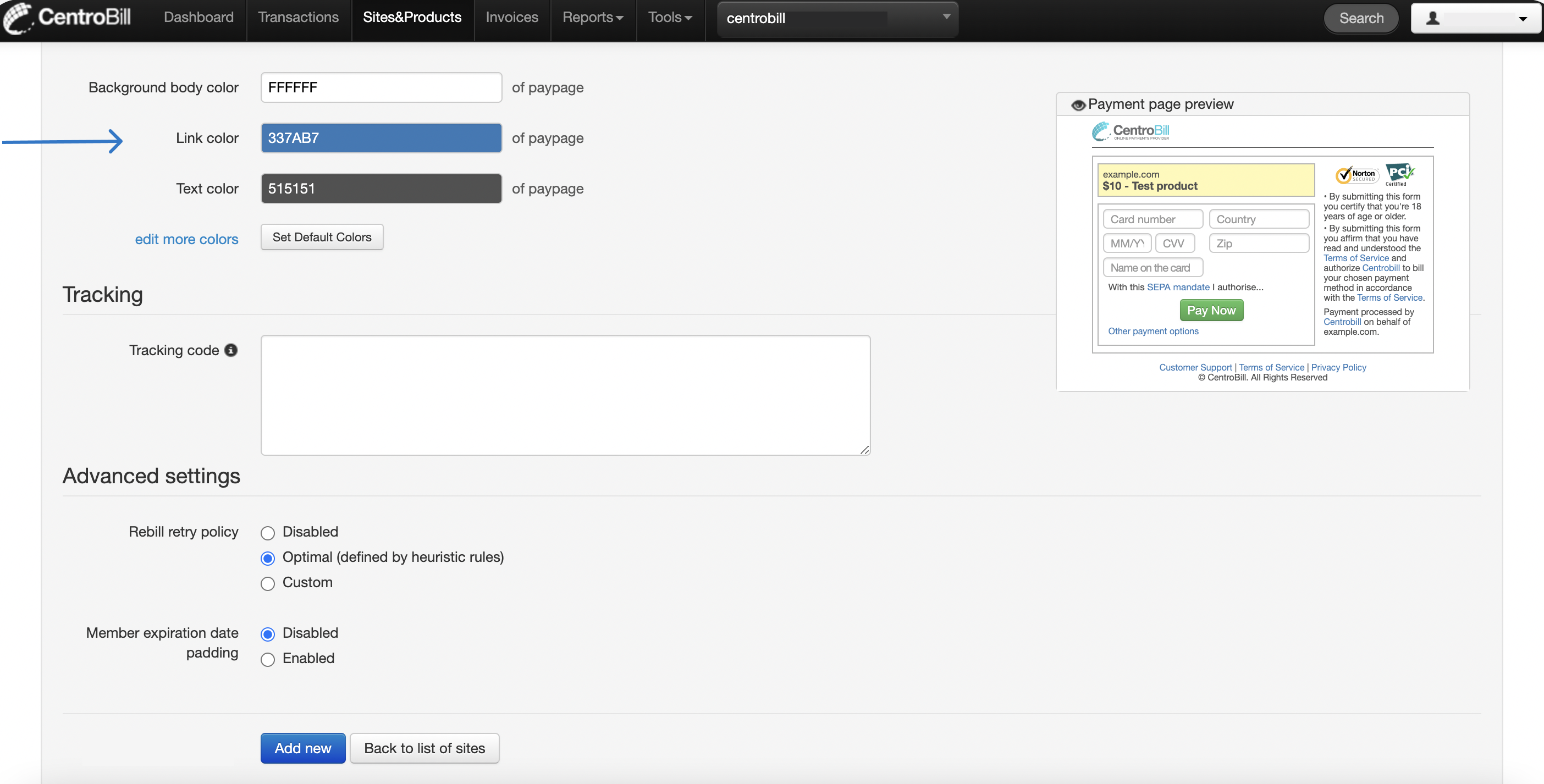
Step 8: customize your payment page
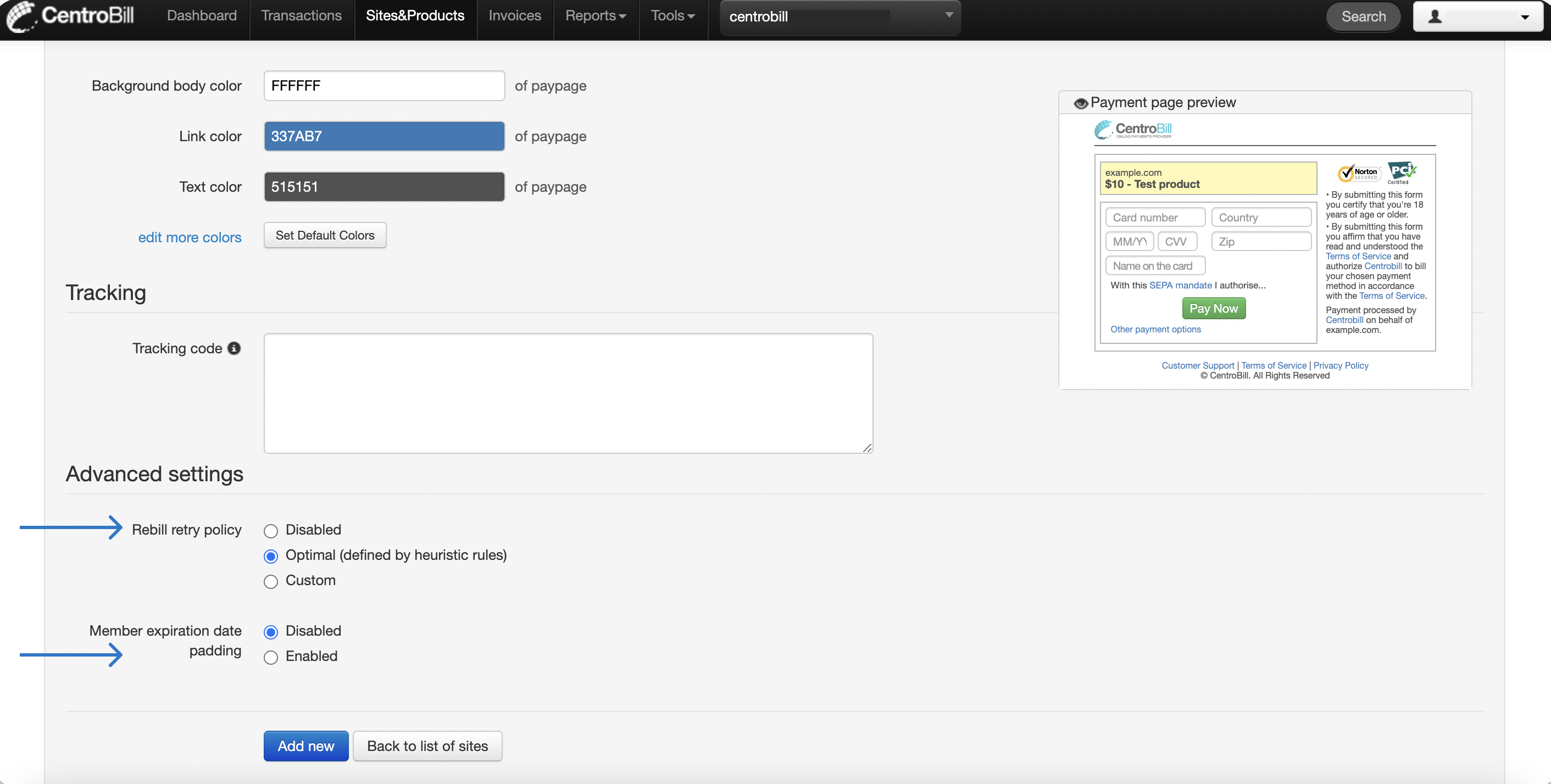
Step 9: disable or enable the Rebill retry policy and Member expiration date padding
NATS settings image tutorial

Step 3: add Centrobill as a new biller
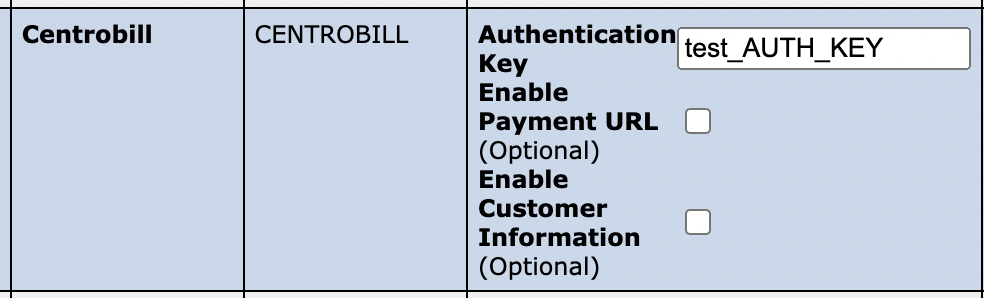
Step 4: add authorization key

Step 5: set transaction fees

Step 6: set up cascades

Step 7: add your site(s) and tours
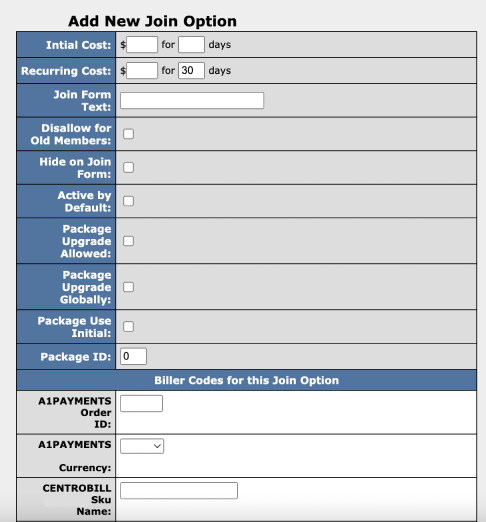
Step 7: add join options
Updated 10 months ago