
Set up Cross-sales
This guide provides information on how to set up Cross-sales in NATS.
Before you set up Cross-sales, contact our Merchant Support team to turn on the Cross-sales option for your Centrobill account. If Centrobill also processes your Cross-sales partner, they need to do the same.
Incoming Cross-sales
To configure an Incoming Cross-sale with Centrobill, do the following:
- Navigate to Upsells Admin and click the Incoming Cross Sales tab.
- Select Centrobill from the drop-down Billers list at the bottom of the page.
- Select the site for the cross-sale and the cross-sale program, then click Add New Option.
- Enter the option information for the cross-sale (initial days, initial amount, rebill days, rebill amount) and the name of the cross-sale.
- Fill in the SKU name provided by Centrobill and click Save Changes.
Outgoing Cross-sales
To configure an Outgoing Cross-sale with Centrobill, do the following:
- Navigate to the Upsells Admin and click the Outgoing Cross Sales tab.
- Select Centrobill from the drop-down Billers list at the bottom of the page.
- Select the site for the cross-sale and the cross-sale program, then click Add New Option.
- In the Details section, enter the title, description, and disclaimer.
- In the Processor Info section, enter the SKU name provided by Centrobill.
- To record the Cross-sale by another program (in other NATS installs), enter the referring code in the Ref Code field.
TIPIf you are configuring a cross-sale for a NATS install, you can find this code can at <nats_domain>/internal.php?page=xsells. You need to be logged in as an affiliate that is enabled in the cross-sale program.
- Finally, click Save Changes.
NOTEAdd all Centrobill IP addresses to the
XSELL_CENTROBILL_SECURE_IPSparameter in your NATS server config.
Image tutorial
Follow the screenshots below for more detailed information.
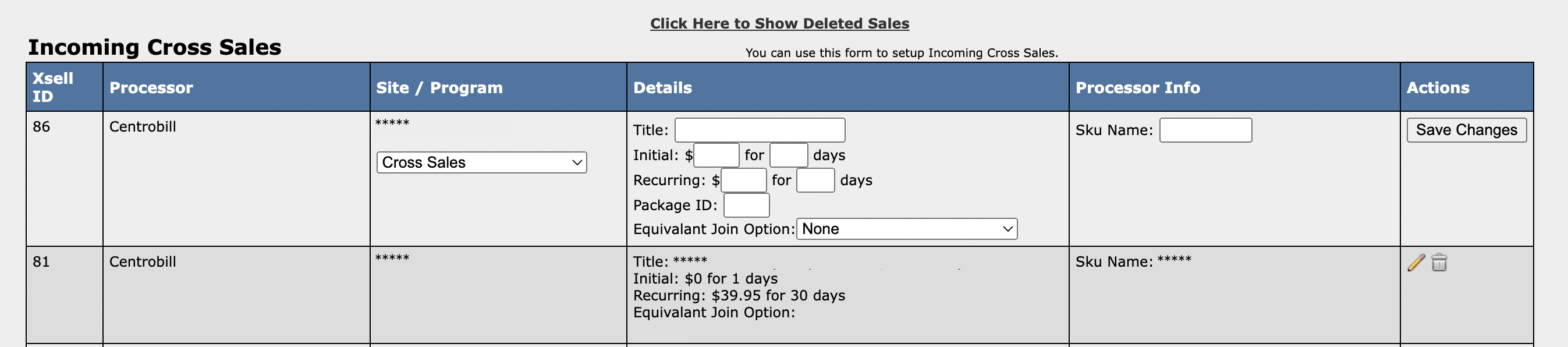
Set up incoming Cross-sale
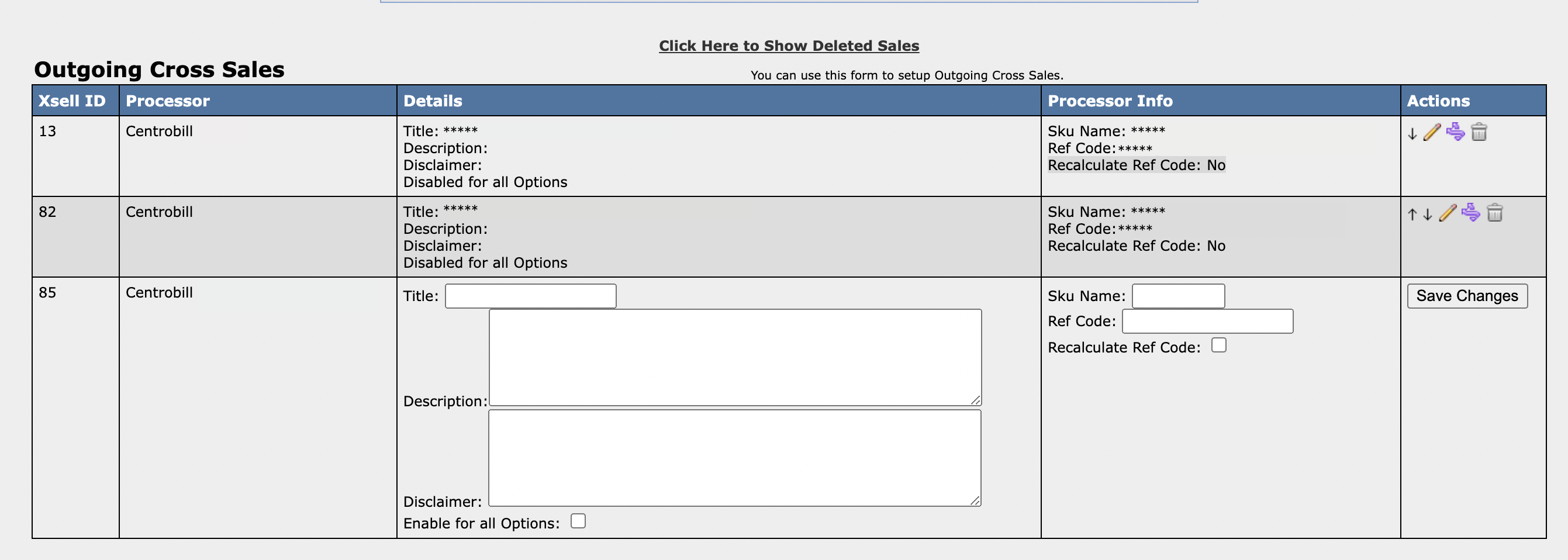
Set up outgoing Cross-sale
Updated about 1 year ago