
Manage invoices
This article explains how to navigate the invoice page, customize the display of your invoices, apply filters to locate specific records, and download them as needed.
Invoices and Statements tables
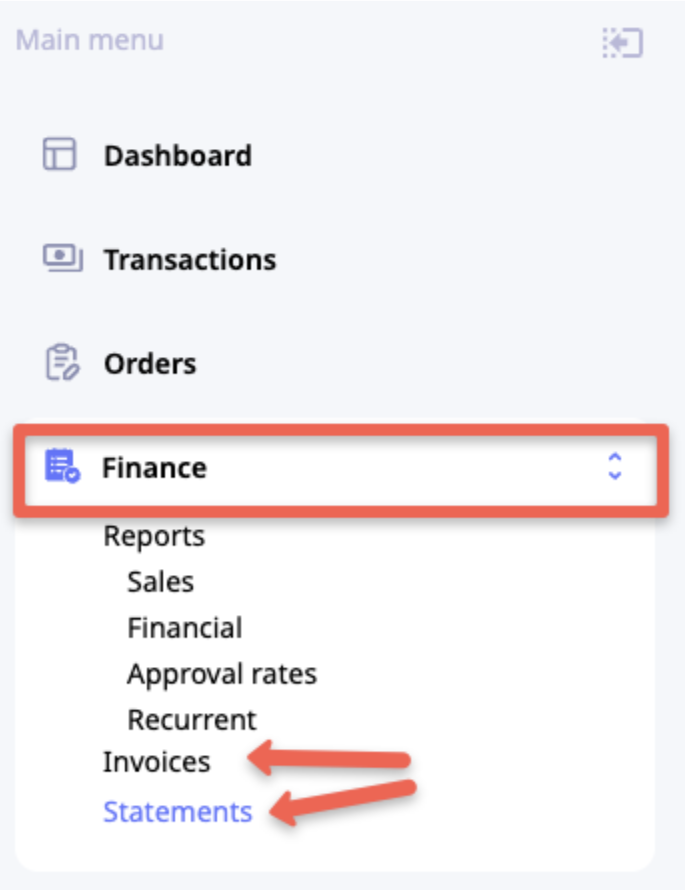
To open the Invoices or Statements table, click Finance in the main menu, then select the appropriate sub-menu option.
Note
Statements are for informational purposes only and are not used for payouts.
Display invoices (column settings)
To customize columns that should be visible on the Invoices table, click Columns settings.
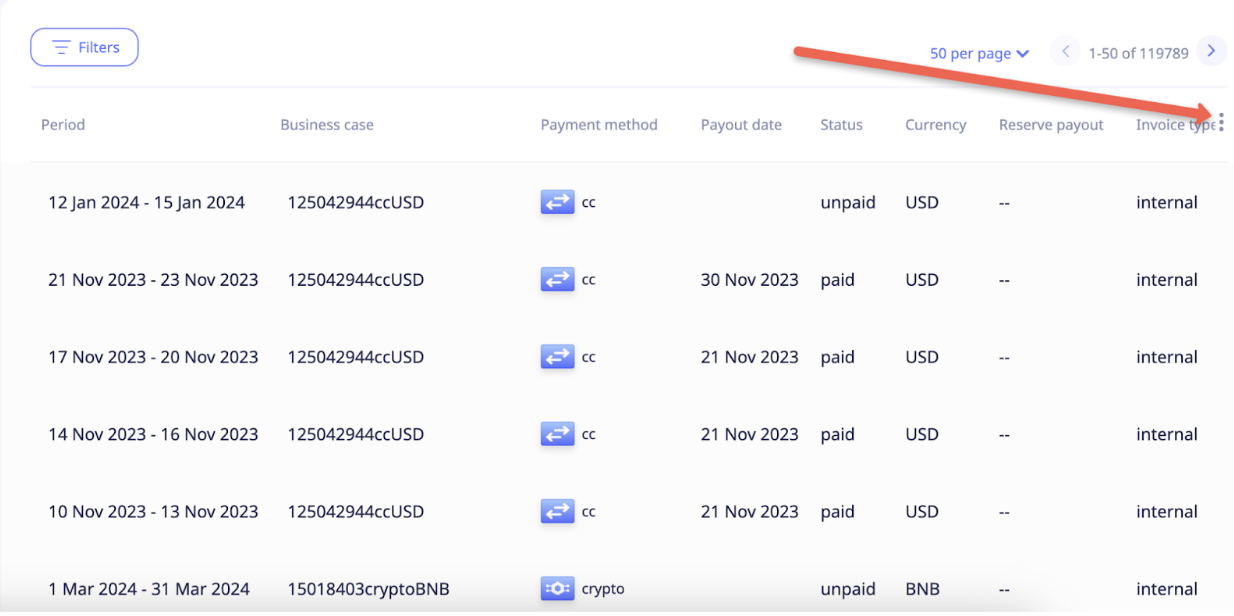
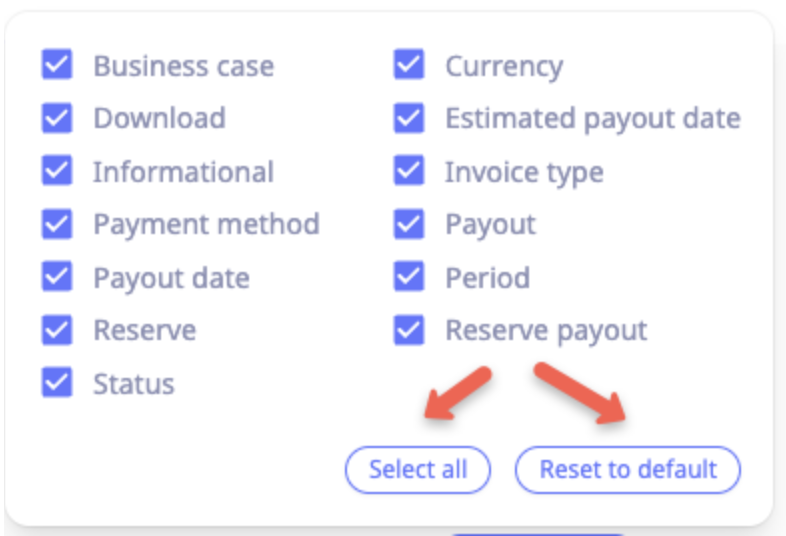
Custom set of columns - tick the desired columns. This setting will remain active for all subsequent user logins from the same browser.
Select all - click to see all available columns
Reset to default - set columns to default preset:
Manage view
To arrange columns in a custom order, hover over the column name until the mouse pointer becomes a 'hand' and then drag the column to a new position. This setting will remain active for all subsequent user logins from the same browser.
Rows per page
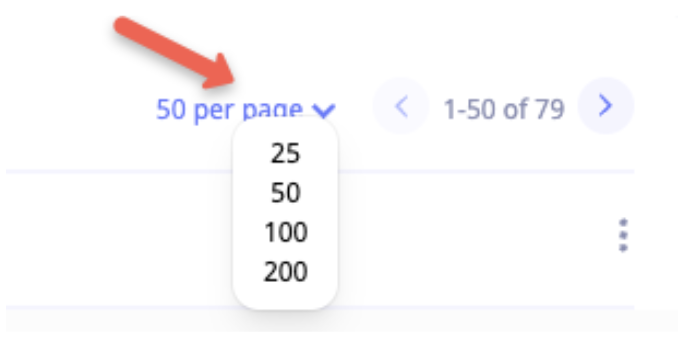
To set the number of rows per page in the Invoices table, click the Per page setting in the top right corner of the table, as shown in the screenshot.
Pages navigation
To navigate between pages, click the right or left Arrow in the top right corner of the table, as shown below

To quickly switch to any desired page, scroll down and use the page navigation panel at the bottom of the table. Click on a page number or type any page number and then click the Double arrow or press Enter.

Filter invoices
To view and configure filters, click Filters or any already applied filter to open the Filters sidebar menu. Scroll through the sidebar menu to view all available filters. You can apply as many filters as needed simultaneously. To apply all selected filters, click Apply. To clear applied filters, click X on the respective applied filter or click Clear all.
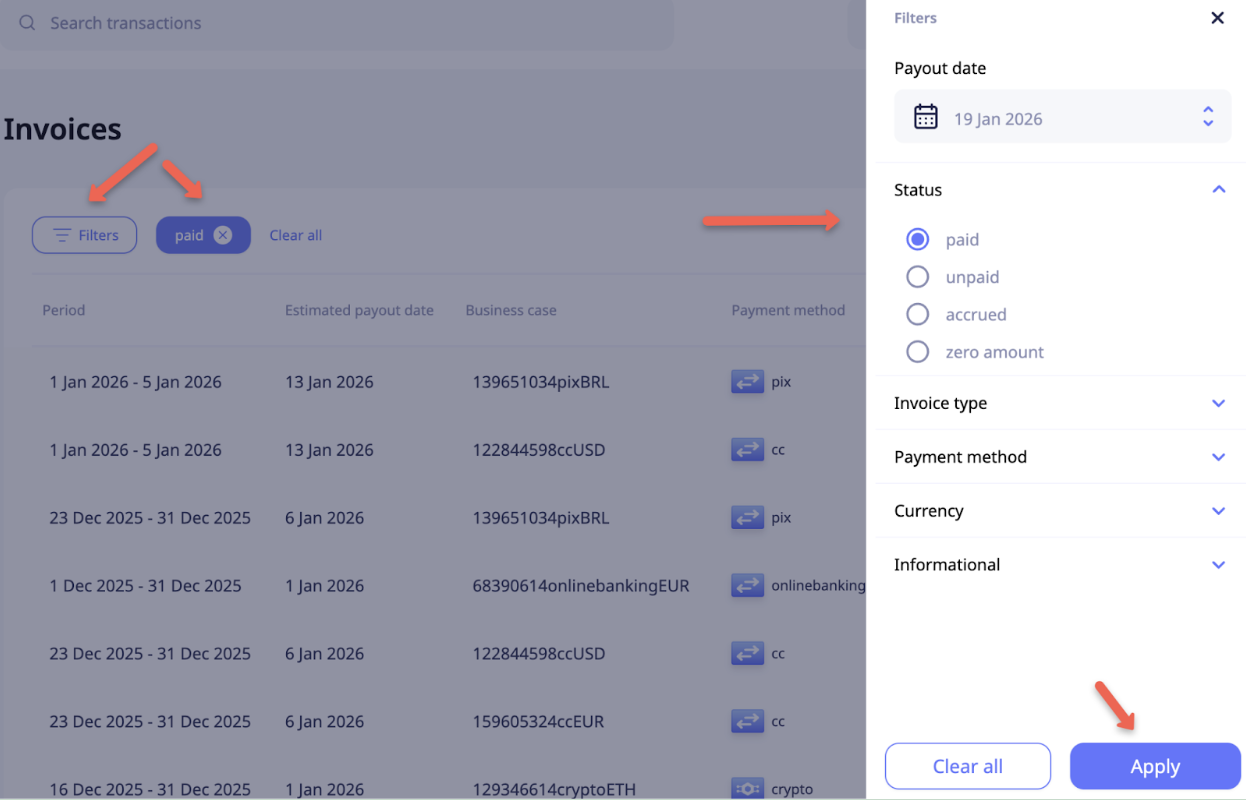
To change the applied filter, click the respective filter, adjust the parameters in the Filters sidebar menu, and then click Apply.
Download invoices
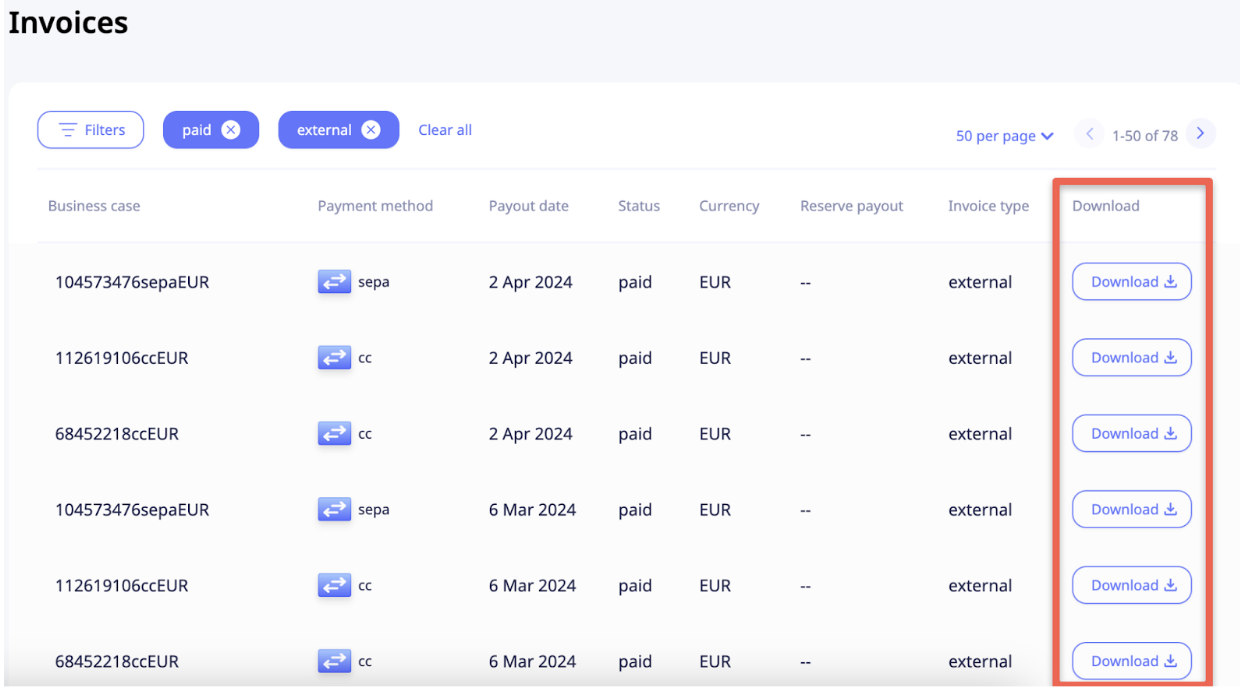
To download a PDF invoice, click Download on the respective invoice.
Updated 7 months ago