
Manage products
View your products
- In the left-hand sidebar, select Merchant.
- Click Websites.
- Find your website in the table and click Products.
Create a product
-
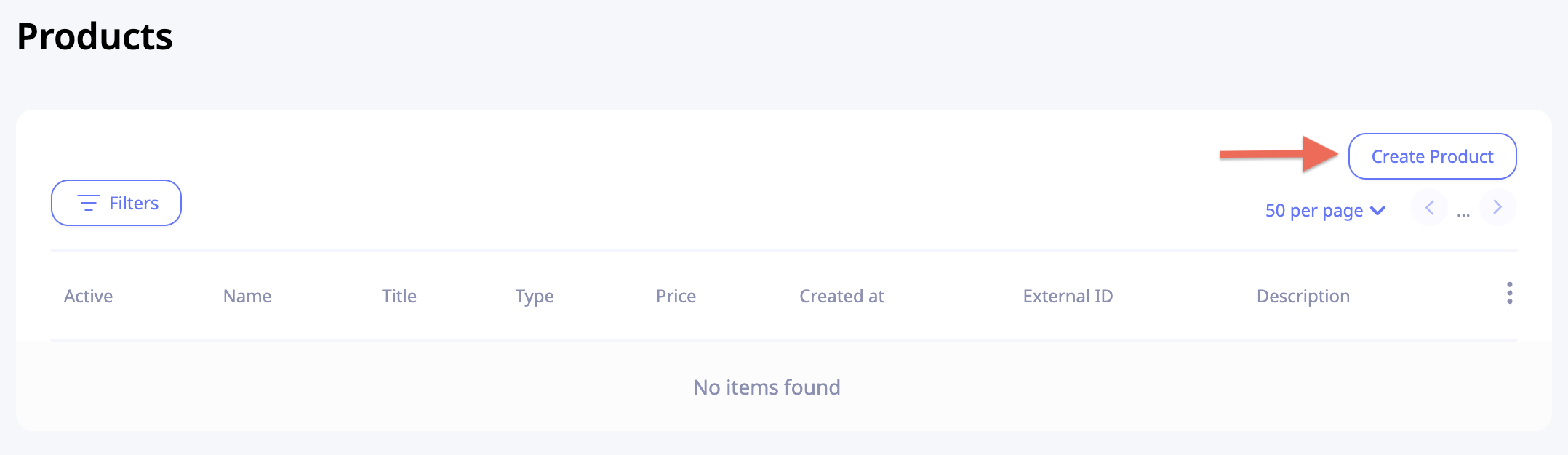
Click Create Product in the top-right corner of the Products table.
-
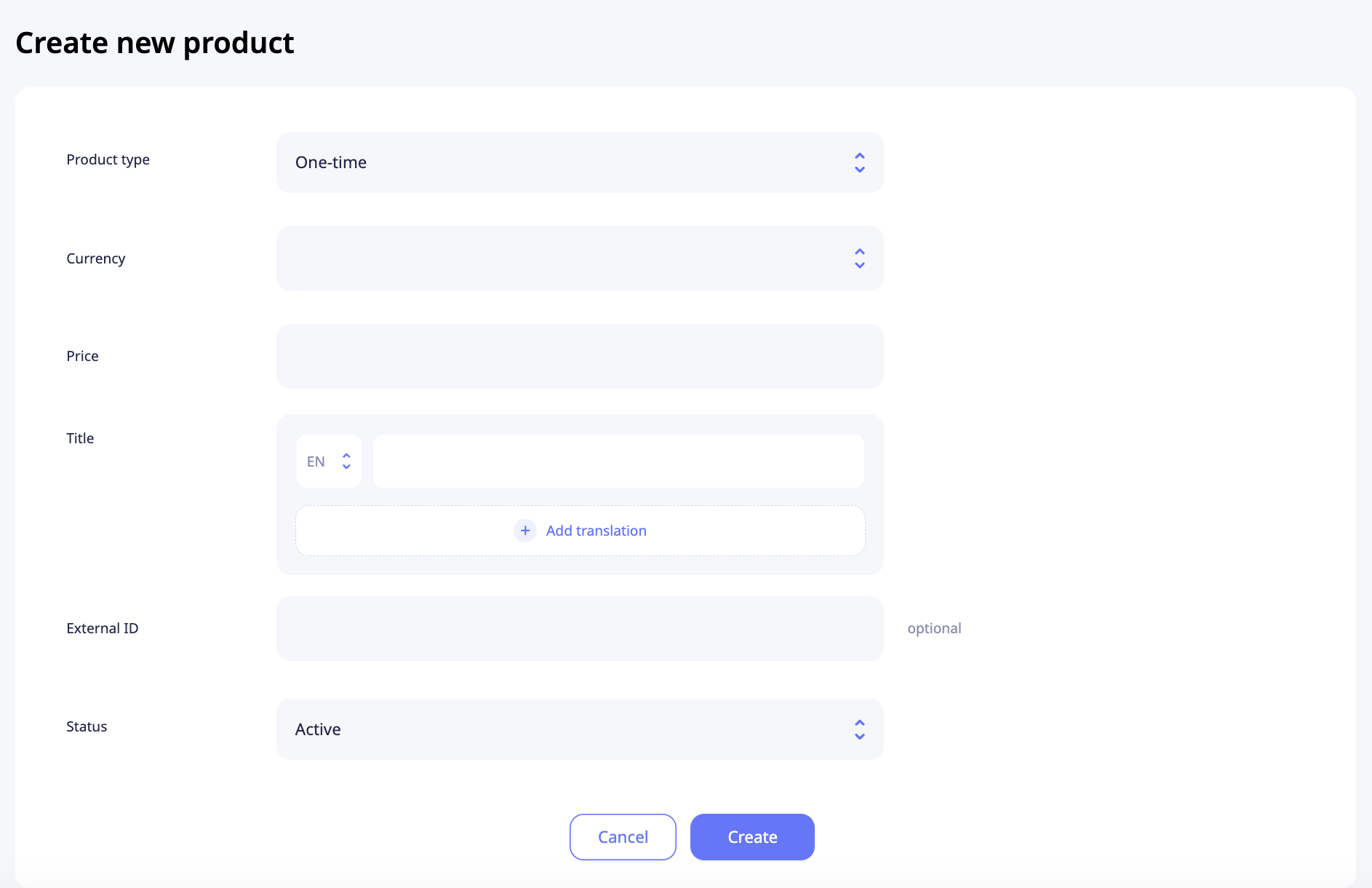
Select a product type:
Type Description One-Time A single, flat-rate charge Subscription A recurring charge at a set billing frequency Trial An introductory price that automatically converts to a standard subscription Free Trial A zero-cost introductory period ( 0.00initial price) that automatically converts to a paid subscription -
Fill in the required pricing and configuration fields, then click Create.
Edit existing product
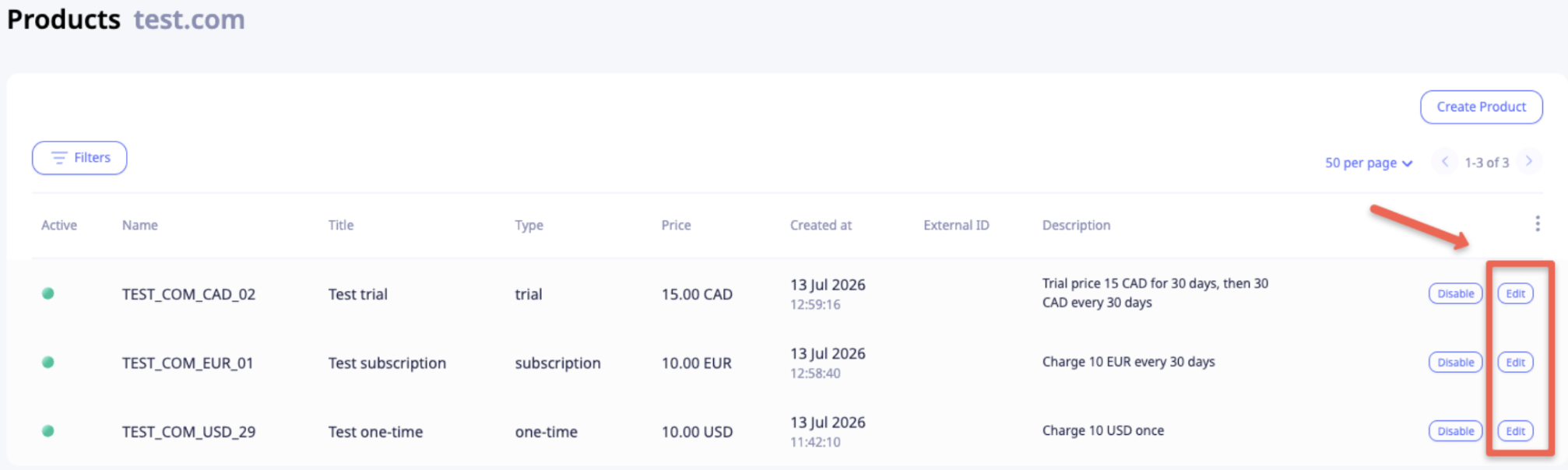
Click Edit next to the product you want to update, make your changes, and save.
Note: Products with live sales data can't be edited to preserve historical transaction records.
Enable or disable a product
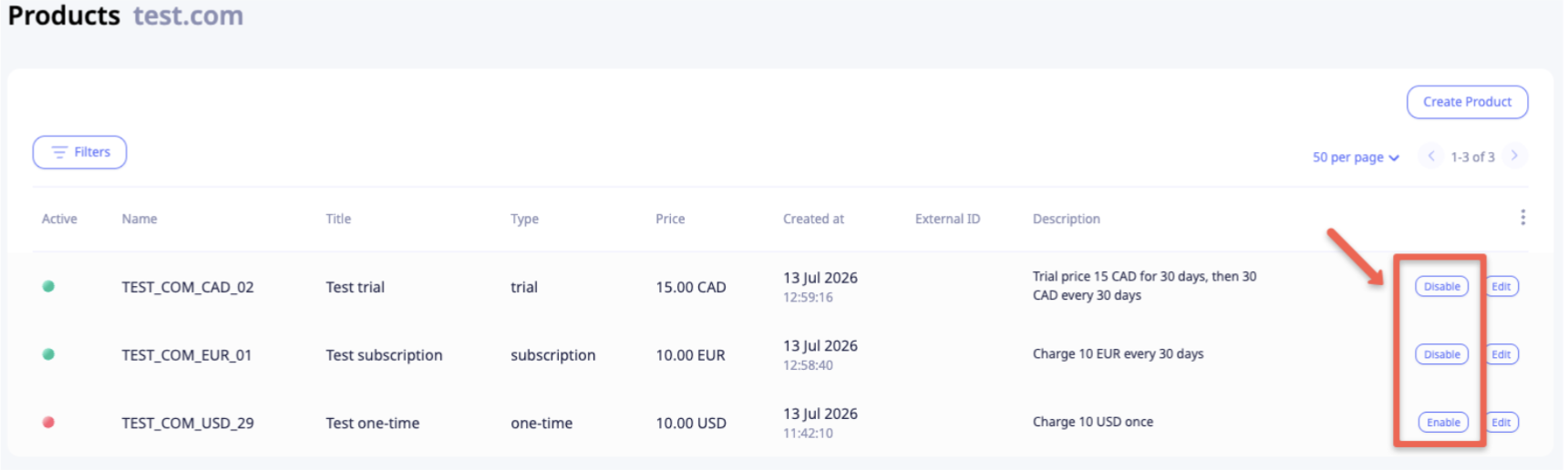
You can change a product's status in two ways:
- Inline: click the Enable or Disable button directly in the table row.
- Edit view: open the product, then switch the status between Active and Inactive.
Search and filter products
- Click Filters at the top of the Products table to narrow down the list. You can filter by any combination of the following:
| Filter | Description |
|---|---|
| Type | Filter by product type (ONE_TIME, SUBSCRIPTION, etc.) |
| Currency | Filter by payment currency |
| Status | Show only Active or Inactive products |
| Title | Search by product name |
| External ID | Query specific parameters synced from your external third-party ERP/CRM layers |
- Click Apply to update the table.
Updated 3 months ago
Did this page help you?