
Manage payment links
View your payment links
- In the left-hand sidebar, select Merchant.
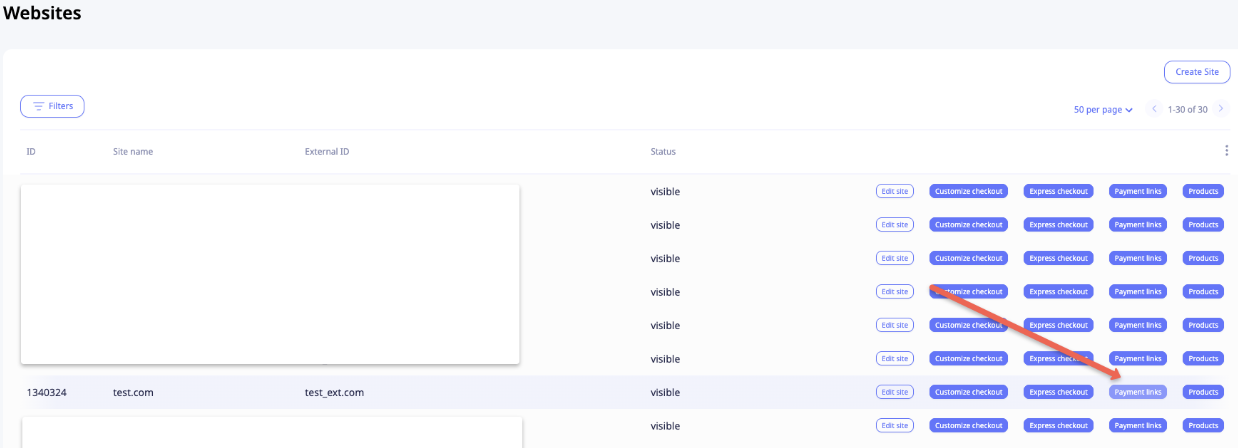
- Click Websites.
- Find your website in the table and click Payment Links.
Create a payment link
-
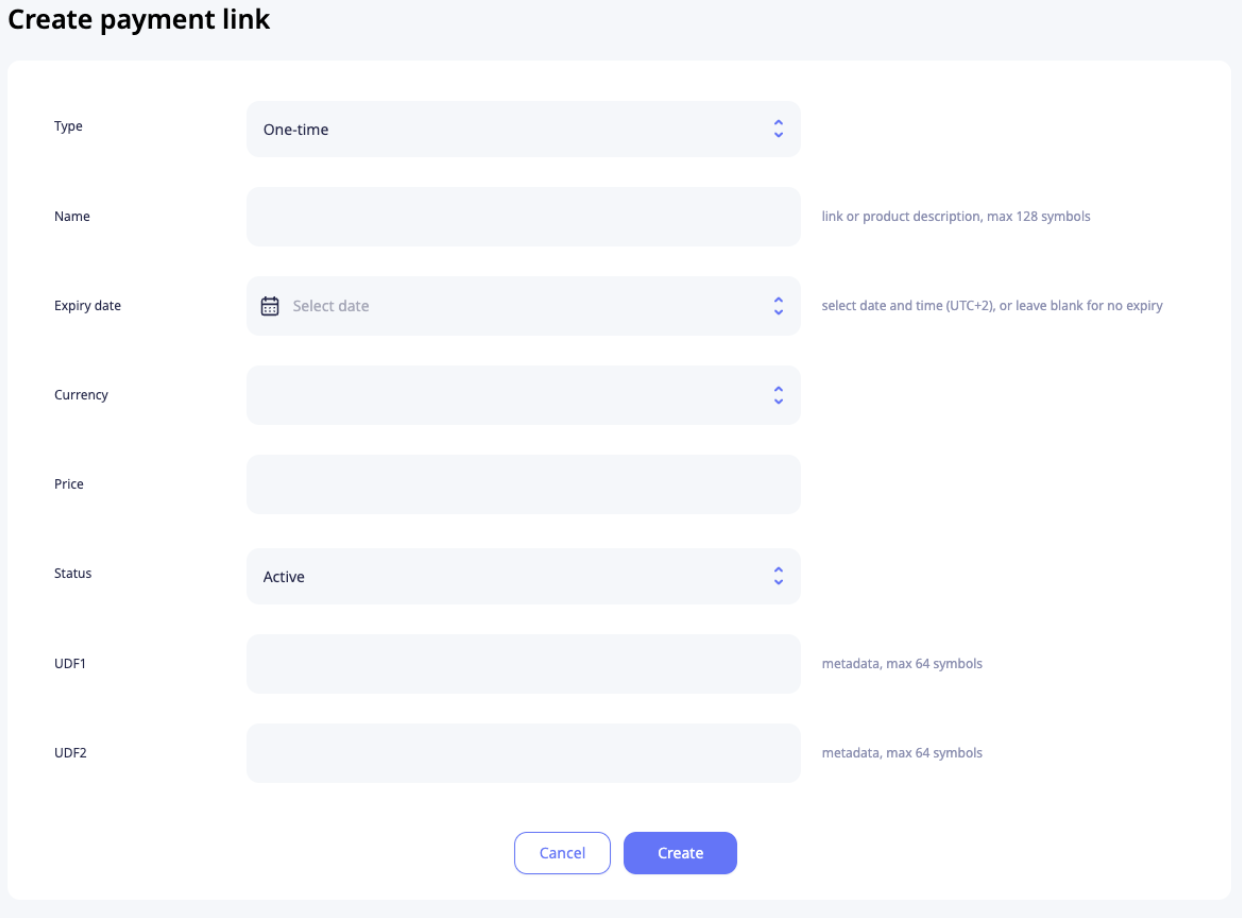
Click Create Payment Link in the top-right corner of the Payment Links table.
-
Select a type:
Type Description One-Time A single, flat-rate charge Subscription A recurring charge at a set billing frequency Trial An introductory price that automatically converts to a standard subscription Free Trial A zero-cost introductory period ( 0.00initial price) that automatically converts to a paid subscription
-
Fill in the required fields and click Create.
Edit a payment link
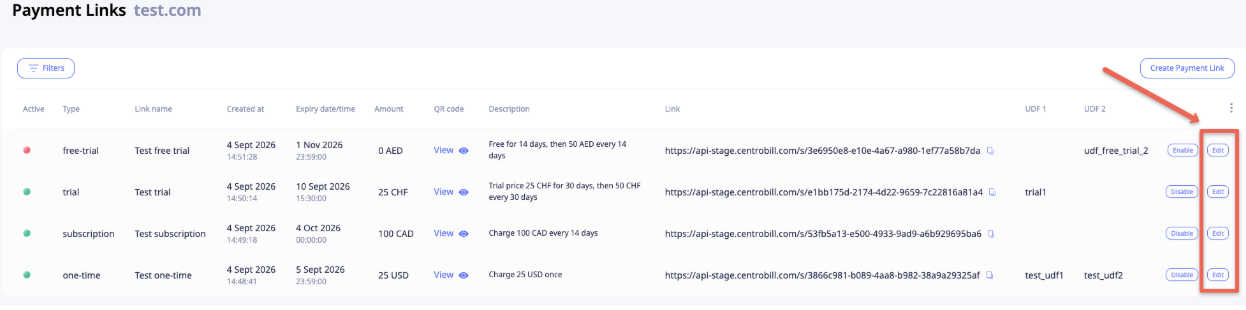
Click Edit next to the payment link you want to update. Only the following fields can be edited after creation:
- Expiry date
- Status
- UDF 1
- UDF 2
Make your changes and save.
Enable or disable a payment link
You can change a payment link's status in two ways:
- Inline — click the Enable or Disable button directly in the table row.
- Edit view — open the payment link, then switch the status between Active and Inactive.
Note: The QR code is unavailable for inactive or expired payment links.
Filter payment links
Click Filters at the top of the Payment Links table to narrow down the list. You can filter by:
| Filter | Description |
|---|---|
| Type | Filter by payment link type (one-time, subscription, etc.) |
Click Apply to update the table.
Updated about 2 months ago
Did this page help you?