
Cancel subscription
There are two ways how you can cancel subscriptions.
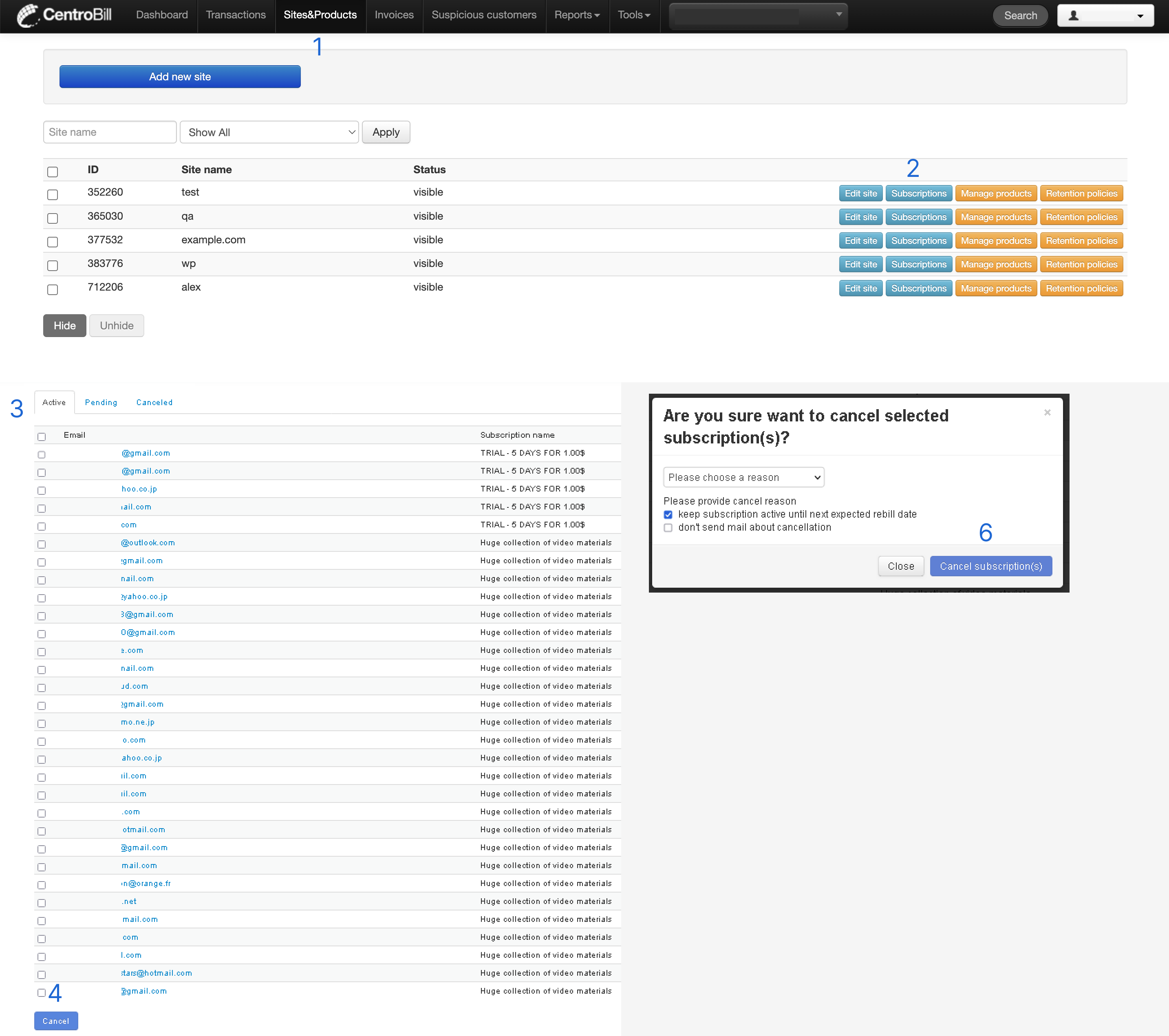
From the Sites & Products tab:
- Navigate to Sites & Products. A page with a website list opens.
- In the list, find the relevant website and click Subscriptions next to it. A page with active/pending/canceled subscriptions opens.
- In the Active tab, select the user for whom you want to cancel the subscription.
- Click Cancel. The cancelation popup appears.
- In this popup, provide the cancellation reason.
- Click Cancel subscription.
From the Transactions tab:
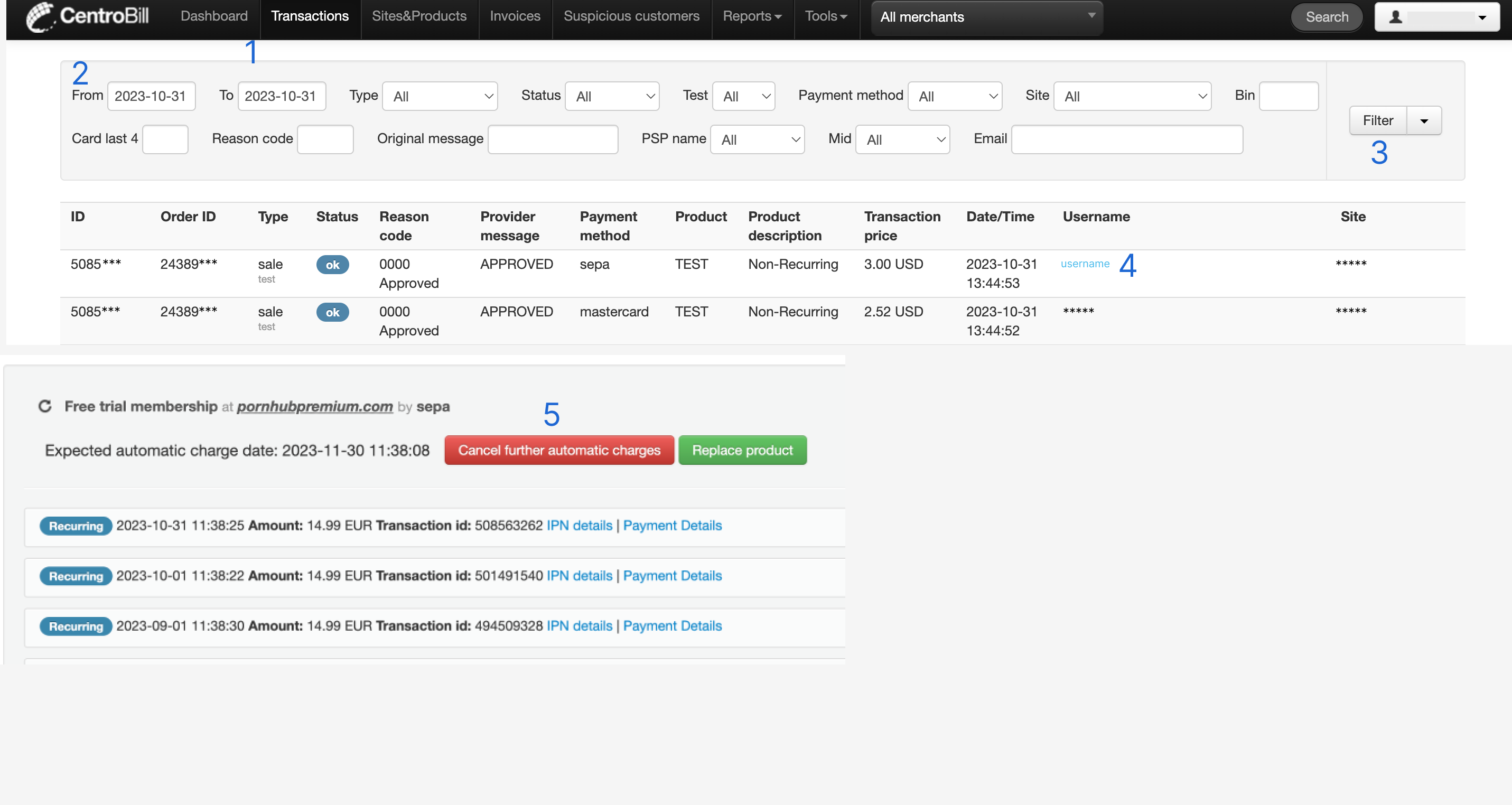
- Click Transactions in the top navigation bar. This action opens the transactions page.
- Select the preferred time frame using the calendar's date range selection. Apply additional filters if needed. For example, set the transaction status or type.
- Click Filter to generate a list of transactions.
- Once you have found the needed transaction, click the hyperlink in the Username column. A page with the user's details opens.
- Scroll down to the bottom of the page and click Cancel further automatic charges.
Updated about 1 year ago
Did this page help you?