
Manage cascades
A cascade is a transaction routing strategy designed to maximize approval rates by automatically retrying failed payments through alternative processing routes. When a transaction is declined by one acquirer or payment provider, the cascade logic reroutes it to the next available provider in a predefined sequence. This process continues until the payment is approved or all configured routes have been attempted.
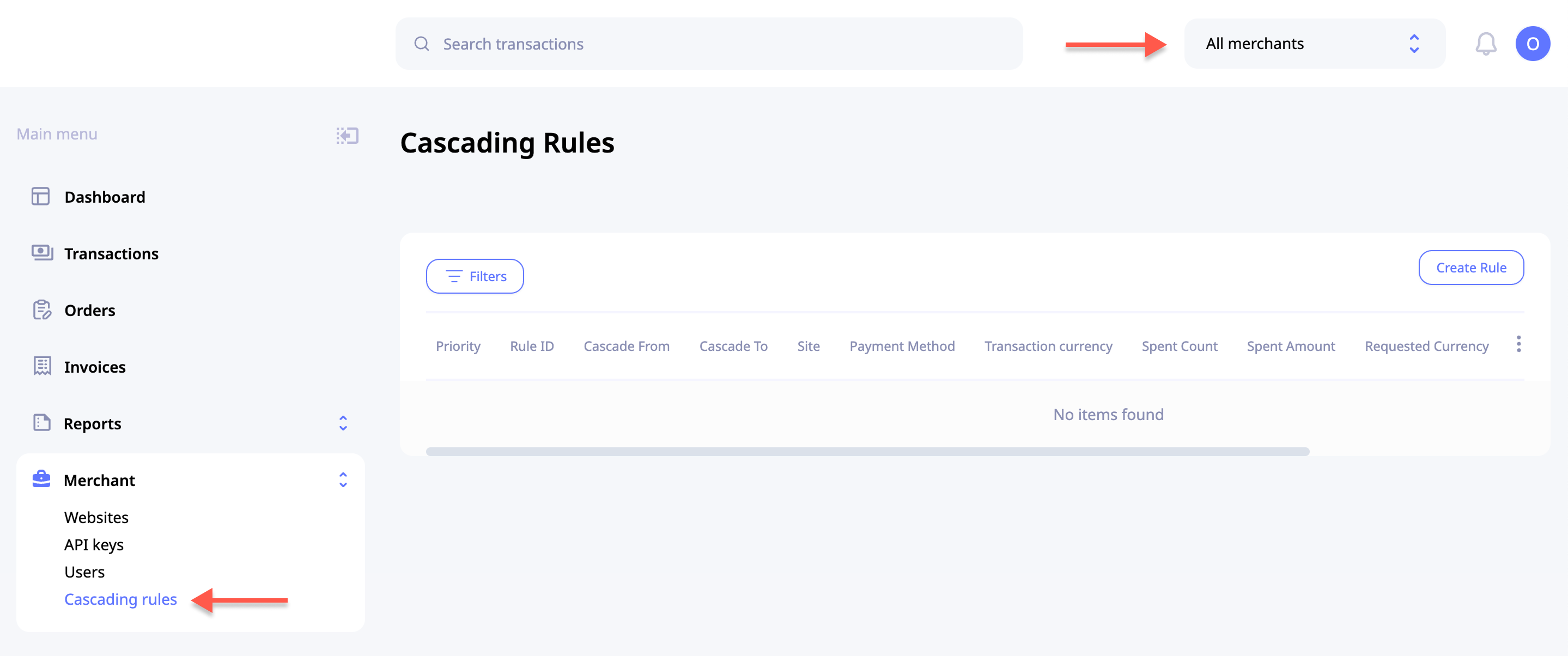
To access the Cascading rules, click Merchant in the Main menu and then click Cascading rules.
To view Cascading rules for a particular merchant, choose Merchant in the Merchant dropdown menu.
Create new cascading rule
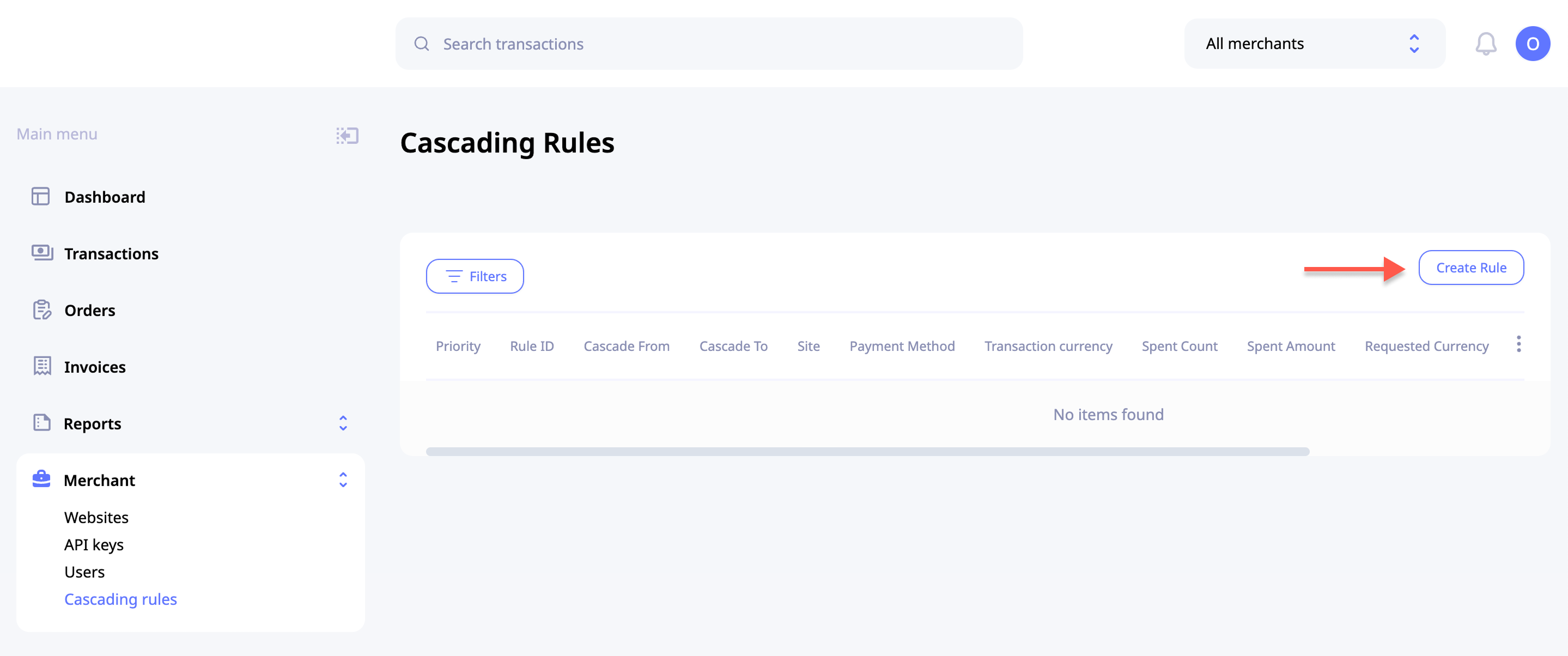
To create a new cascading rule, click Create Rule in the top right corner of the table and fill in the necessary information.
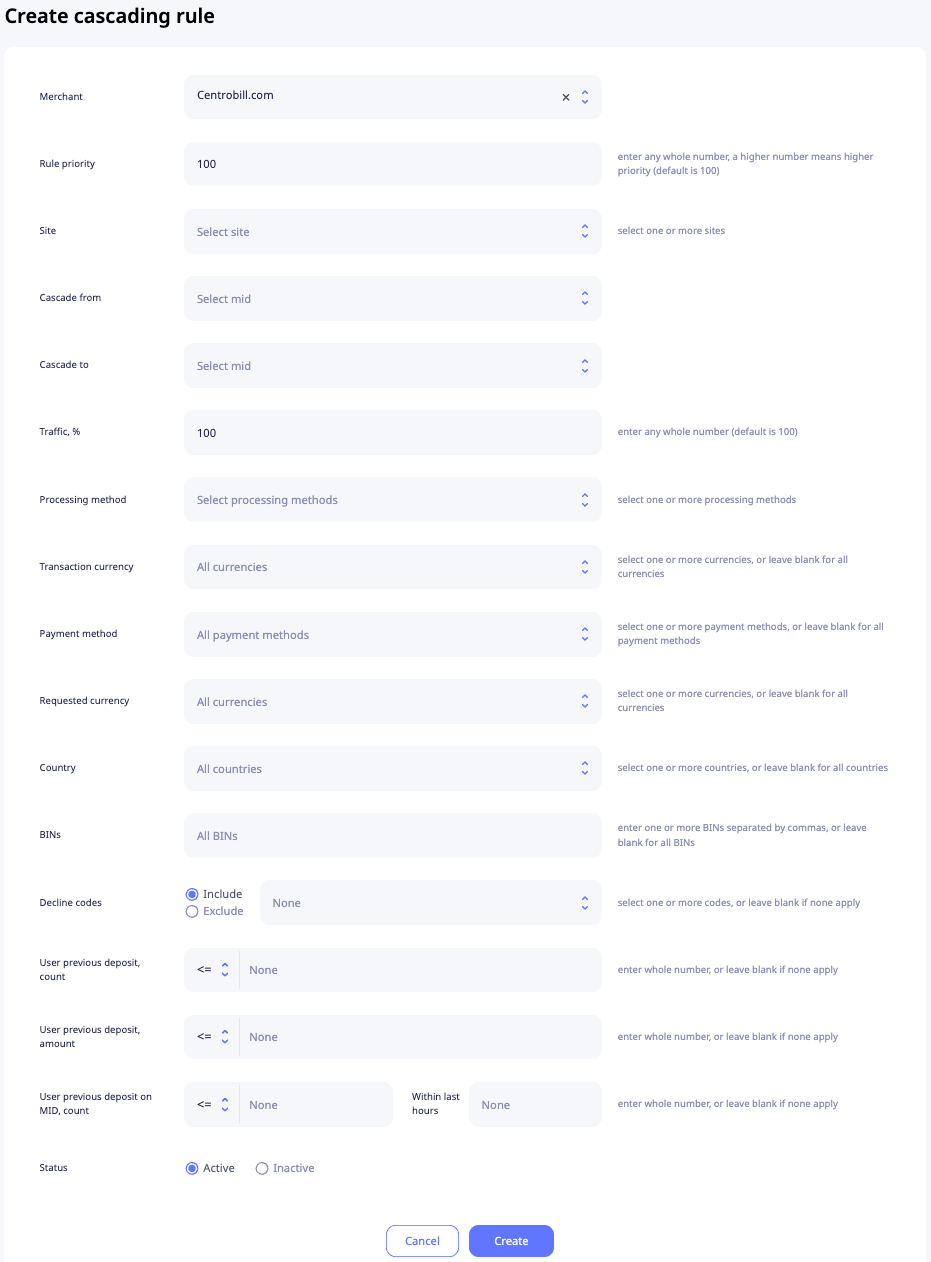
NoteRule priority: determines the order in which rules are applied. Higher numbers indicate higher priority. You can enter any whole number. The default value is 100.
Edit/delete cascading rule
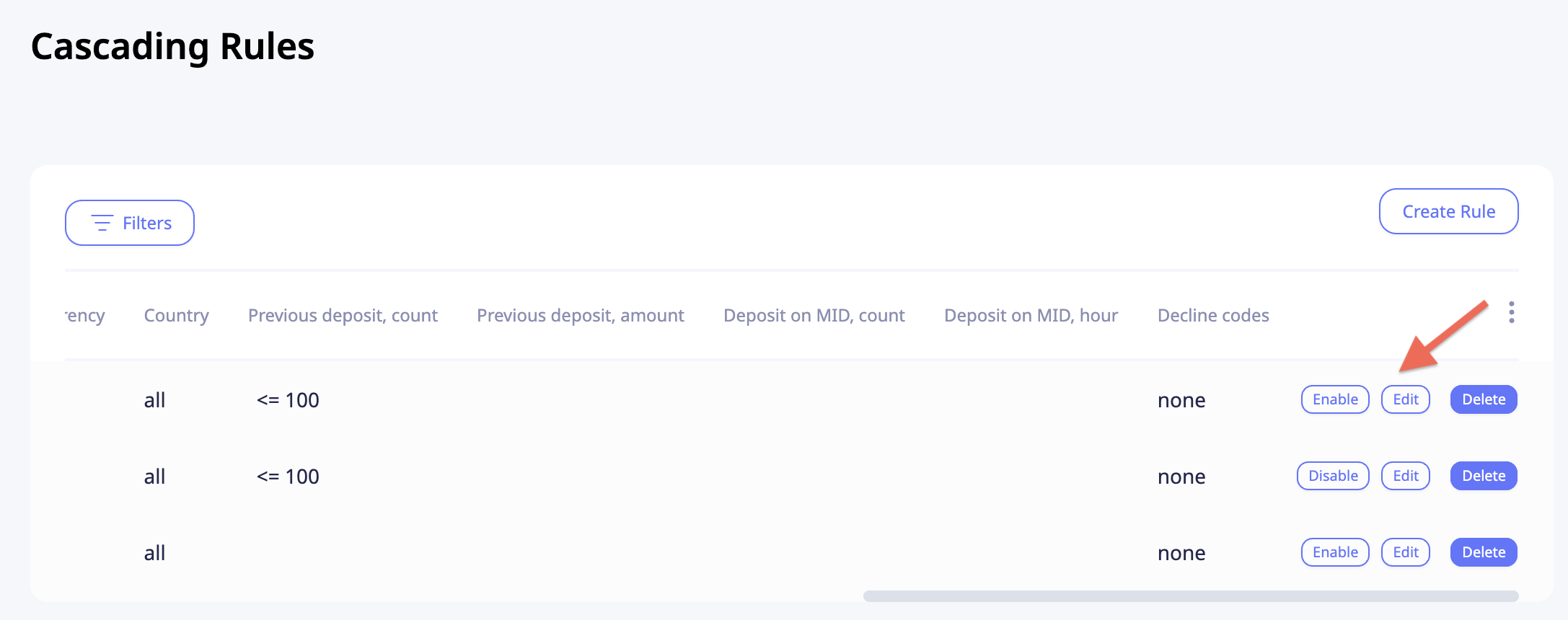
To edit/delete a cascading rule, click Edit or Delete for a particular rule.
Enable or disable a cascading rule
To toggle a cascading rule without opening the Edit form, click the Enable/Disable next to the corresponding rule.
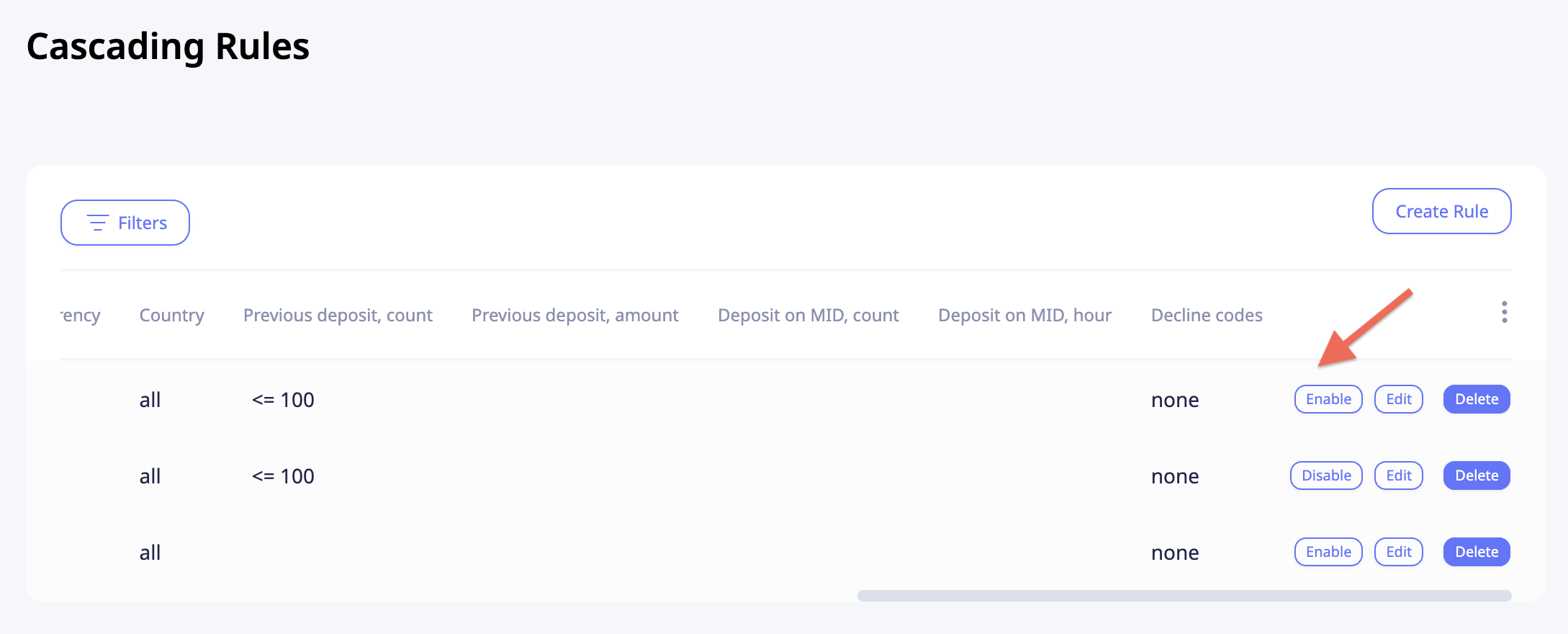
Filter cascading rules
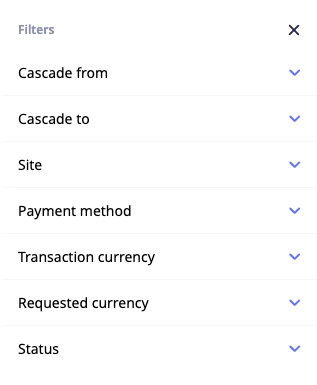
To filter the cascading rules, click Filters, select the desired filter(s), and then click Apply.
You can filter by the following parameters:
- Cascade from (searchable by any part of the name)
- Cascade to (searchable by any part of the name)
- Site
- Payment method
- Transaction currency
- Requested currency
- Status
Grouping and highlighting cascading rules within the same MID
Default grouping in the Cascading Rules table:
- Primary: Cascade from column, sorted in ascending order by MID ID
- Secondary: Priority column, sorted in descending order
Rules within the same Cascade from column are separated by a horizontal line.
When you hover over a rule, all other rules with matching criteria are highlighted. Note: Cascade to, Traffic %, and Priority are excluded from this matching.
Updated about 1 month ago