
Manage customer page
This article introduces the Customer page, a comprehensive hub for accessing and managing detailed customer information. It provides insights into transaction history, account details, and overall activity, helping you effectively monitor and support your customers.
Access customer page
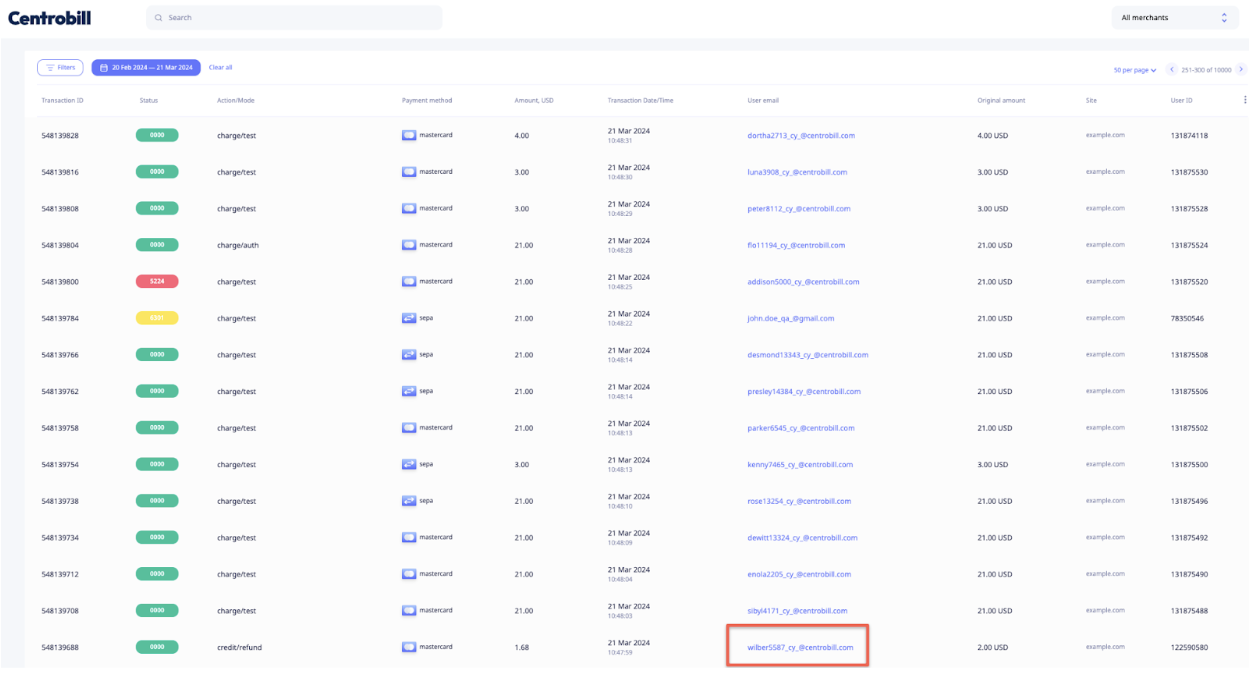
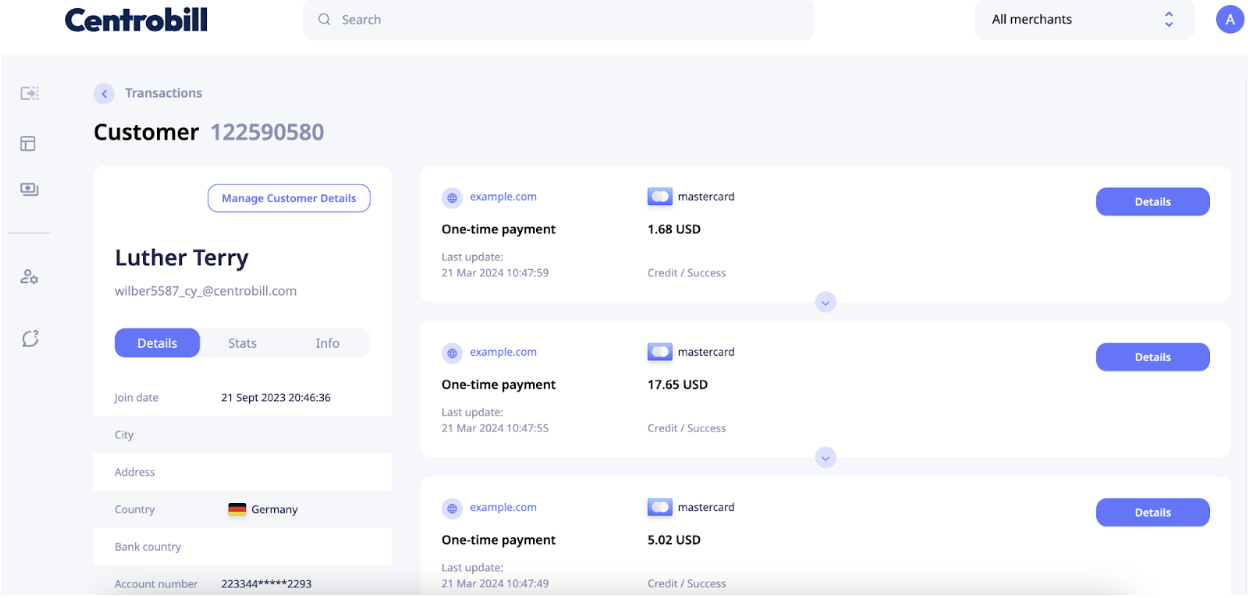
You can access the customer page by clicking the User email within the Transactions table. The customer page displays payment information specific to the customer, along with all transactions performed by the customer, grouped by the purchased products.
Manage customer page
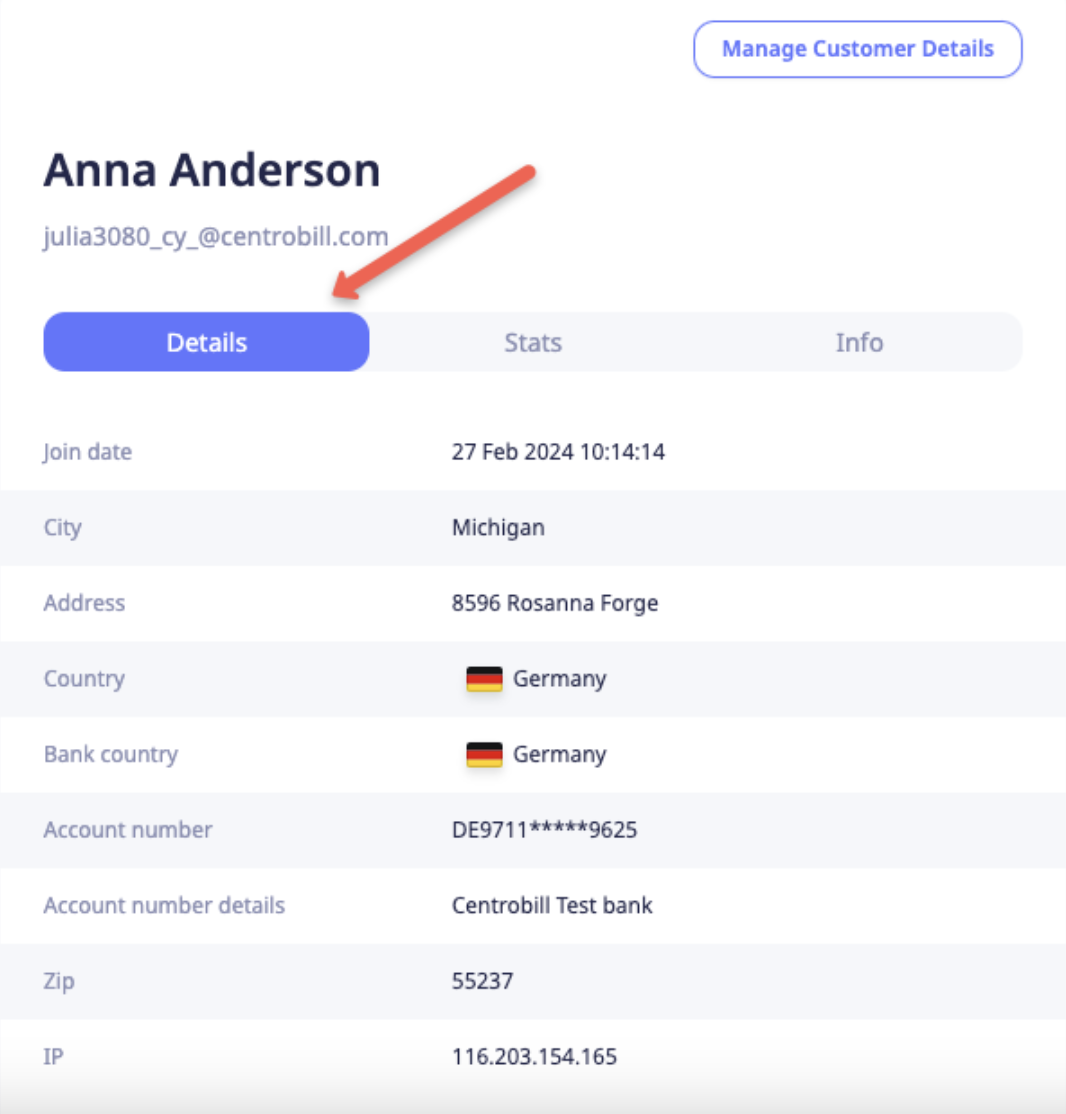
Details tab
Displays payment information about the last customer's transaction.
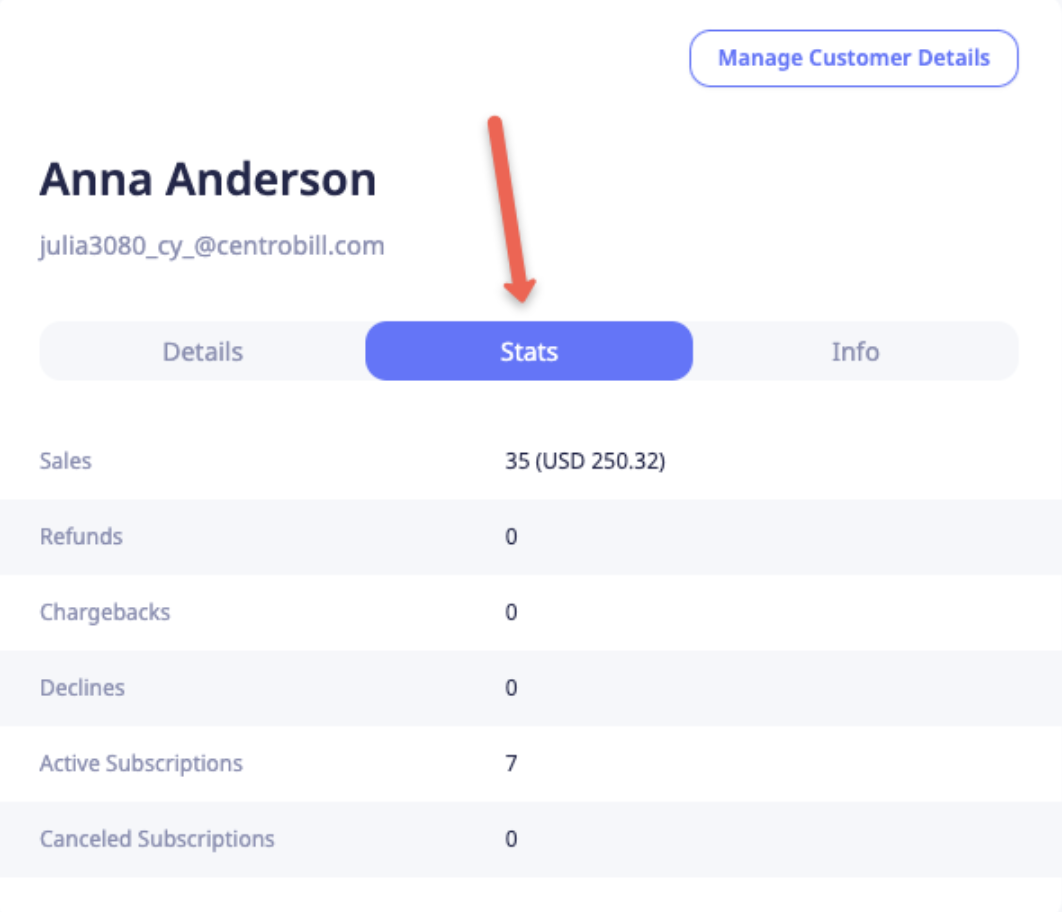
Stats tab
Displays the overall information regarding total sales, refunds, etc.
Info tab
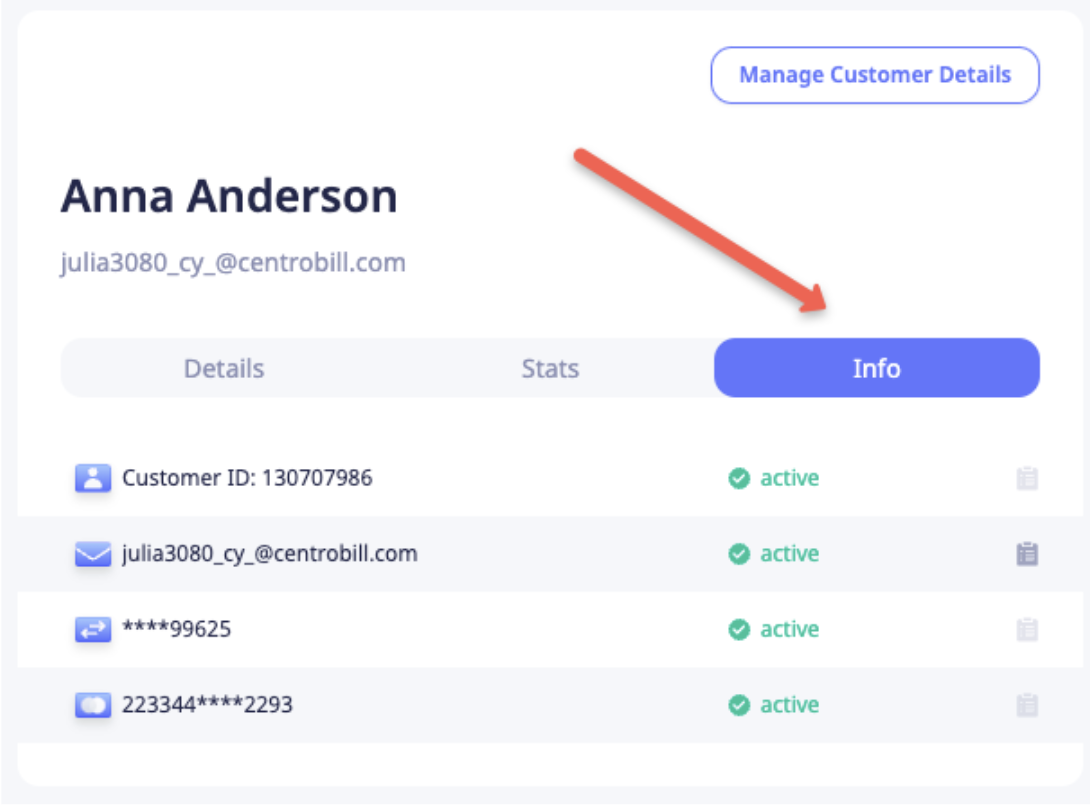
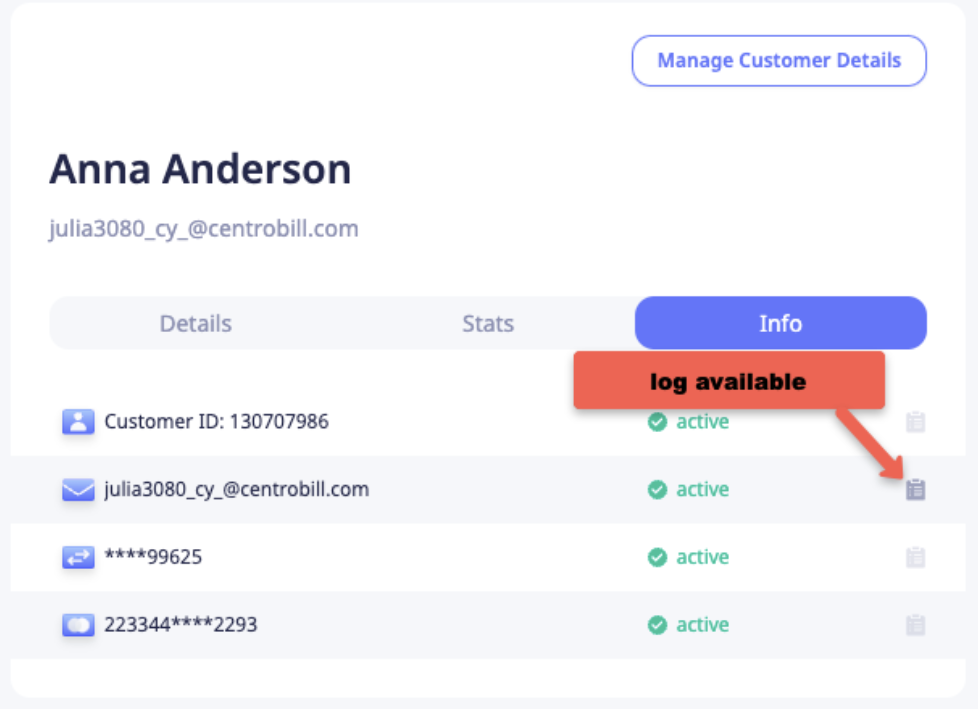
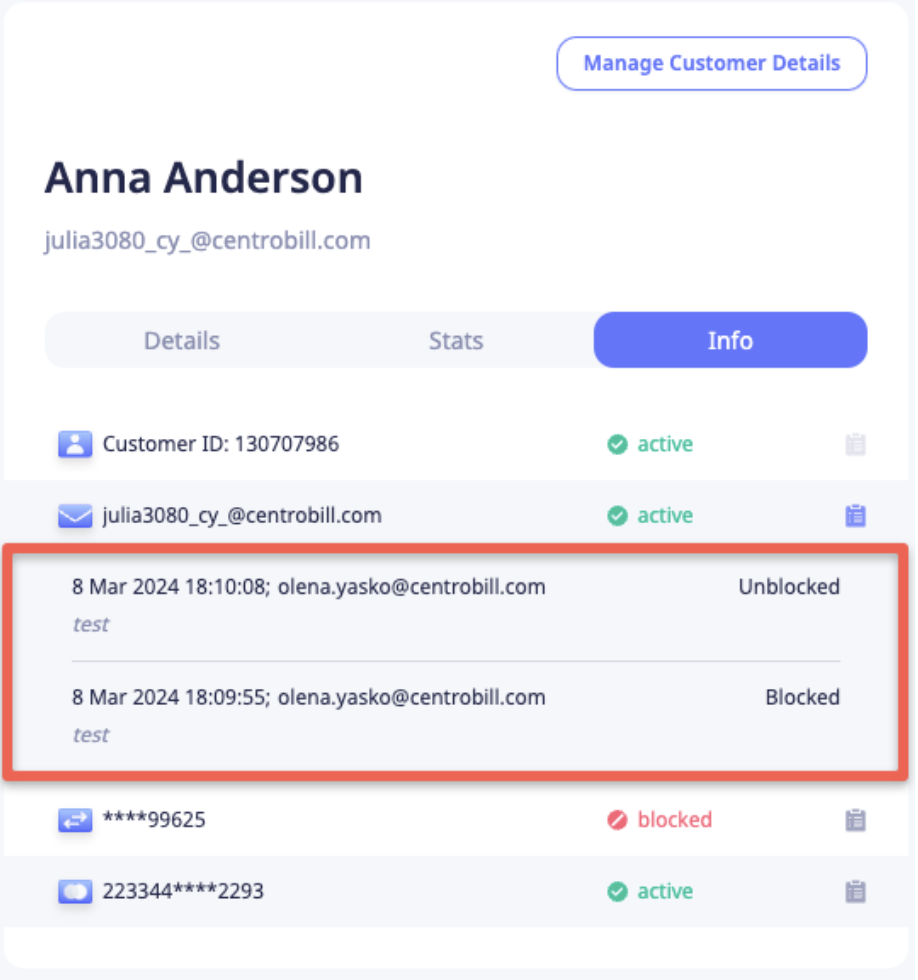
Displays information regarding all customer details, including payment accounts/cards, emails, and customer ID, along with their active or blocked status. You can also access the blocking/unblocking actions log by clicking the Log icon next to the corresponding detail.
Block/Unblock customer details
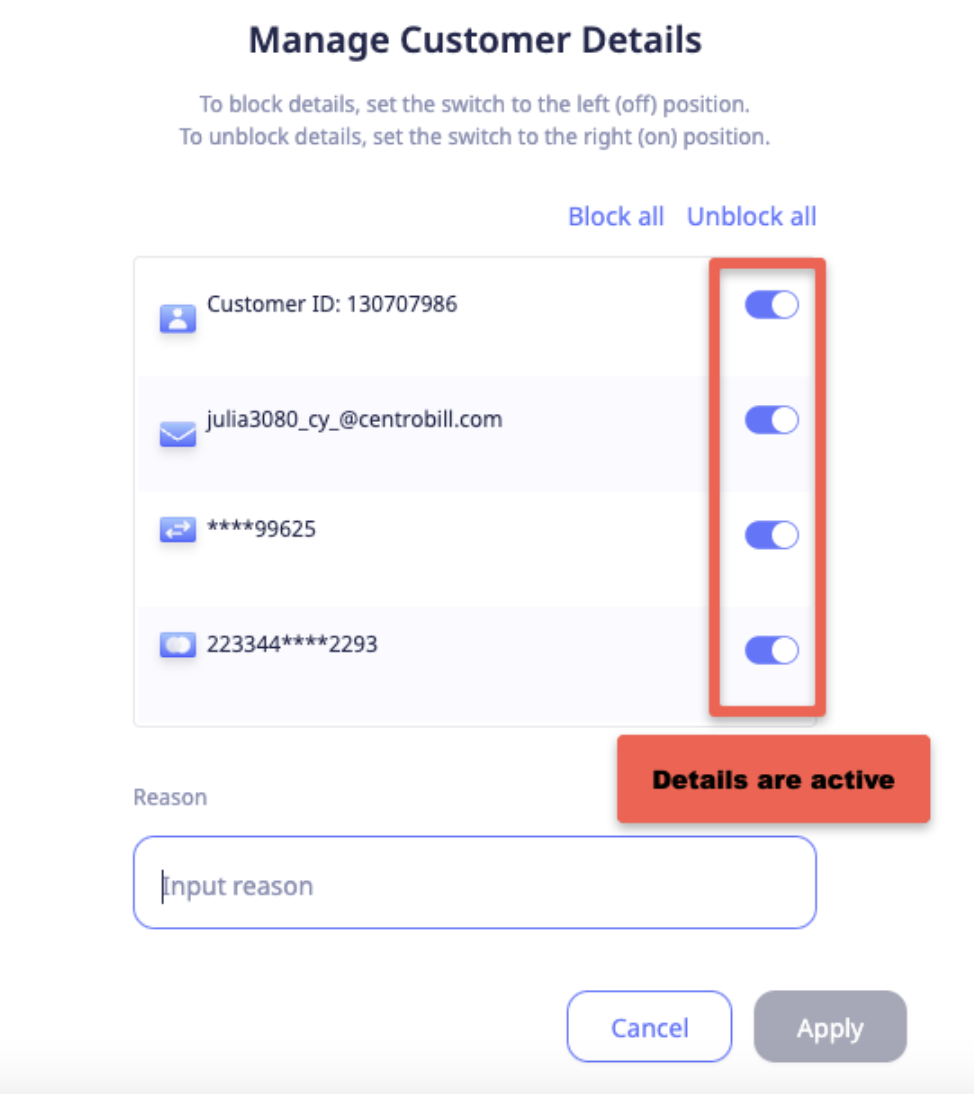
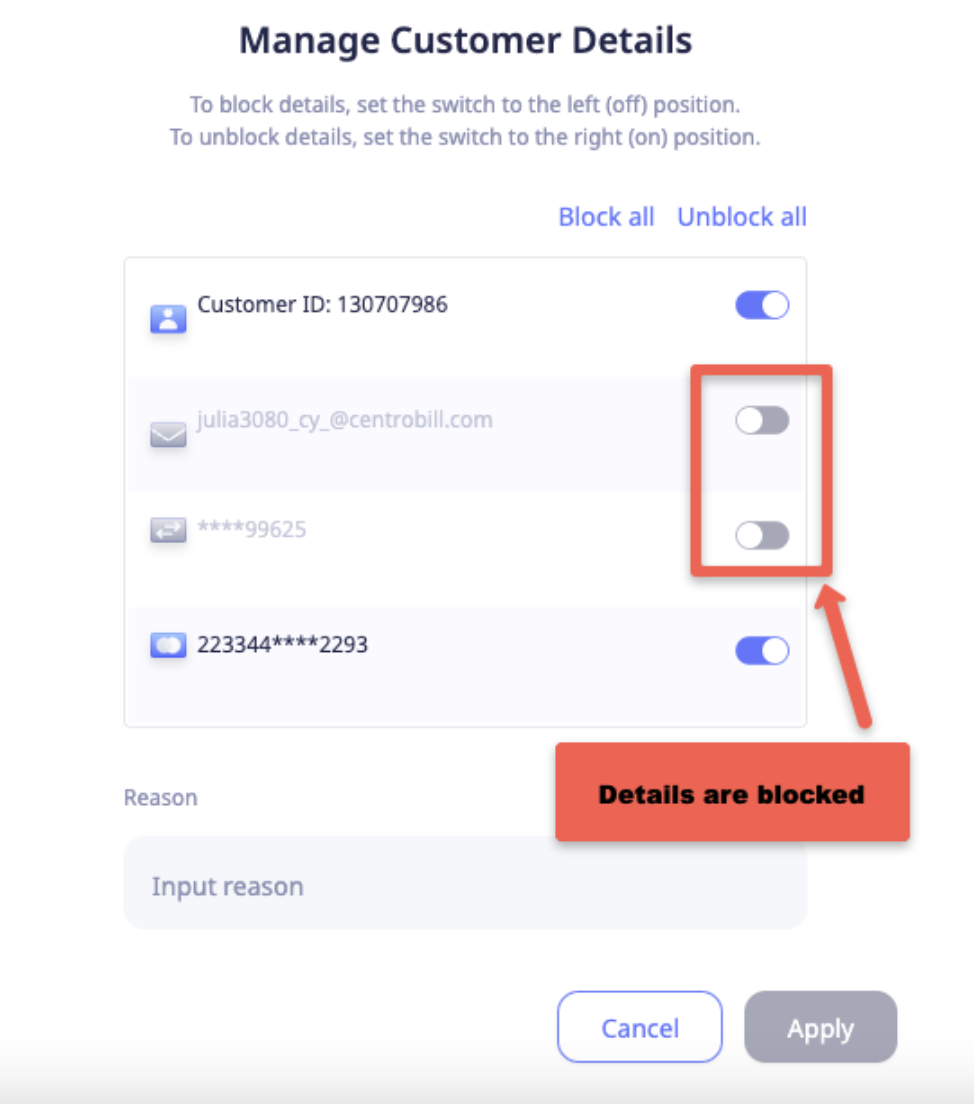
To block or unblock any customer details, click Manage customer details.
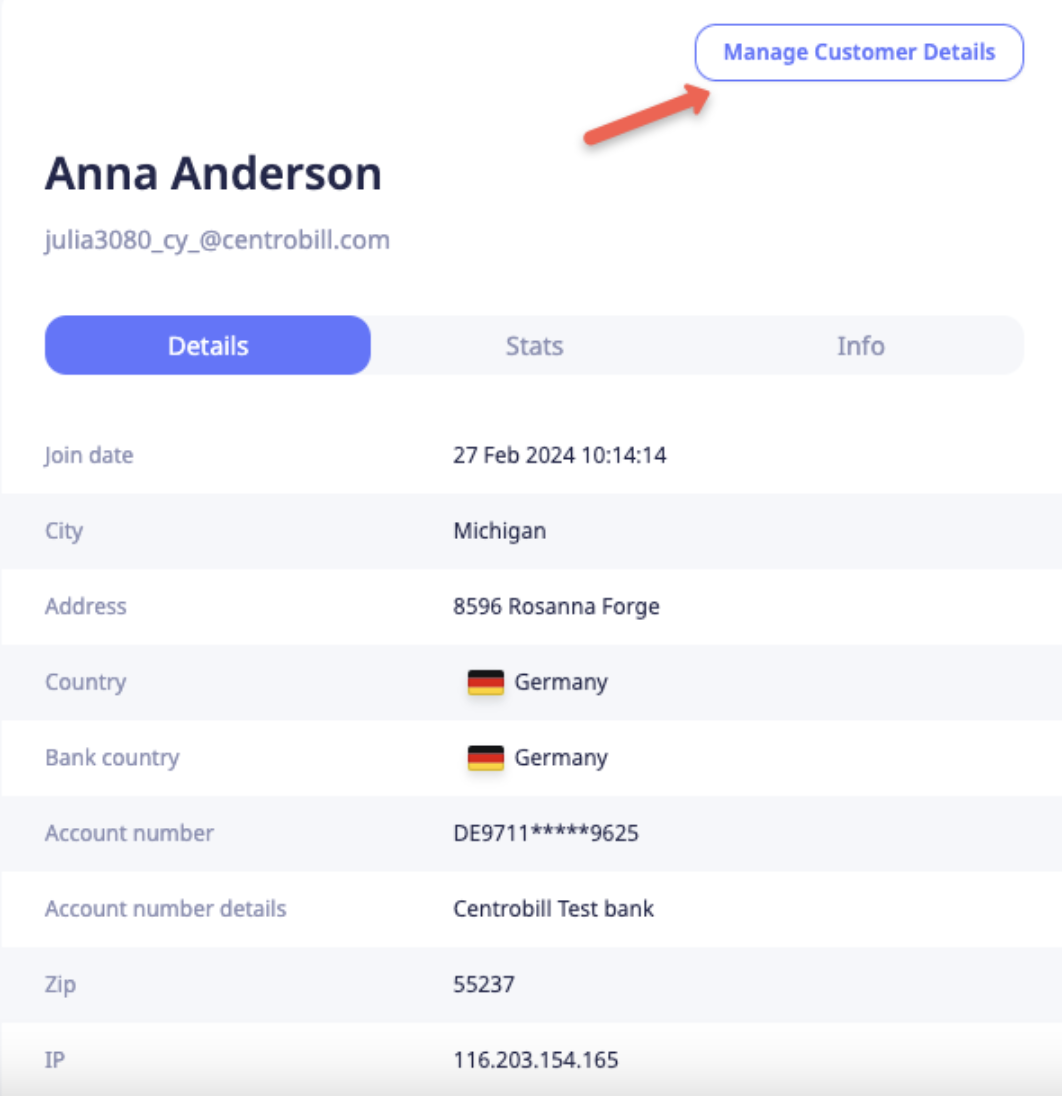
To block or unblock details, use the toggle switch to turn the setting off or on. Or click Block all/Unblock all to operate with all details in one click.
Products
Displays all the purchases made by the customer, grouped by subscriptions and one-time payments. The Product header displays information about the last action related to the product (time, payment method, action/status, amount).
Manage subscriptions
Cancel subscription
To cancel the subscription immediately, click Cancel and deselect the checkbox next to Keep subscription active until the next expected rebill date.

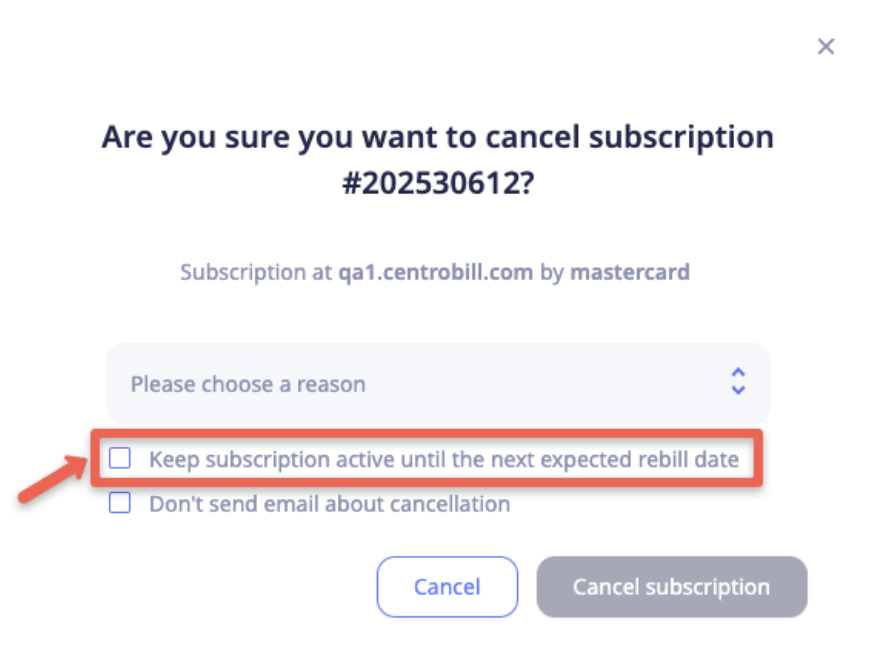
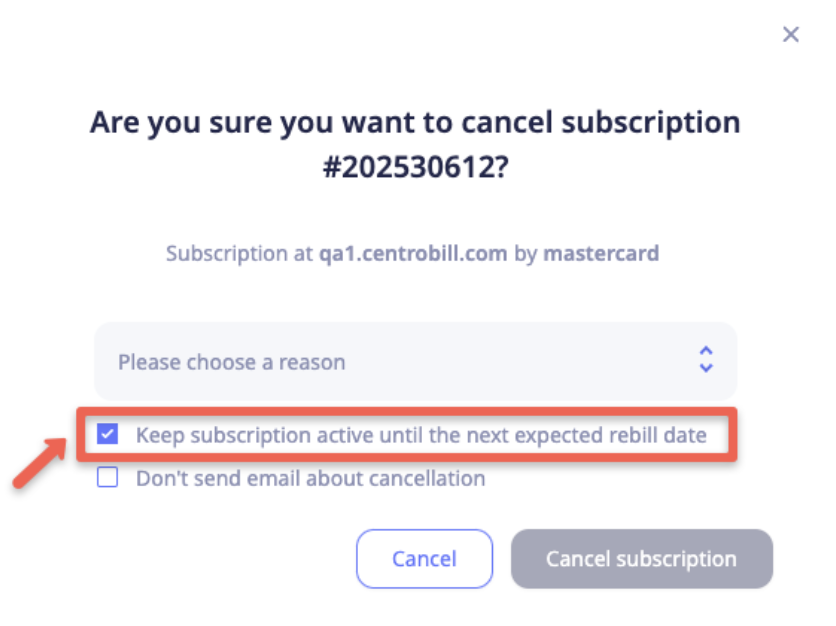
To schedule the cancellation of the subscription while keeping it active until the end of the current subscription period, click Cancel and ensure to select the checkbox next to Keep subscription active until the next expected rebill date .
Cancel subscription scheduled for future cancellation
To cancel a subscription that has been already scheduled for cancellation in the future, click Cancel now and follow the prompts in the pop-up.

Recover subscription
To recover a subscription that has been already scheduled for cancellation, click Recover and follow the prompts in the pop-up.

See product payment details
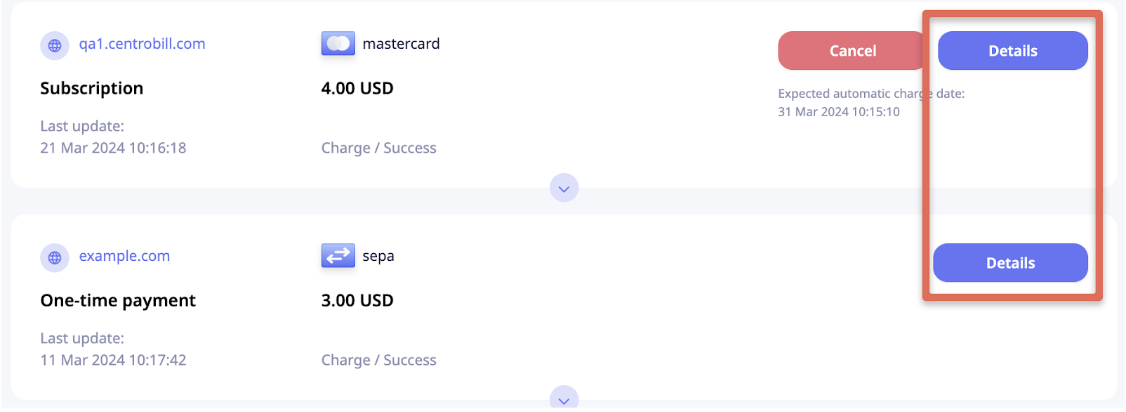
Click Details on the corresponding product to reveal the payment details of the LAST SUCCESSFUL transaction associated with the product. For one-time payments, it displays the payment details of the associated transaction.
Transactions
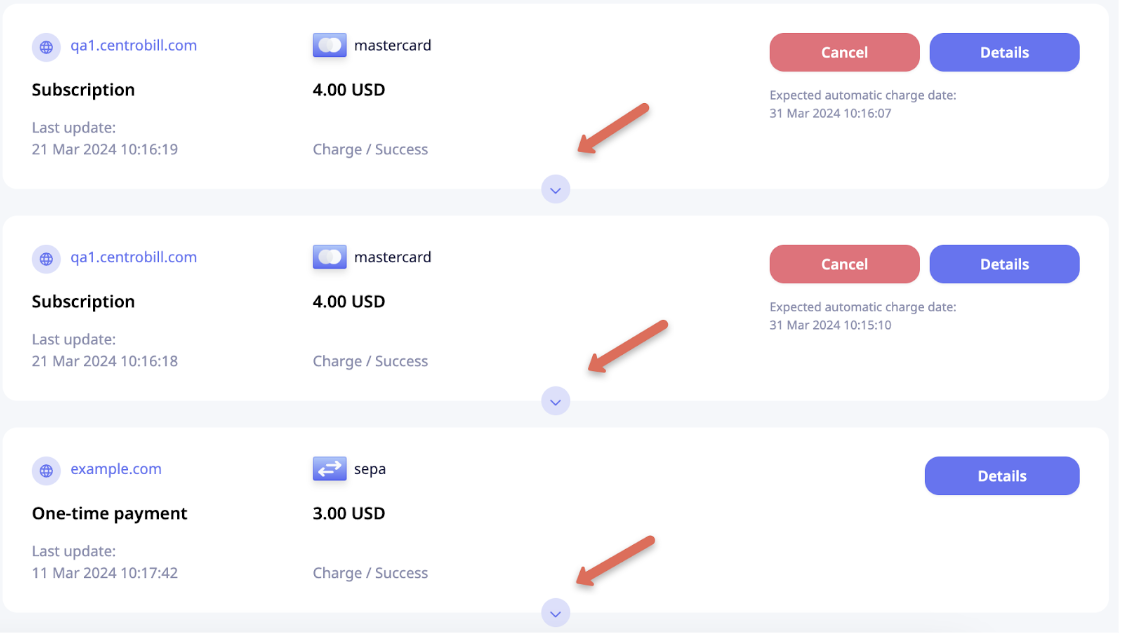
To see the list of transactions associated with the product, click on the Arrow to expand the details.
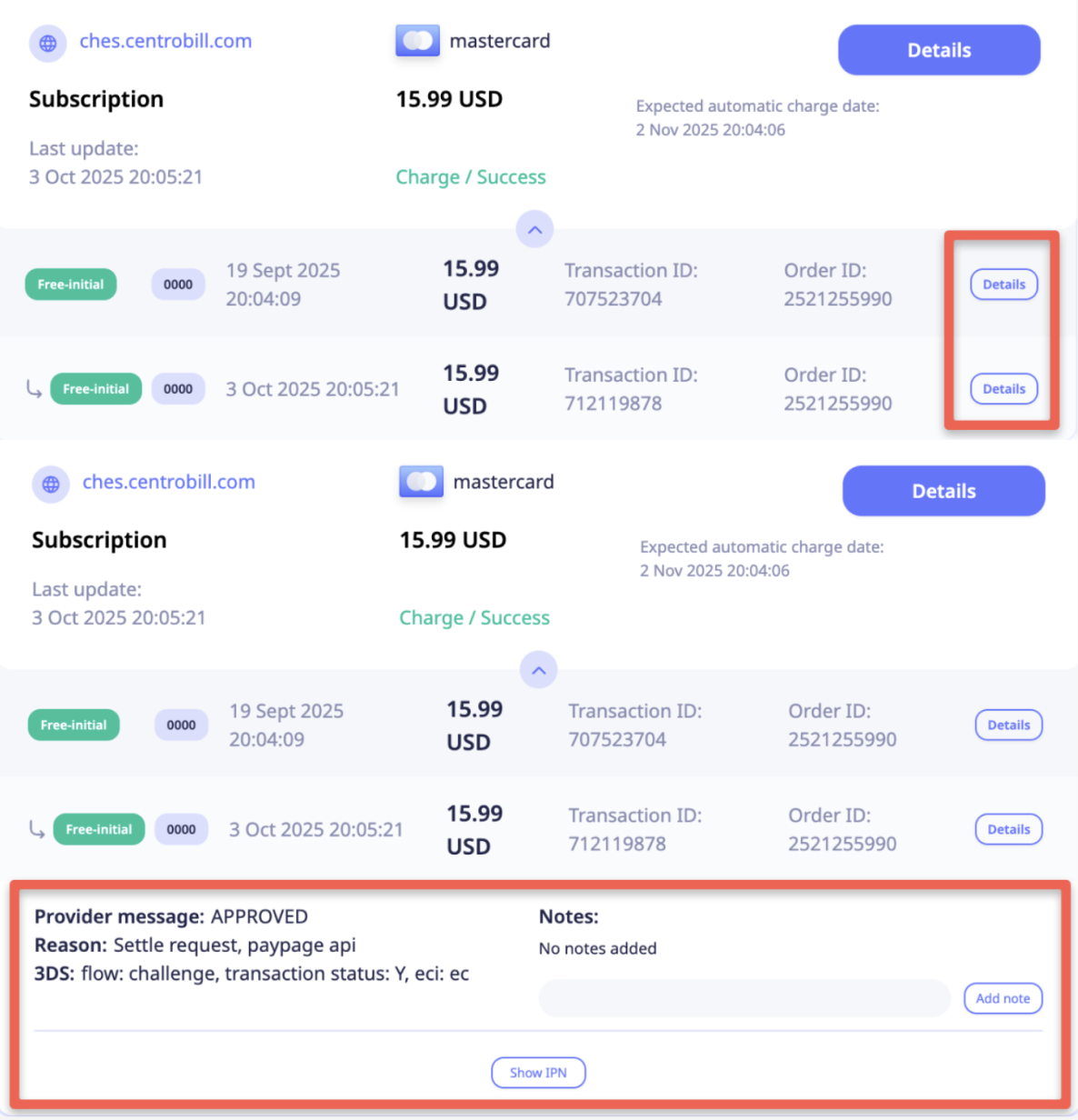
To see the details of the transaction, including IPN and the user's notes, click Details next to the transaction.
Credit transaction
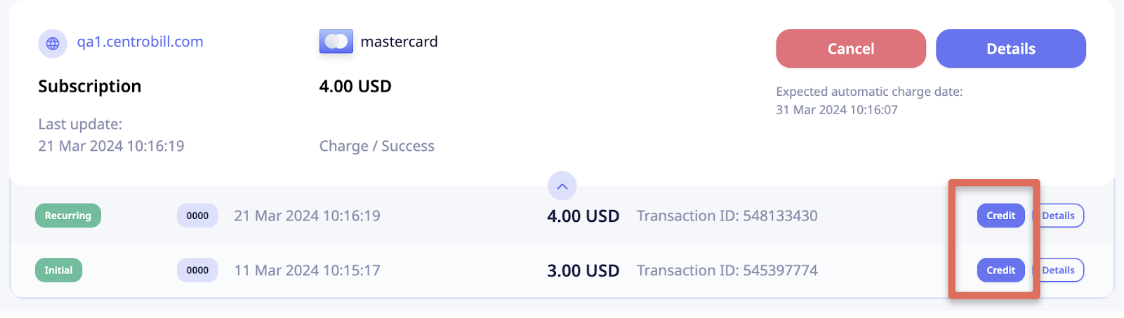
To make a credit for the transaction, click Credit on the corresponding transaction and follow the prompts in the pop-up.
In case you want to block all customer details to prevent further payments and any actions by the customer, ensure to select the checkbox next to Block all customer details. This action will block all customer details including Customer ID. You can also manage customer details by clicking Manage customer details (see Customer Management paragraph).
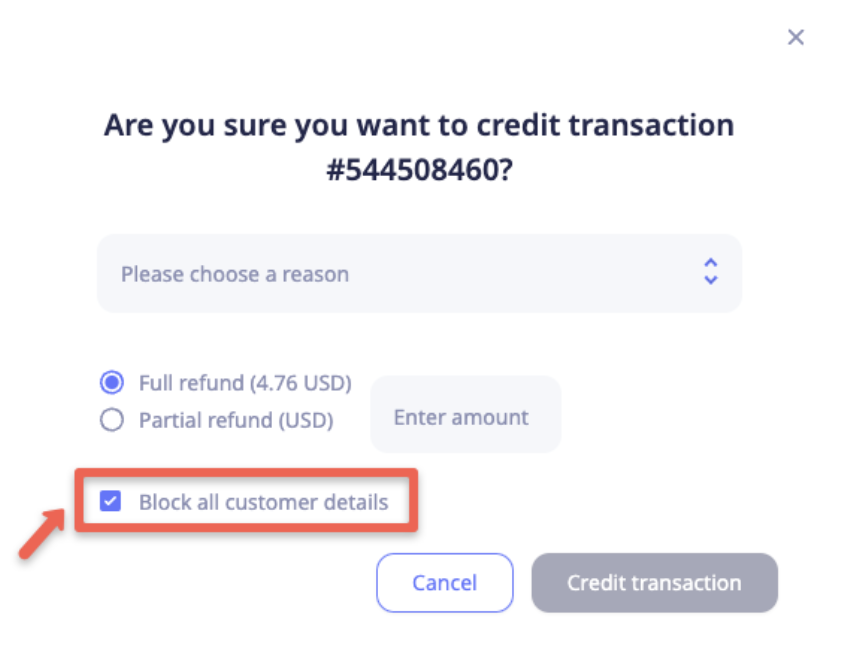
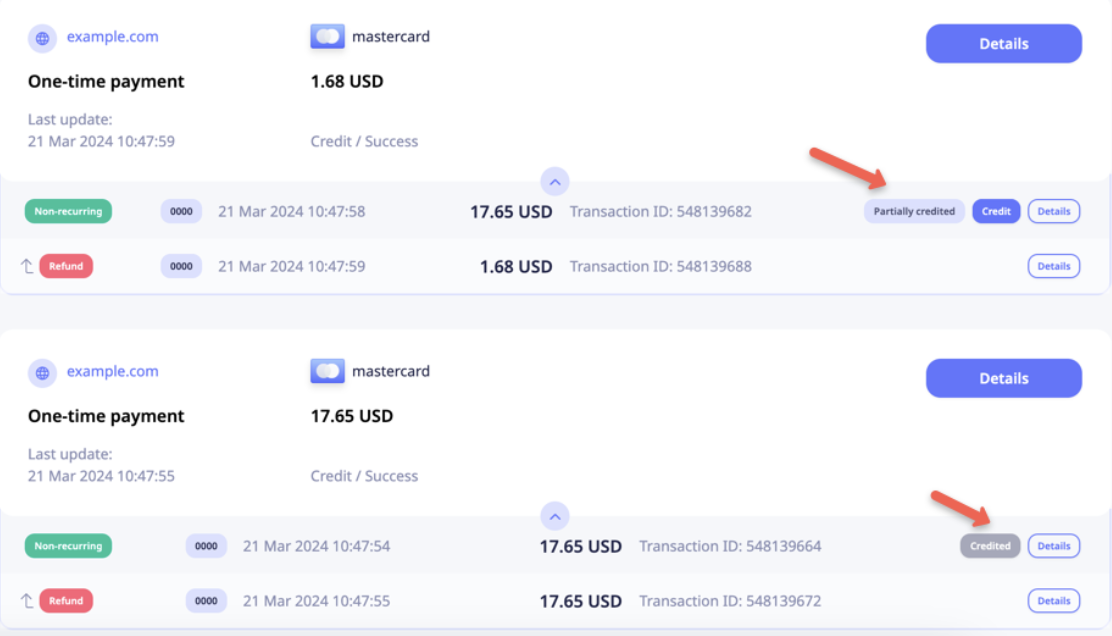
You can either credit the transaction in full or partially. After a successful refund, the transaction status will change accordingly. Partially credited transactions can be refunded again for the amount not exceeding the remaining balance.
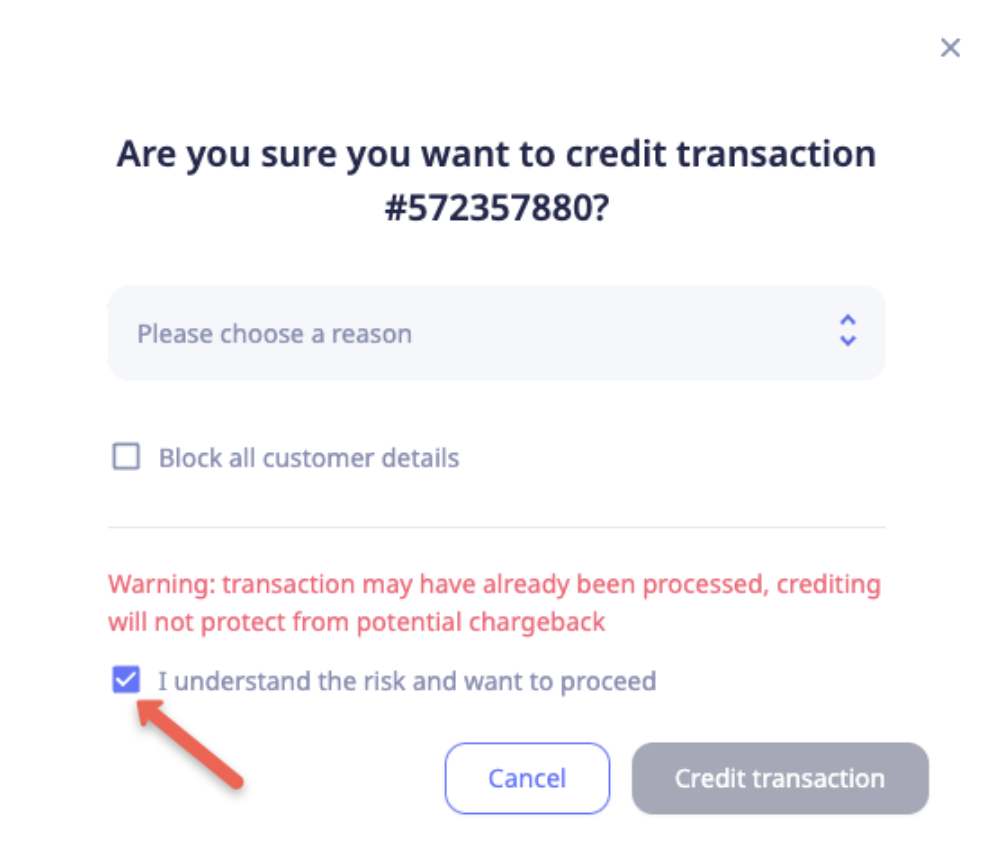
NoteFor SEPA and some other wire transactions, a partial refund is not possible, so you can do a refund at your own risk. To proceed with the refund, make sure to select the checkbox I understand the risk and want to proceed.
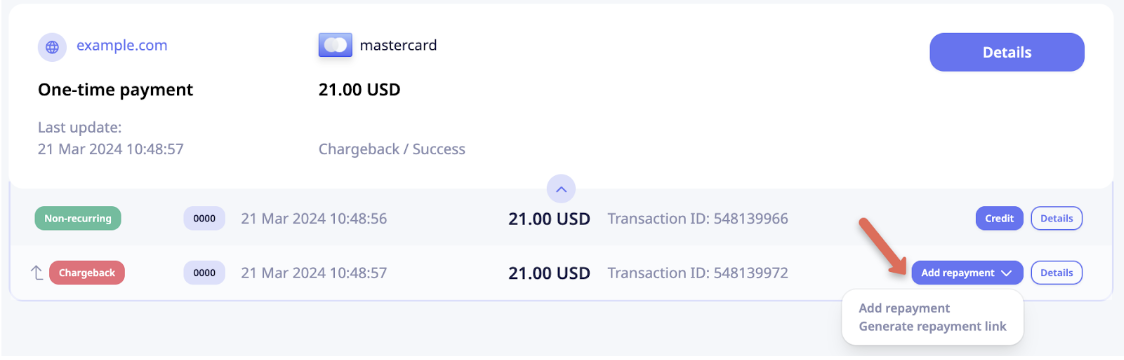
Add repayment for chargeback transactions
To create a repayment link or add repayment manually, click Add repayment on the corresponding transaction, choose the needed option, and follow the prompts in the pop-up.
Updated 12 months ago