
Create a website to initiate payment
DRAFT (IN PROGRESS)
The Gateway platform expects an account with a website and at least one product created for that website.
To make a payment, you need to go through these seven quick steps:
- Log in to your Merchant portal account.
- Navigate to the Sites&Products tab and click Add new site in the upper left corner.
- Fill out the site name, select the site type, add the technical URLs of your website, then scroll down and click Add new.
- After you see the notification saying your site will be fully ready within the next 30 minutes, scroll down and click Back to list of sites.
- Find your website in the list and click Manage products to navigate to the list of your website's products (SKUs).
- Click Add new product to open a pop-up form that allows you to create new products.
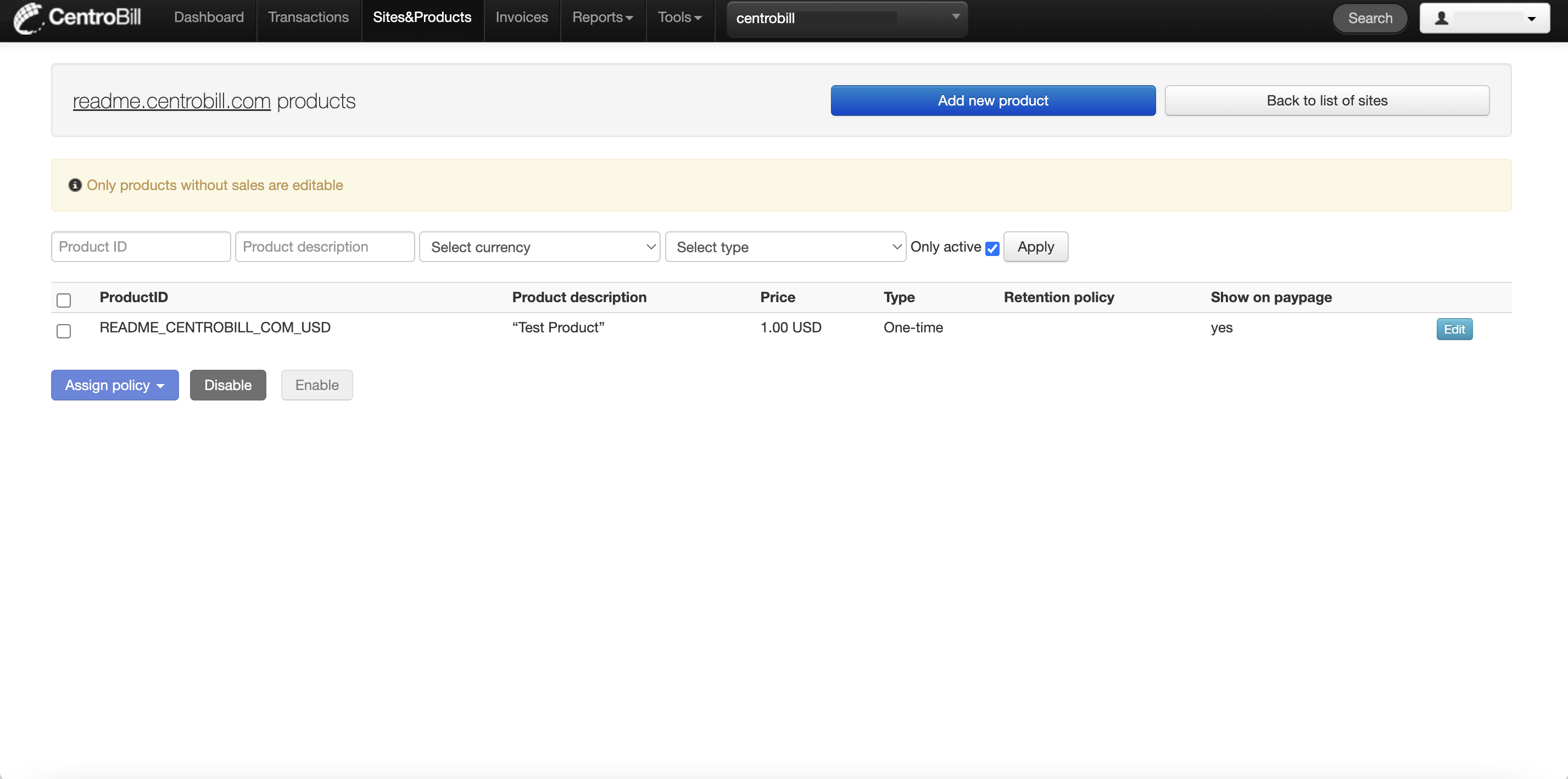
- Set up a simple one-time “Test Product” with a 1.00 USD pricing and click Add new.
TIPPlease note, if you are using NATS software, you will need to add all your join options as SKUs for your website(s). If the amount of options isn’t a usual 1-3-6-12 month product, kindly contact our Merchant Support team for help with the product creation. This will save your time and speed up the integration.
Follow the screenshots below for more detailed information:
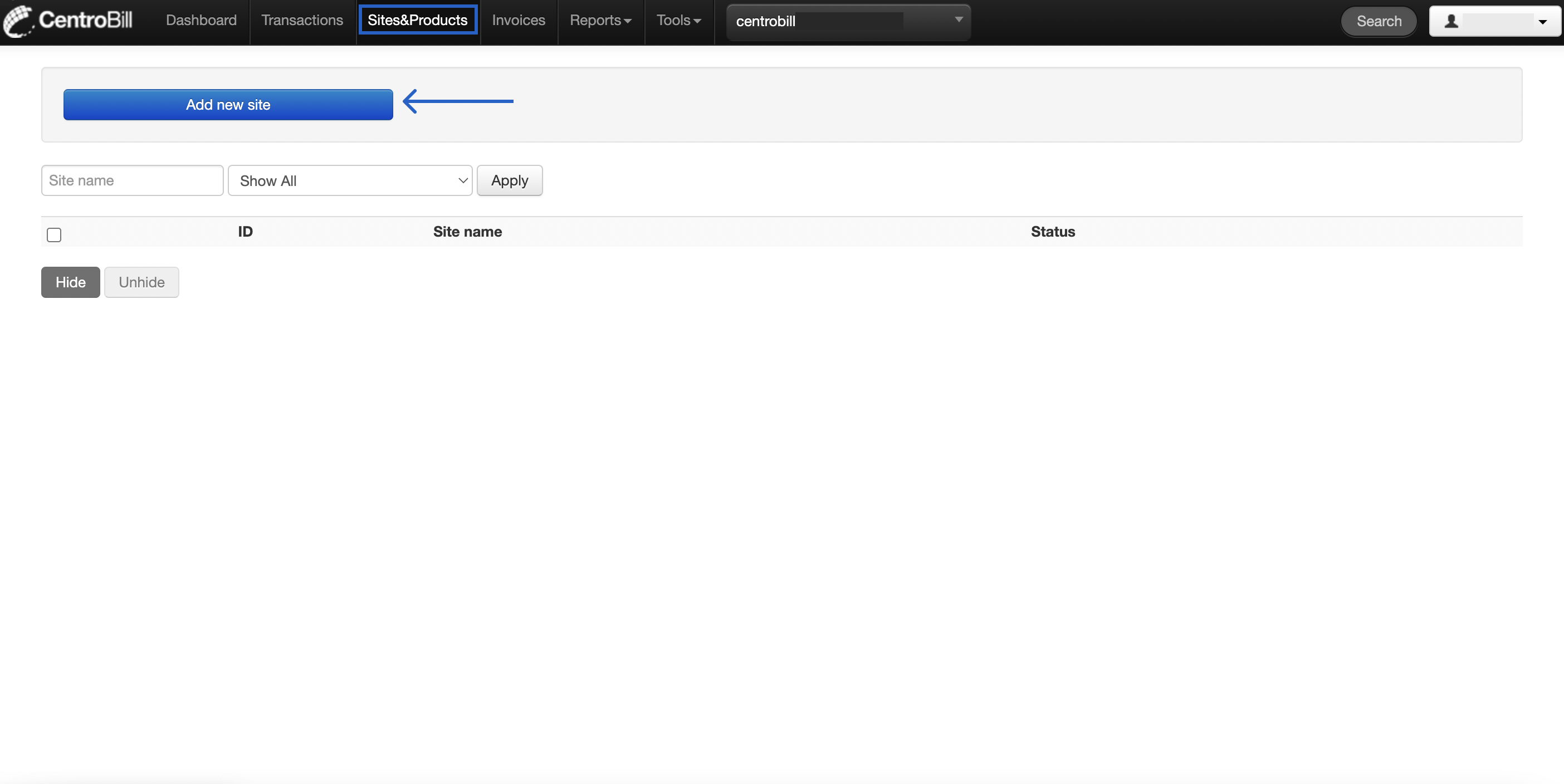
Step 1 and 2: Log in to your CentroBill account and open the Sites&Products tab
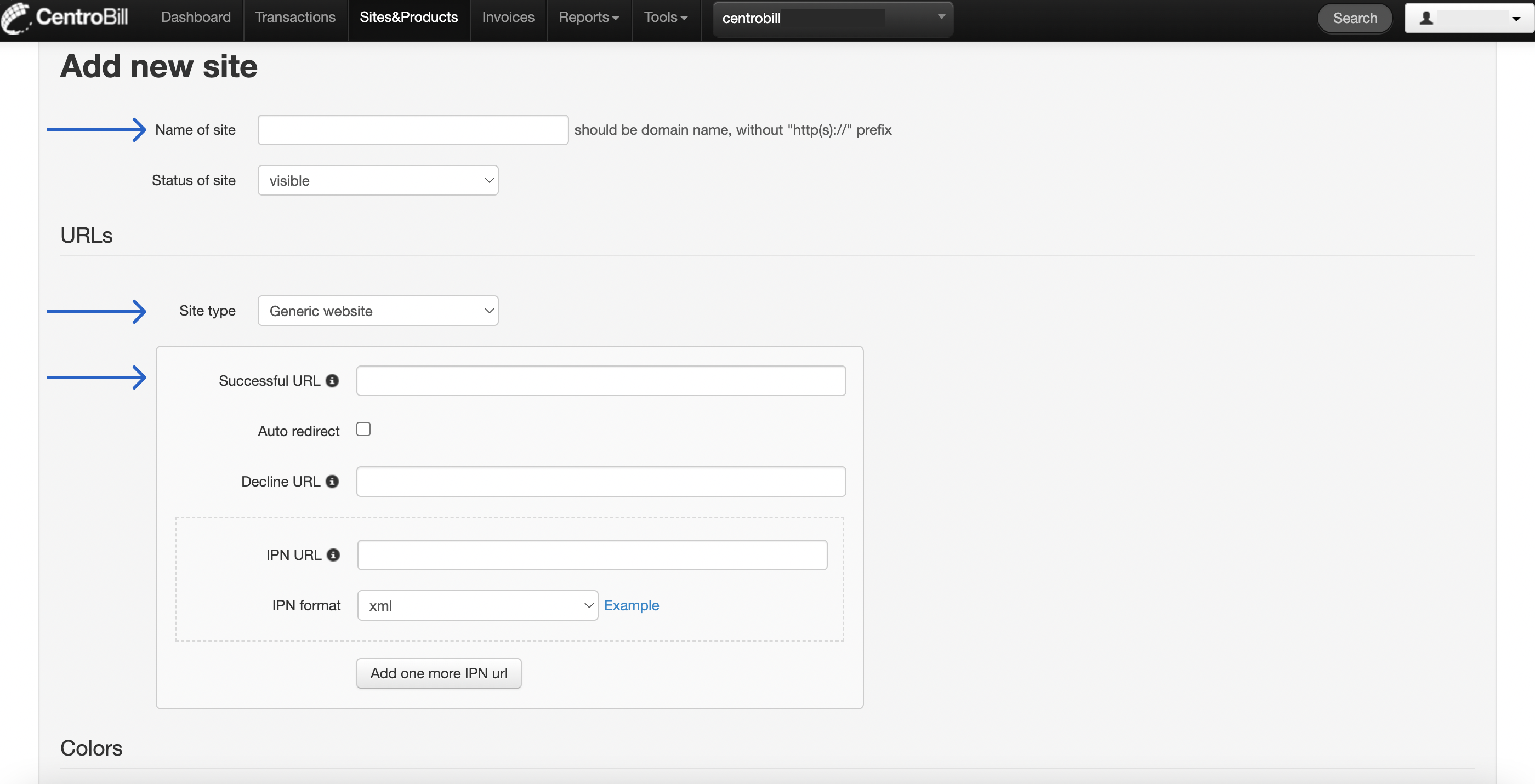
Step 3: fill in the site information
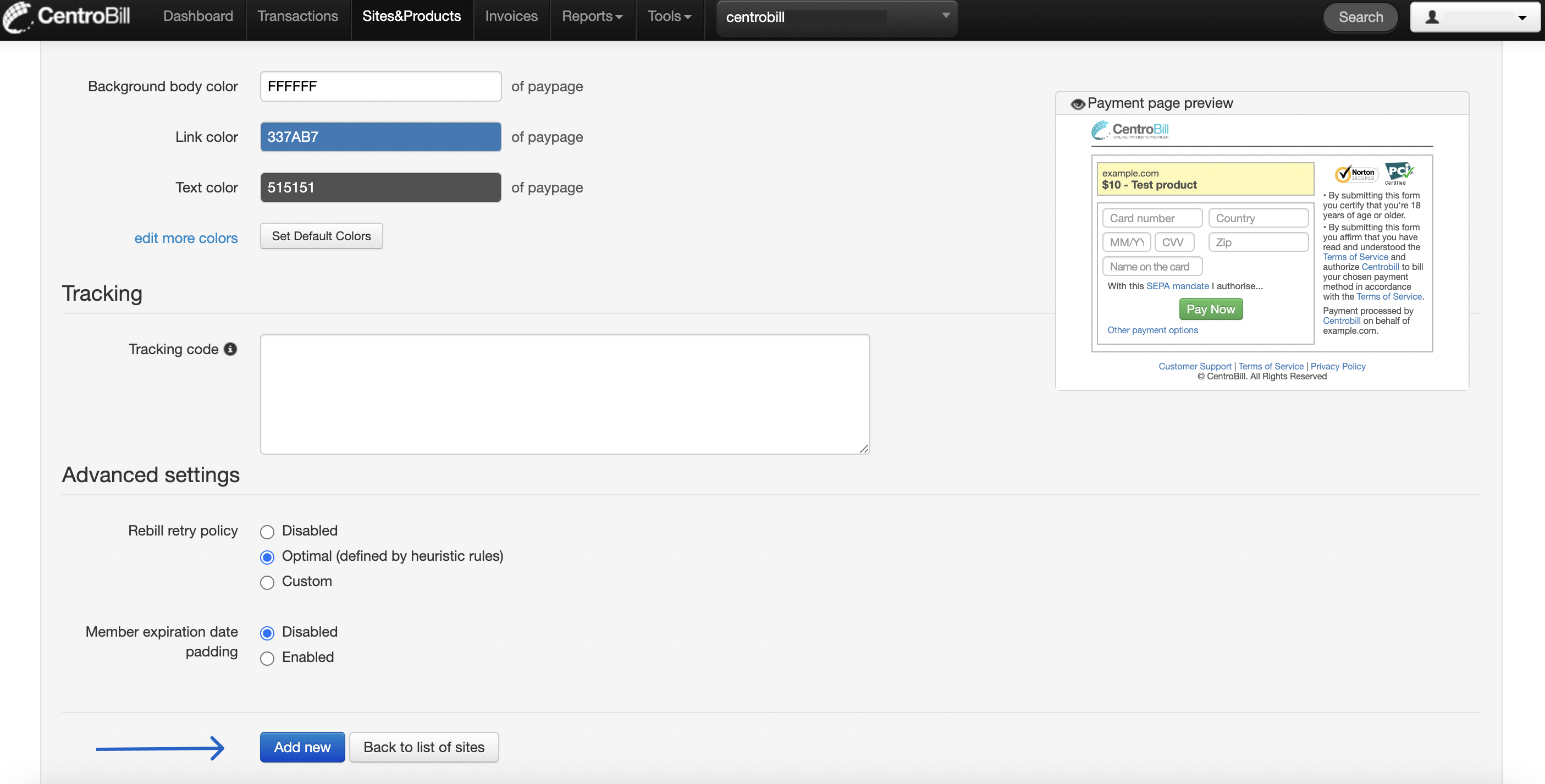
Step 3: click Add new
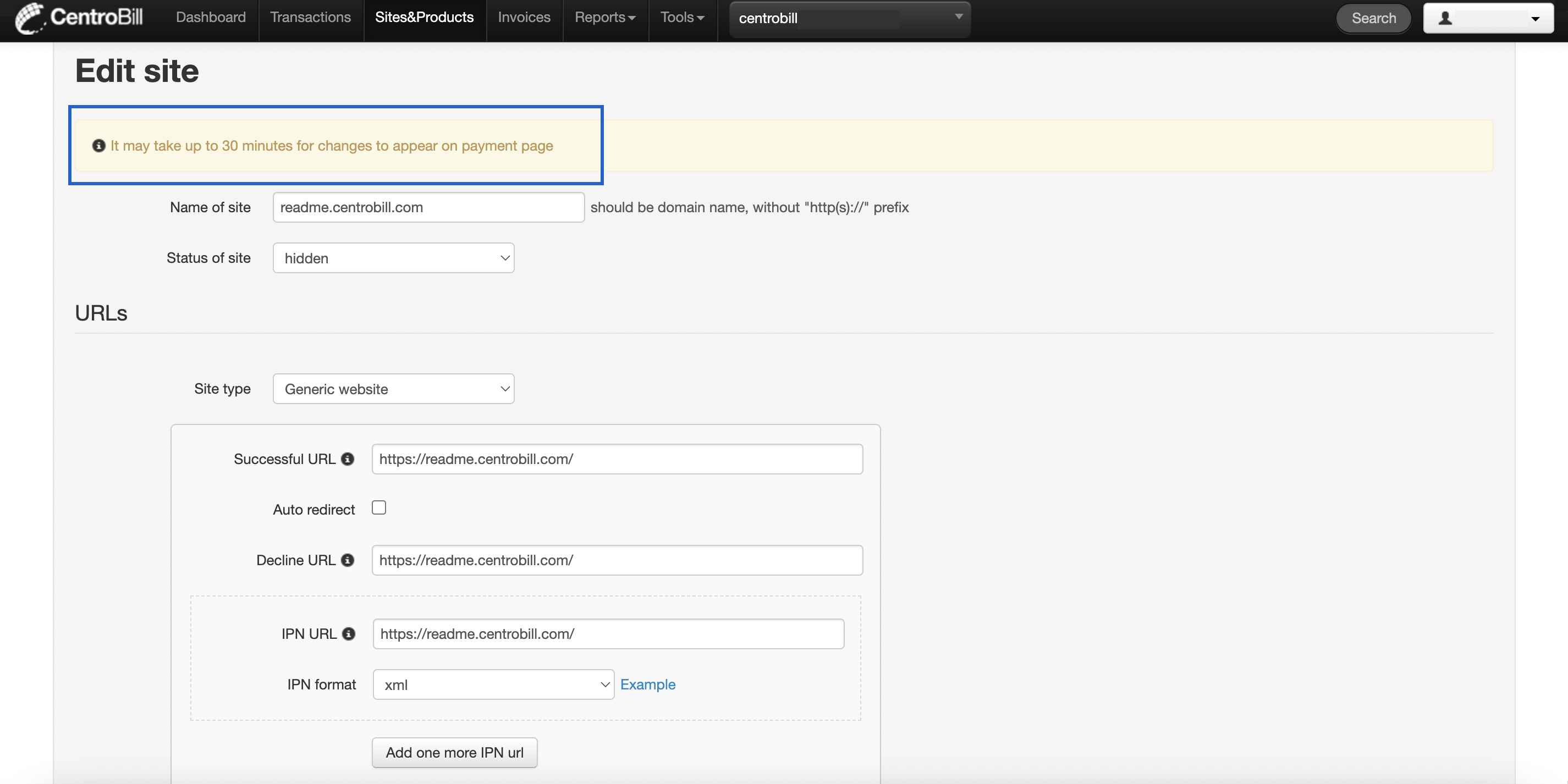
Notification about changes
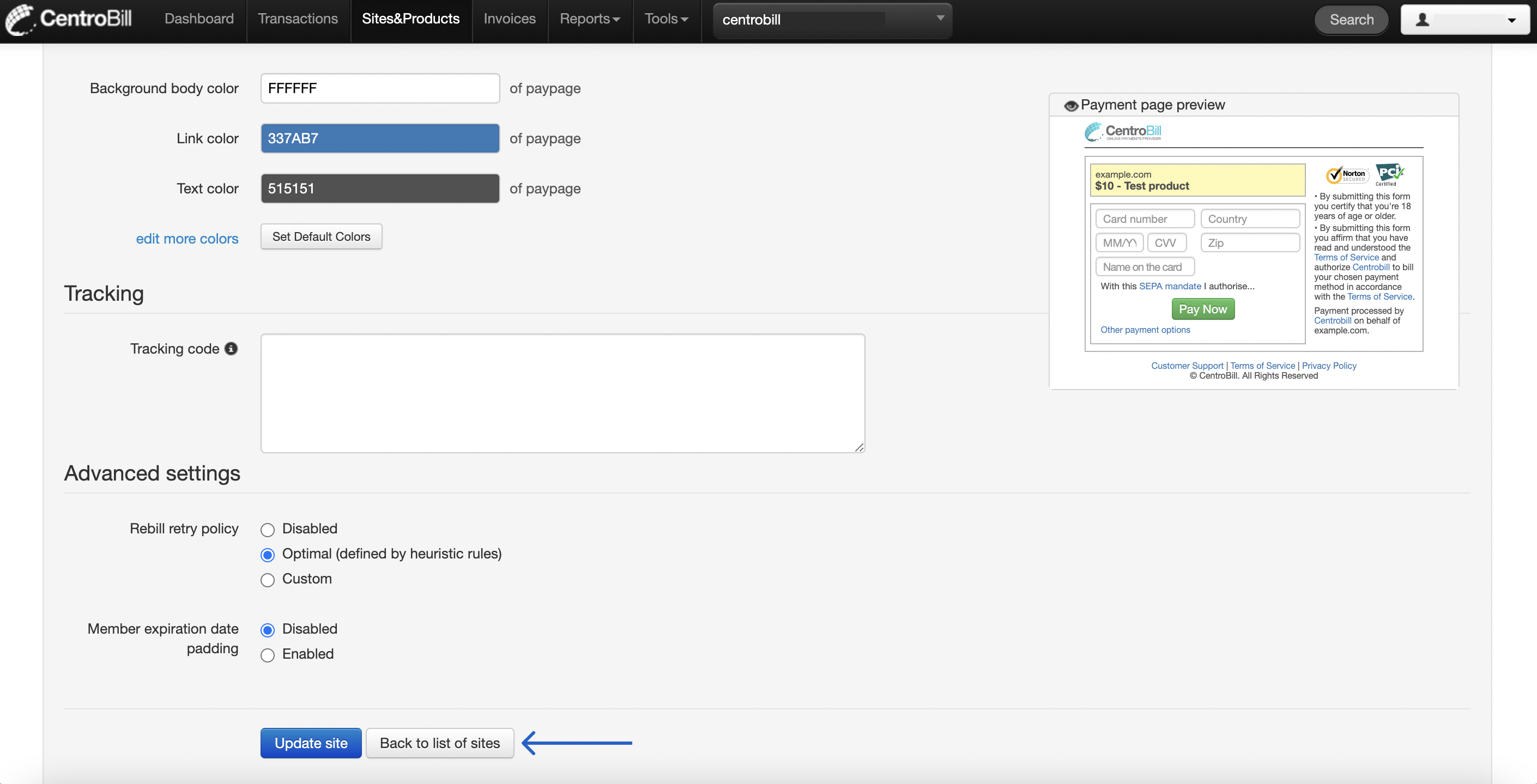
Step 4: click Back to list of sites
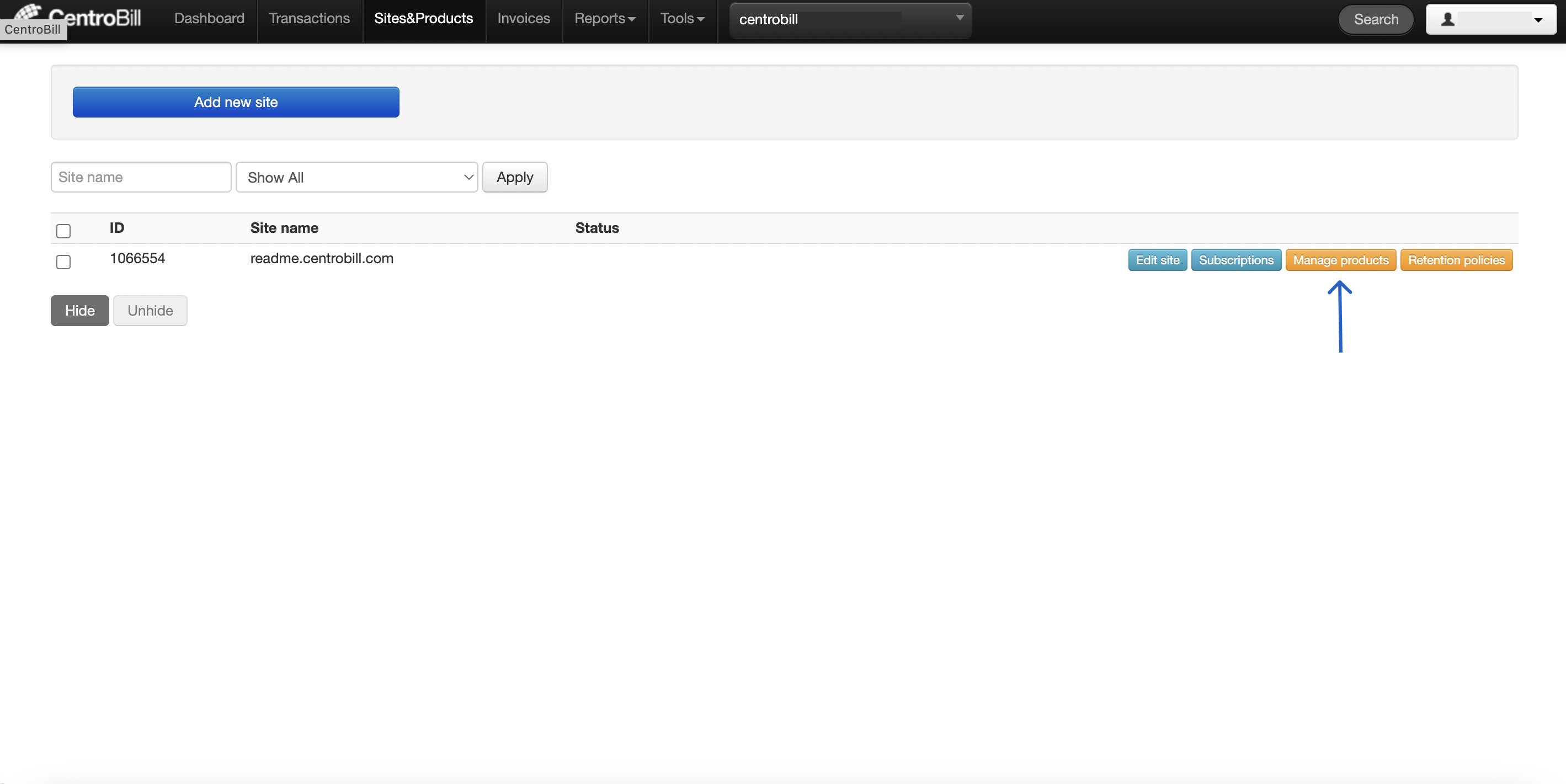
Step 5: click Manage products
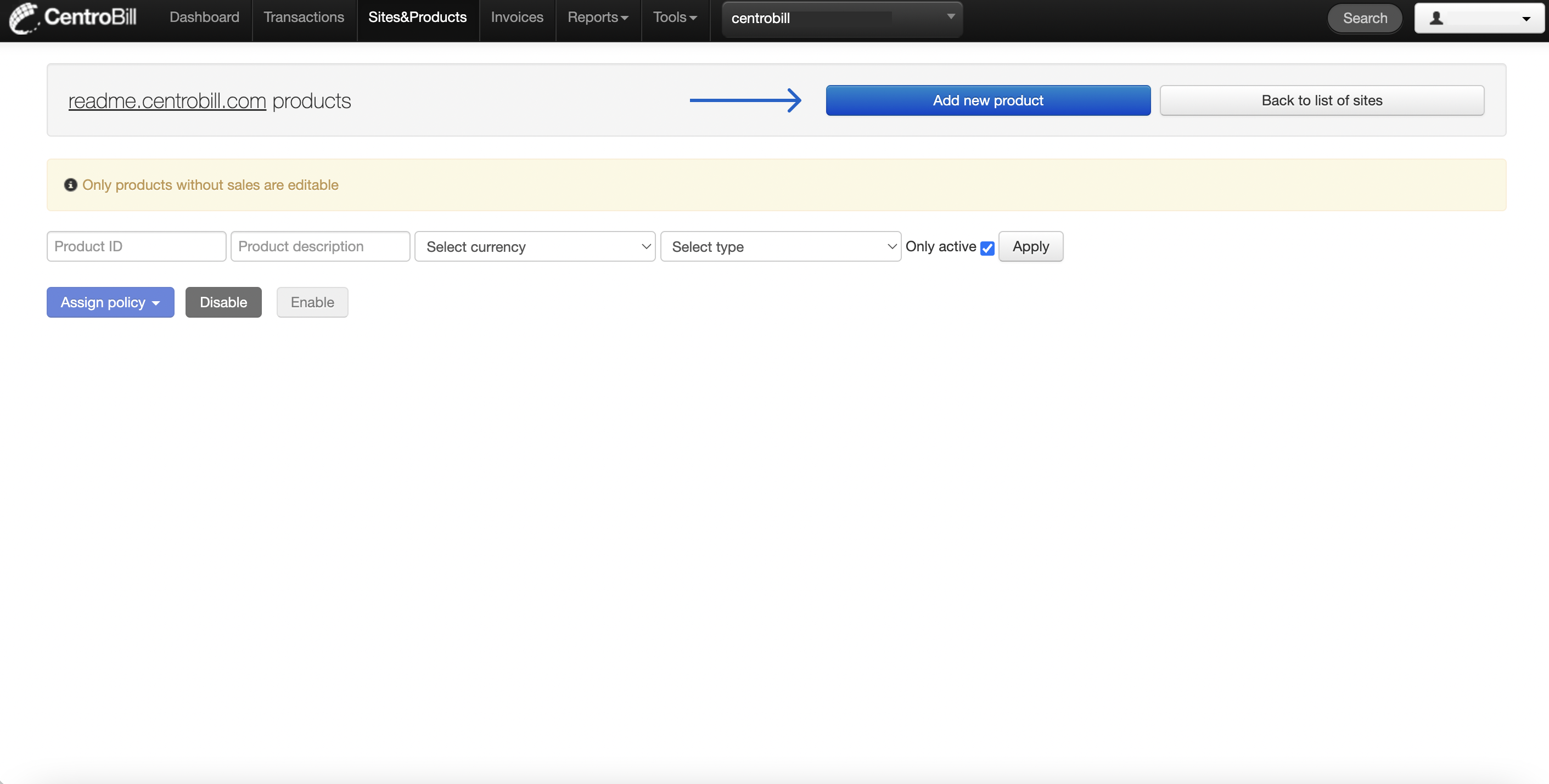
Step 6: click Add new product
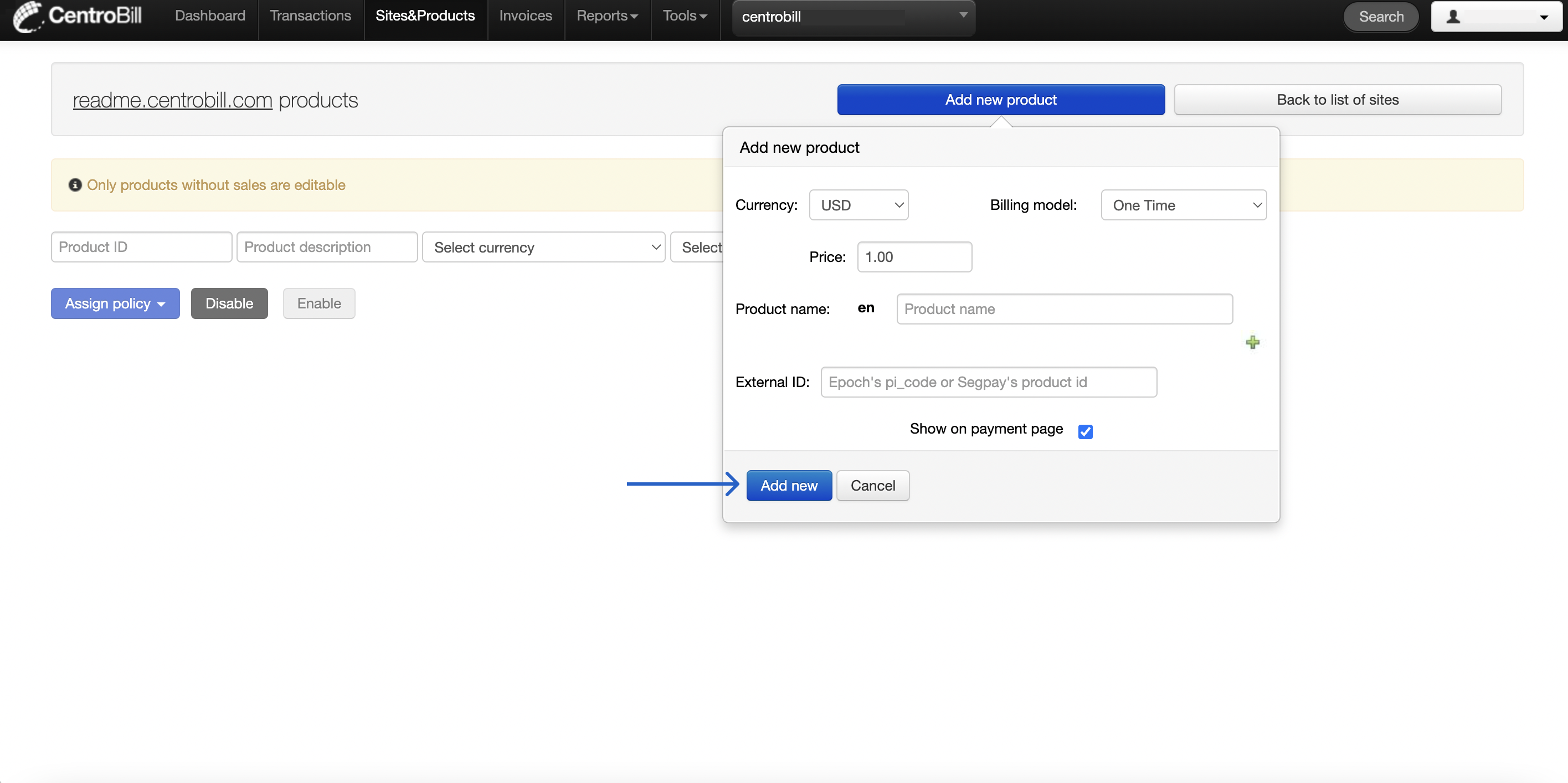
Step 7: set up a “Test Product” and click Add new
Congratulations! Now you are ready to use the Gateway's API to make payments.
Done!
Updated about 2 months ago