
Manage orders
To access the Orders menu, click Orders in the main menu.
Columns overview and settings
To customize the visible columns in the Orders table, click Column settings. Select the desired columns by checking the corresponding boxes. Your selection will be saved and applied automatically for all future sessions in the same browser.
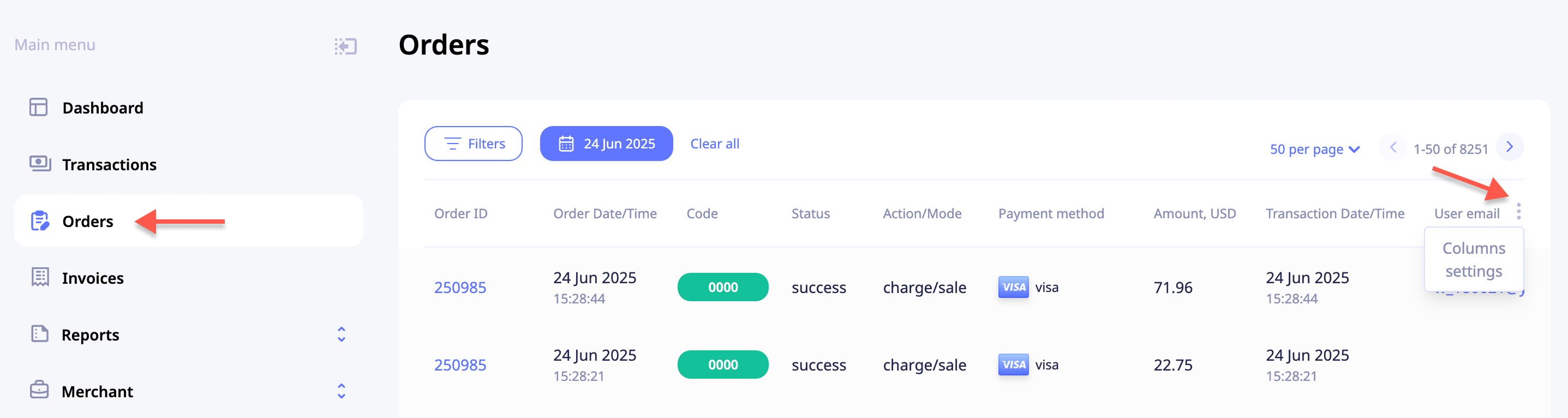
- Order ID: click Order ID to open the Transactions table. The view will be automatically filtered to show transactions associated with the selected order.
- User email: click the user’s email address to open the Customer page for that specific user. This page provides detailed information about the customer and their transaction history.
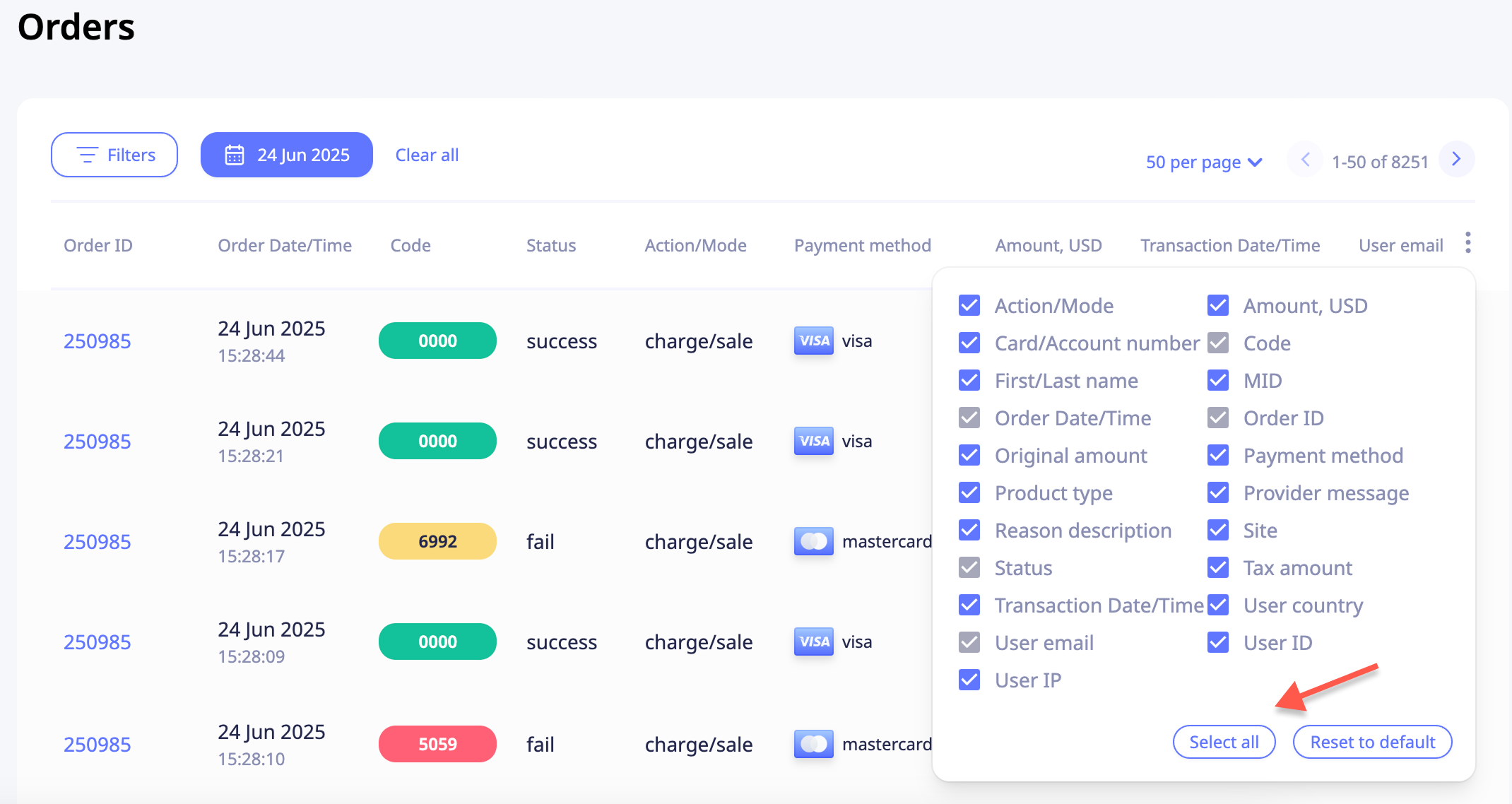
- Select all: displays all available columns.
- Reset to default: restores the default column layout, which includes:
Order ID
Order Date/Time
Code
Status
Action/Mode
Payment Method
Amount, USD
Transaction Date/Time
User Email
Original Amount
Site
NoteThe following columns are fixed and cannot be hidden: Order ID, Status, Code, Order Date/Time, User Email
Column order
To rearrange column order, hover over a column name until the pointer changes to a hand icon, then drag and drop the column to the desired position. The custom order is saved for future sessions in the same browser.
Navigation
Rows per page
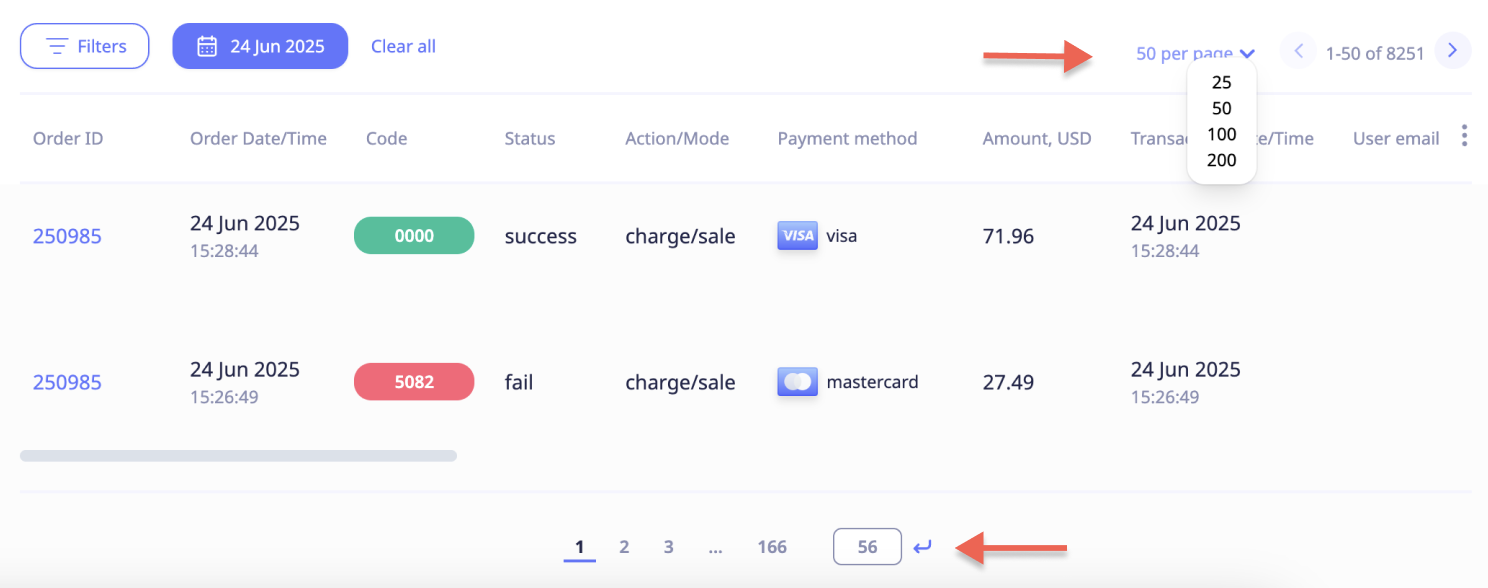
To set the number of rows displayed per page, click the per-page dropdown in the top right corner of the Orders table.
Page navigation
Use the arrows in the top right corner to move between pages. To jump to a specific page, scroll to the bottom and use the navigation panel, click a page number, or enter a number and press Enter.
Filters
NoteThe Orders table is filtered by Today by default. The Date filter is required and cannot be removed, but its range can be adjusted.
Apply filters
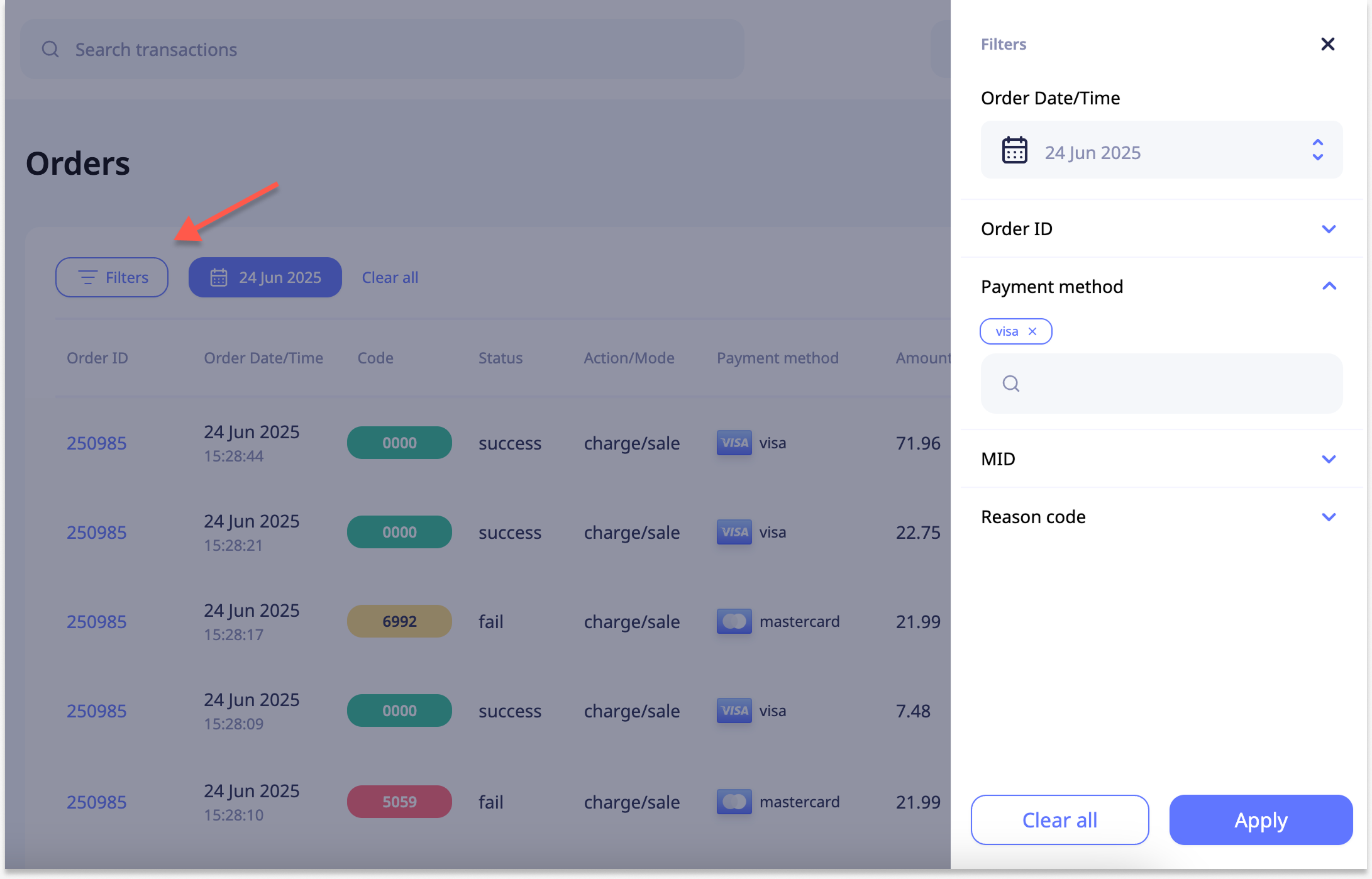
- Click Filters or an existing filter to open the sidebar.
- Scroll through available filters and configure as needed. You can apply multiple filters simultaneously.
- Click Apply to update results.
To adjust a filter, click its label or the Filters button, modify settings, and click Apply again.
To remove filters, click the X on any applied filter or select Clear all.
Updated about 1 year ago