
Testing payment methods
DRAFT (IN PROGRESS)
This guide will walk you through the steps required to perform Card, SEPA, and Token payment testing.
Card payment testing
NOTE
- This guide is for creating test credentials only and cannot be used to whitelist your cards.
- To use your card or bank details, make at least one transaction (successful or declined), find
paymentAccountIdreturned to you in the IPN, and contact us at [email protected] with these details.- IP addresses you are going to use for real card transactions should not be whitelisted.
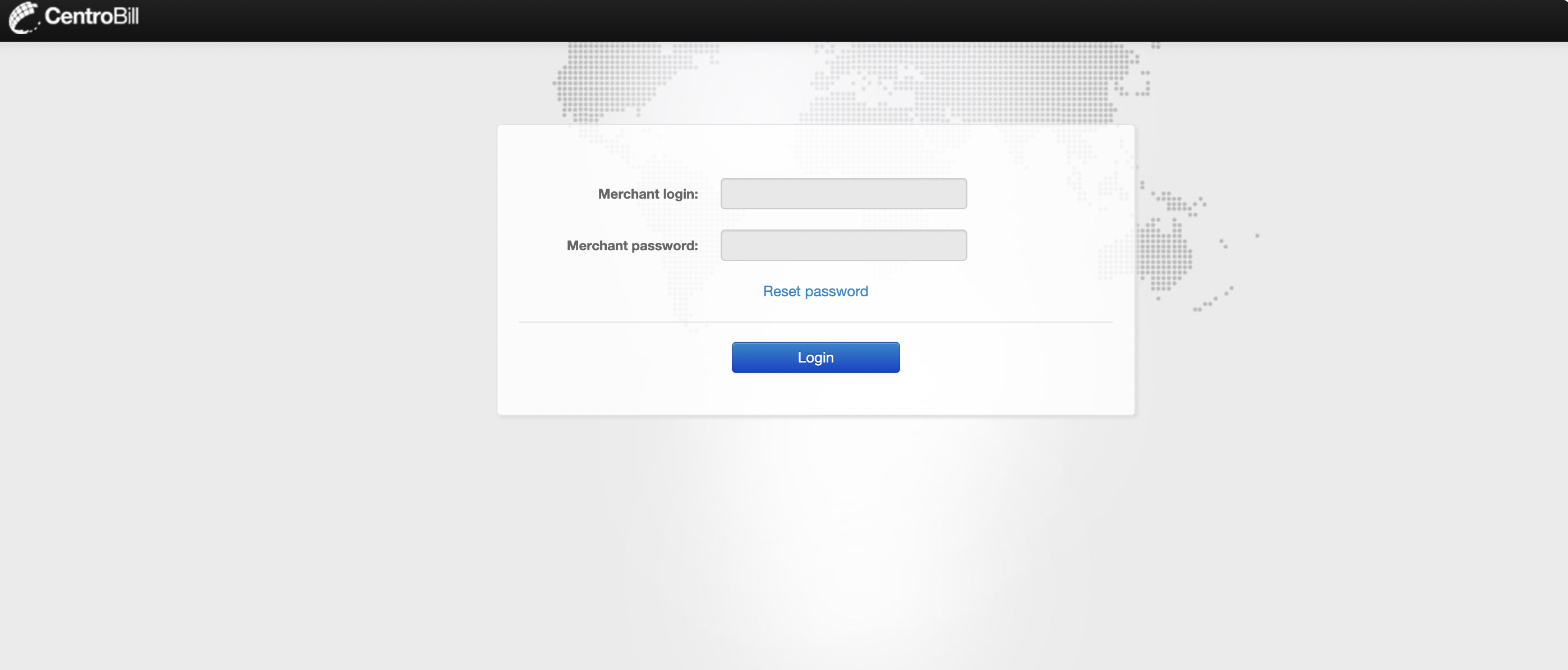
- Log in to the Merchant portal.
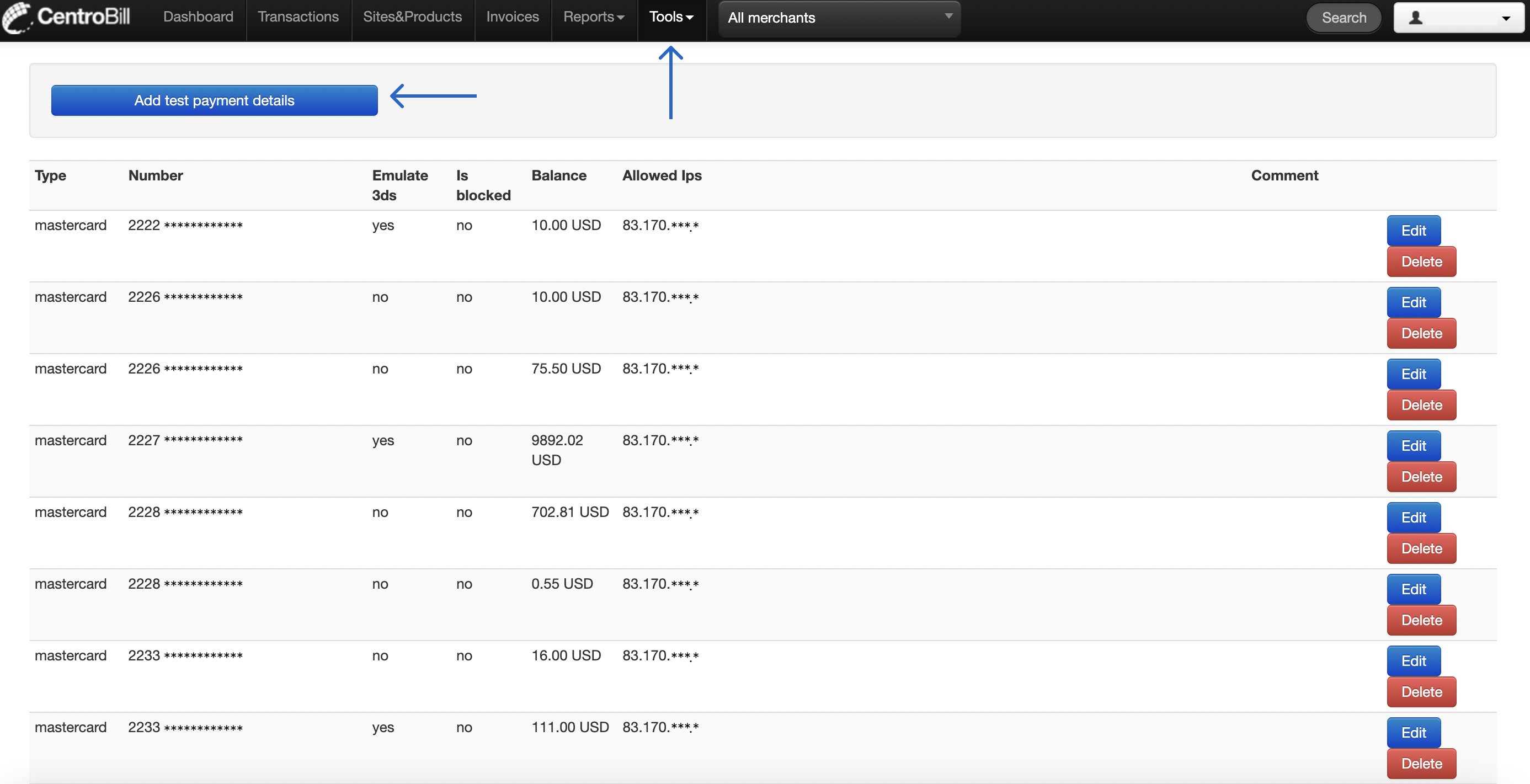
- Open the Tools tab, navigate to Test Cards, and then click Add test payment details.
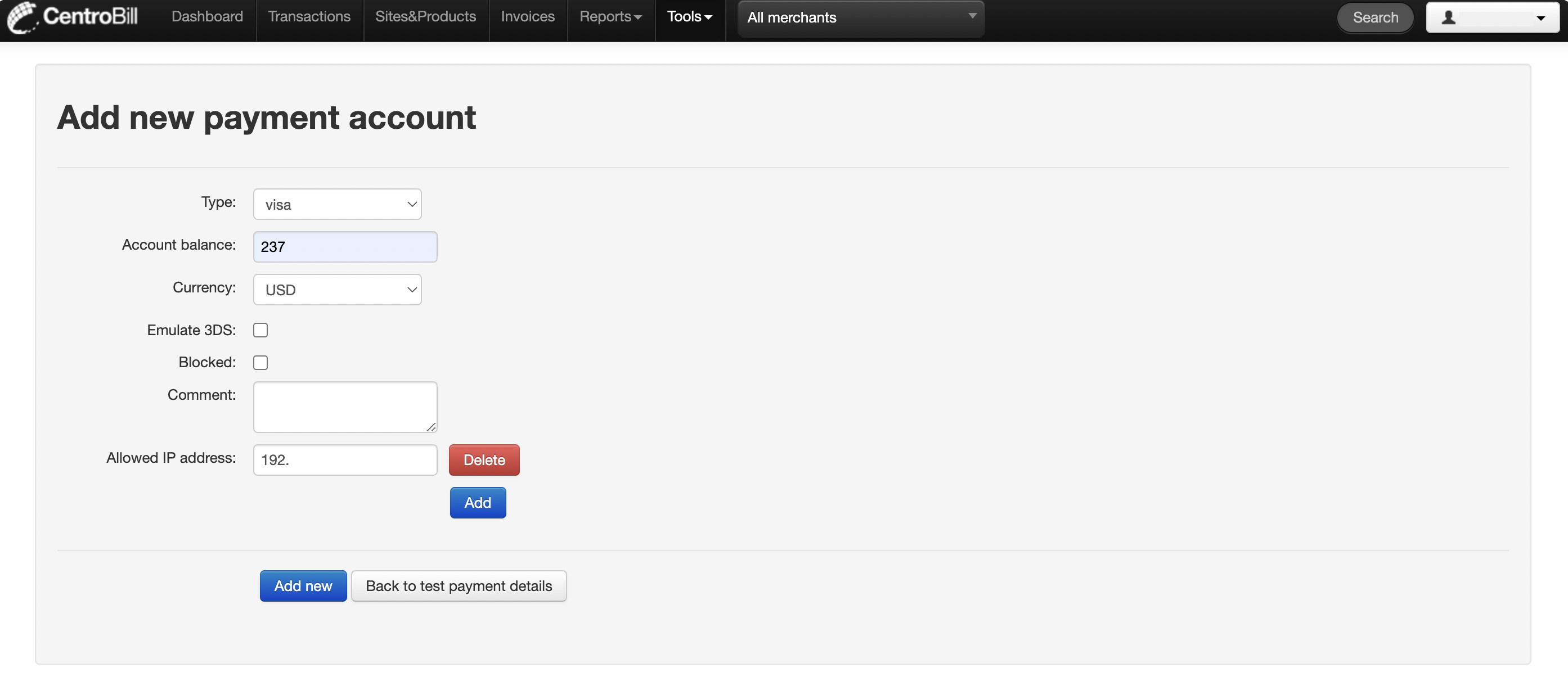
- Fill in the required information:
- Set card type
- Provide account balance
- Select Currency
- Tick the boxes next to Emulate 3DS and Blocked if you would like to test this functionality as well. Ticking the Emulate 3DS checkbox enables the 3D-Secure flow for test transactions. Ticking Blocked blocks this test card's details for testing purposes
- Add any relevant comments if necessary
- Provide your IP address. If you would like to provide multiple IP addresses, click Add
- Click Add new to finish setting up your new card number
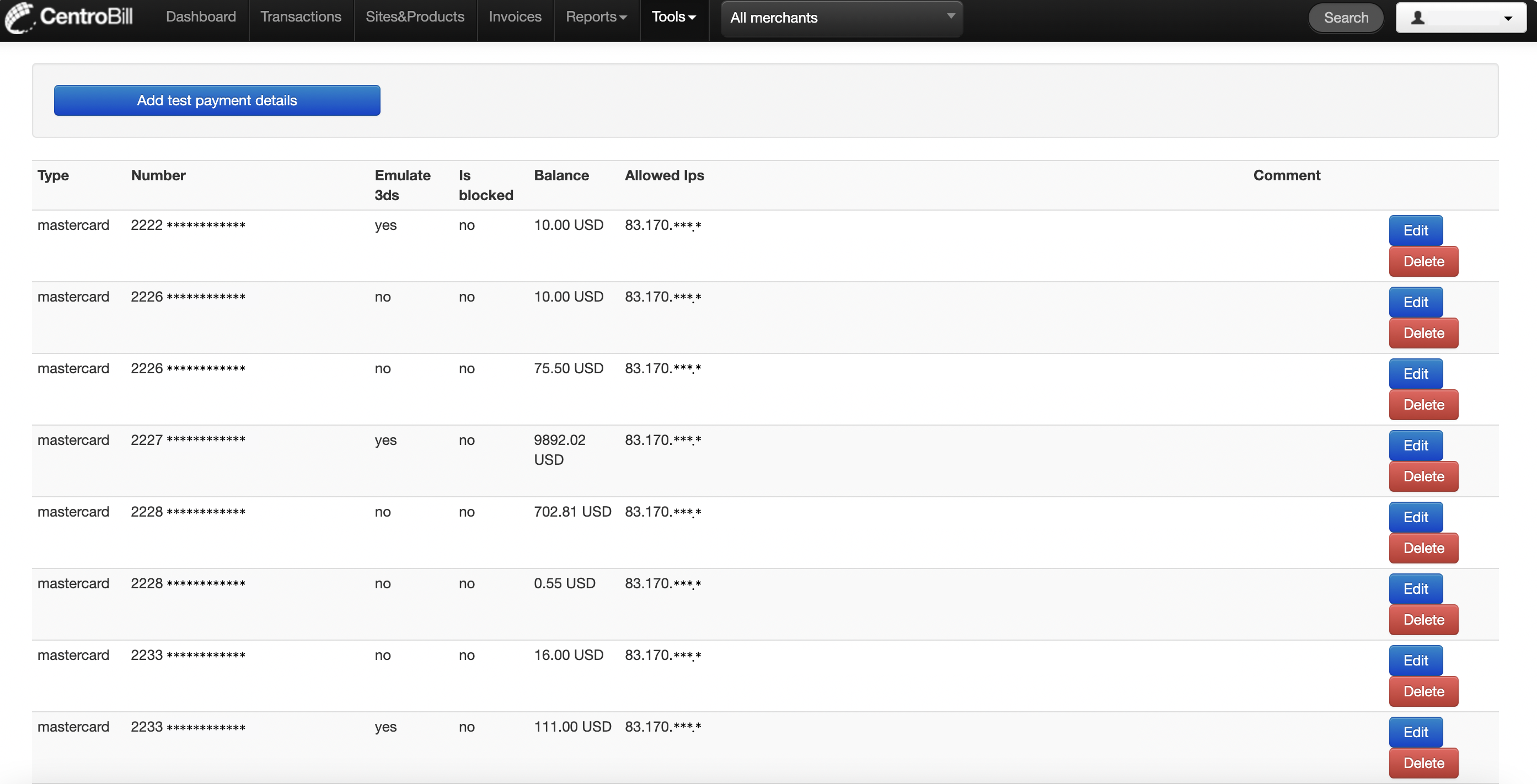
- You will be redirected to the page with card numbers, ready for testing. From this page, you can also edit or delete any of the previously created cards. Use CTRL+F to search for your IP address in the list to find the card number that you have just generated.
- Using API, generate a new payment URL.
- Start testing.
TIP
- Both IPv4 and IPv6 are supported. However, please mind that you can whitelist only full (uncut) IP addresses. To check your current IP address, use https://whatismyipaddress.com/ or https://www.whatismyip.com/ or https://www.showmyip.com/
- Use the 999 CVV code to test declined transactions.
NOTEThere are certain limitations to testing credentials for credit cards and SEPA. You will get the following error codes once the limitations are reached:
3201- your test details have expired. They are valid for three months from the date of creation.3202- test details limit exceeded (decline sent after the 1000th transaction).To continue testing, create new testing credentials following the guide.
Image tutorial
Follow the screenshots below for more detailed information:
SEPA Testing
- As in the previous guide, log in to the Merchant portal.
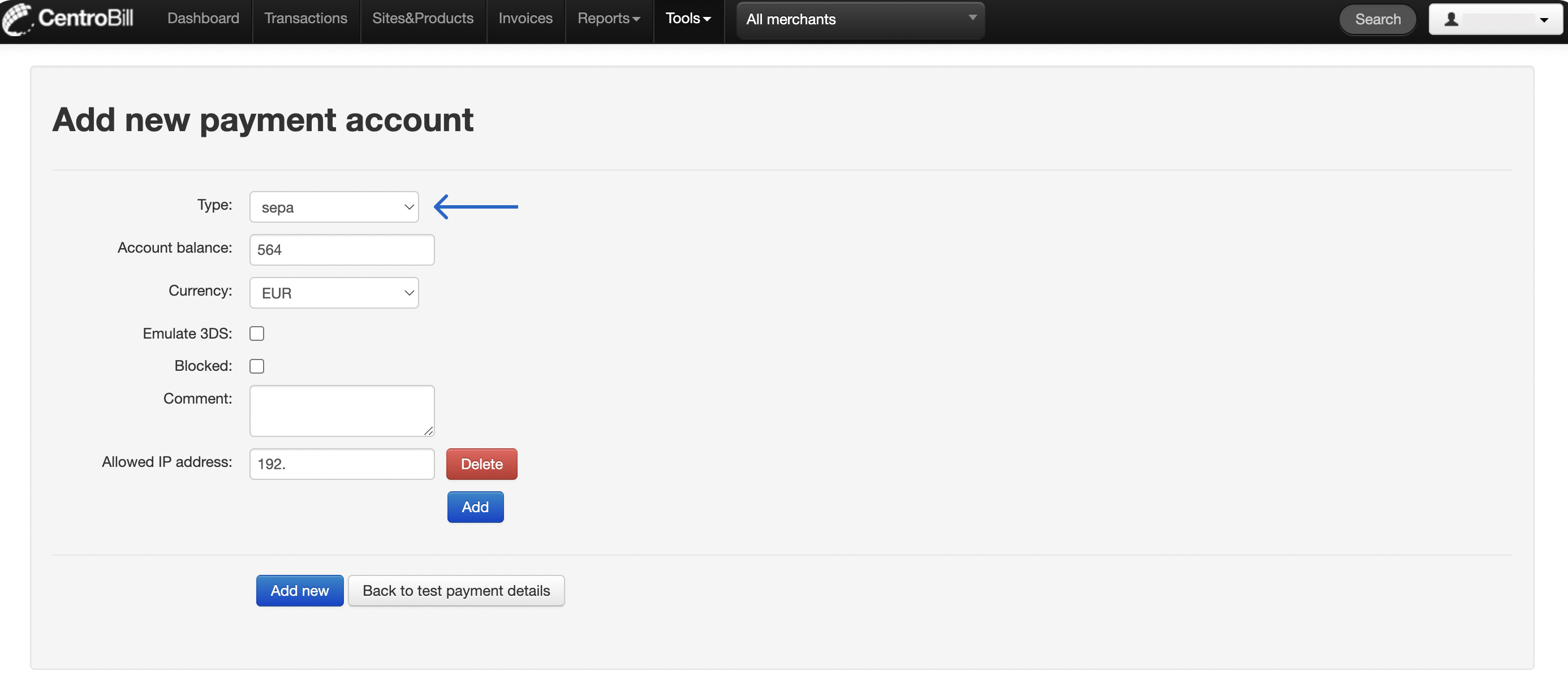
Open the Tools tab, navigate to Test Cards, and then click Add test payment details. - Select SEPA as your payment method and adjust all necessary settings.
- Use your IP address to find the newly generated IBAN number.
- Generate a new payment URL.
- Start testing.
NOTEThere are certain limitations to testing credentials for credit cards and SEPA. You will get the following error codes once the limitations are reached:
3201- your test details have expired. They are valid for three months from the date of creation.3202- test details limit exceeded (decline sent after the 1000th transaction).To continue testing, create new testing credentials following the guide.
Token Testing
This type of testing is similar to testing Card payments.
- Generate a card number, as shown in the first guide.
Tokenizethe newly generated card number.- Receive the token in the callback.
- Using API, make a
Paymentrequest setting thepaymentSource.typetotokenand thevalue- to thetokenyou have just received.
Updated 29 days ago
Did this page help you?